Part of TidySetup’s comprehensive resource series: explore our master Ergonomic Workstation Alignment Master Guide for complete workstation benchmarks.
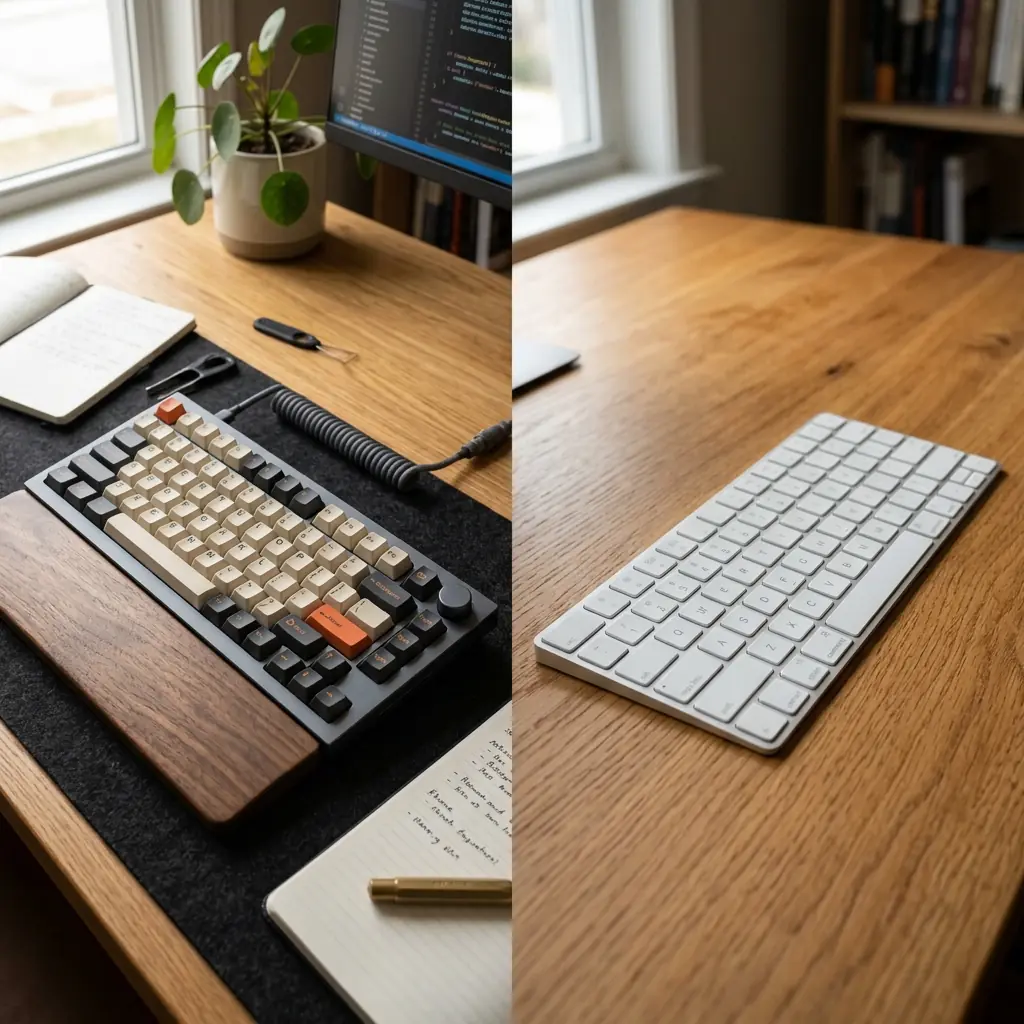
When upgrading your home office, the keyboard is arguably the most critical piece of hardware you touch. It is the primary interface between your body and your work. Yet, when choosing a keyboard, most people base their decision on aesthetics, sound, or price, entirely ignoring the profound biomechanical impact the underlying switch technology has on their hands and forearms.
The debate over mechanical vs membrane keyboard ergonomics centers on two completely different approaches to registering a keystroke. Membrane keyboards (like the Apple Magic Keyboard or standard laptop keyboards) dominate the modern office due to their slim profile and low cost. Mechanical keyboards, known for their thick, chunky profile and satisfying “click,” have surged in popularity among developers and writers.
But which is actually better for preventing repetitive strain injuries (RSI), carpal tunnel syndrome, and finger fatigue? To answer this, we have to look past the marketing and examine the physics of typing: actuation force, travel distance, and the danger of “bottoming out.”
The Mechanics of Membrane Keyboards
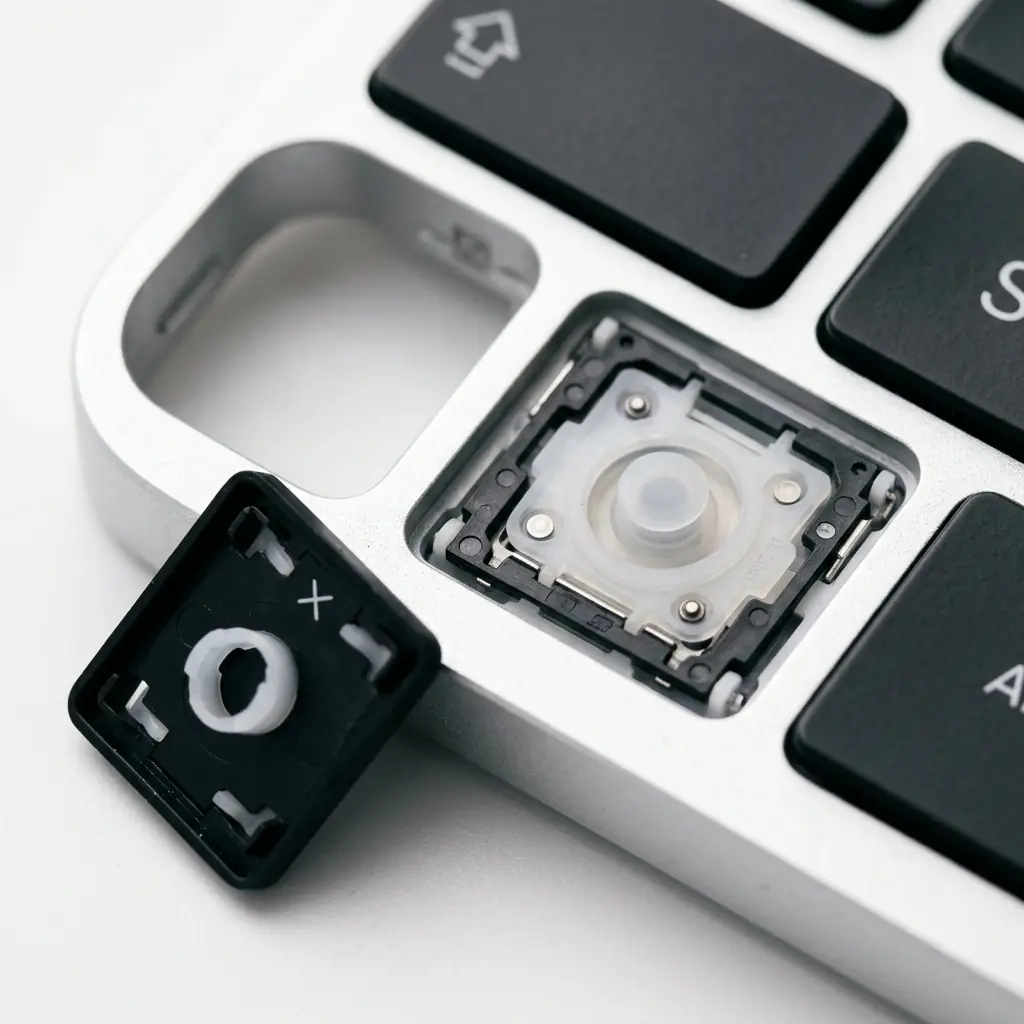
Membrane keyboards utilize a pressure pad structure. Beneath the flat keycaps is a single, flexible silicone or rubber membrane with small domes beneath each key. When you press a key, the dome collapses, closing an electrical circuit on a printed circuit board underneath.
The Ergonomic Pros of Membrane
- Low Profile — Membrane keyboards are incredibly thin. This allows you to place them directly on your desk without requiring a wrist rest to maintain a neutral wrist angle (provided your desk height is correct).
- Short Travel Distance — The distance the key must travel to register a press is very short (often 1–2mm), requiring less absolute movement from your fingers.
The Ergonomic Dangers of Membrane
The fundamental ergonomic flaw of a membrane keyboard is that a keystroke only registers when the key is pressed completely to the bottom (bottoming out). The rubber dome requires increasing force to collapse, and once it does, your finger slams into the rigid plastic or metal baseplate underneath. Doing this 10,000 times a day sends microscopic shockwaves up your fingers, into your wrists, and up your forearms, rapidly accelerating tendon fatigue.
The Mechanics of Mechanical Keyboards
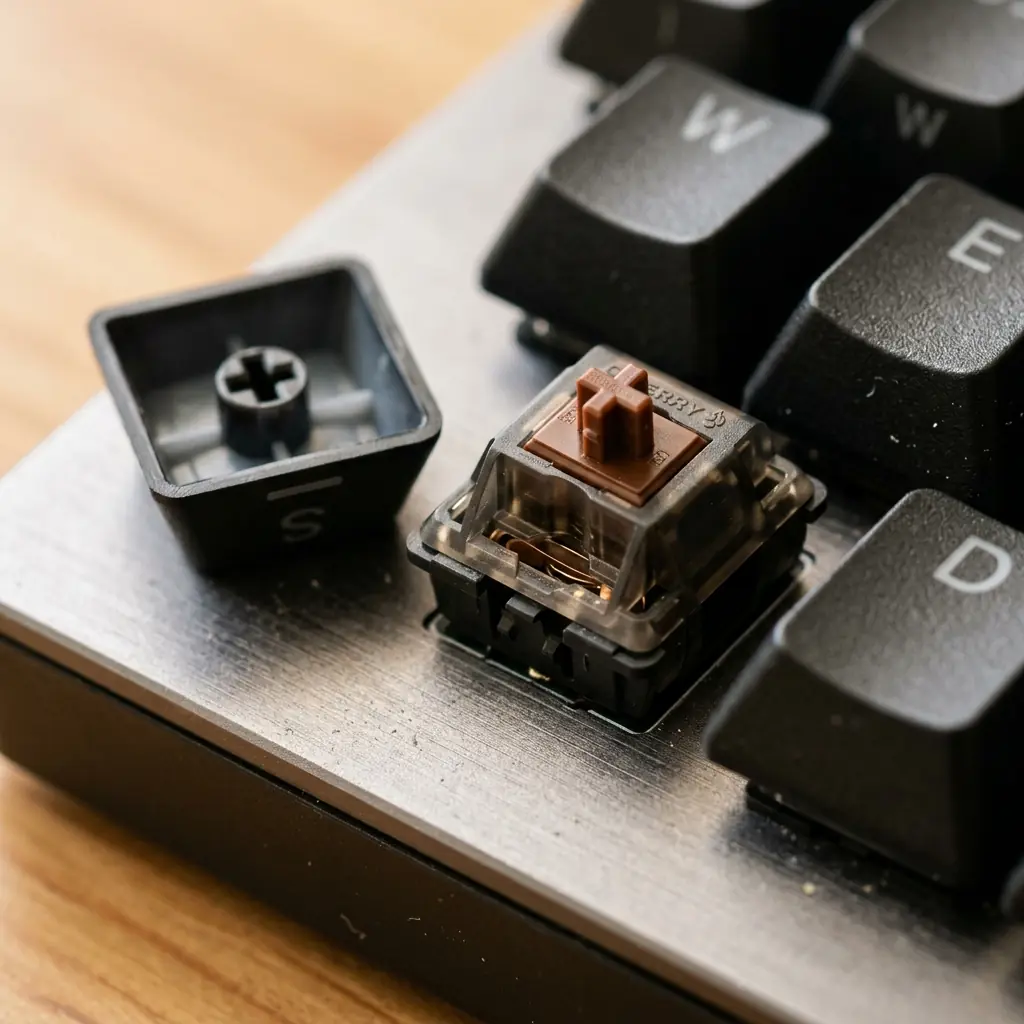
Unlike a single rubber sheet, mechanical keyboards use individual, self-contained physical switches beneath every single key. These switches contain a plastic stem, a metal spring, and metal contacts.
The Ergonomic Pros of Mechanical
- Actuation Before Bottoming Out — This is the ultimate ergonomic advantage. A mechanical switch registers the keystroke halfway down its travel path (the actuation point). You do not have to press the key all the way to the bottom. Once you learn to “float” your typing, you completely eliminate the harsh shock of bottoming out, vastly reducing finger fatigue.
- Customizable Spring Weights — If you have heavy hands, you can buy switches with stiff springs (e.g., 65g force). If you suffer from RSI and need a light touch, you can use switches with incredibly light springs (e.g., 35g force). Membrane keyboards offer no customization.
- Tactile Feedback — “Tactile” mechanical switches feature a physical “bump” you can feel in your finger the exact moment the key actuates, training your brain to stop pressing before hitting the bottomplate.
The Ergonomic Dangers of Mechanical
Mechanical keyboards are inherently tall. The switches themselves are almost an inch high, plus the height of the chassis. If you type on a mechanical keyboard while resting your wrists directly on the desk, you will force your wrists into extreme extension (bending upward). Sustained wrist extension is the primary cause of carpal tunnel syndrome.
Head-to-Head Posture Comparison
Typing on a Membrane Keyboard

Because the keyboard is so thin, users often mistakenly believe they can rest their wrists directly on the desk. However, to reach the keys, the hands must angle slightly upward. While the extension is less severe than a mechanical keyboard without a wrist rest, the combination of wrist extension and the high-impact “bottoming out” force makes this a dangerous setup for long typing sessions.
Typing on a Mechanical Keyboard

A mechanical keyboard must be paired with a high-quality wrist rest. When a solid wood or firm foam wrist rest elevates the heel of your hand to match the height of the keys, your wrists remain perfectly flat and neutral. In this posture, your fingers float over the keys, actuating the switches with minimal force and zero bottoming-out impact.
Which Switch Type is Best for Ergonomics?
If you choose to switch to a mechanical keyboard for ergonomic reasons, the type of switch you select is critical.
- Linear Switches (e.g., Cherry MX Red): Smooth all the way down. While popular for gaming, they offer no feedback when the key actuates, making it very difficult to avoid bottoming out. (Not recommended for heavy typists).
- Clicky Switches (e.g., Cherry MX Blue): Provide a sharp tactile bump and a loud audible “click.” Great for feedback, but the noise makes them unsuitable for shared offices.
- Tactile Switches (e.g., Cherry MX Brown): The ergonomic ideal. They provide a soft, silent physical bump precisely at the actuation point. This tactile feedback trains your fingers to press just hard enough to register the key and then move on.
The Final Verdict

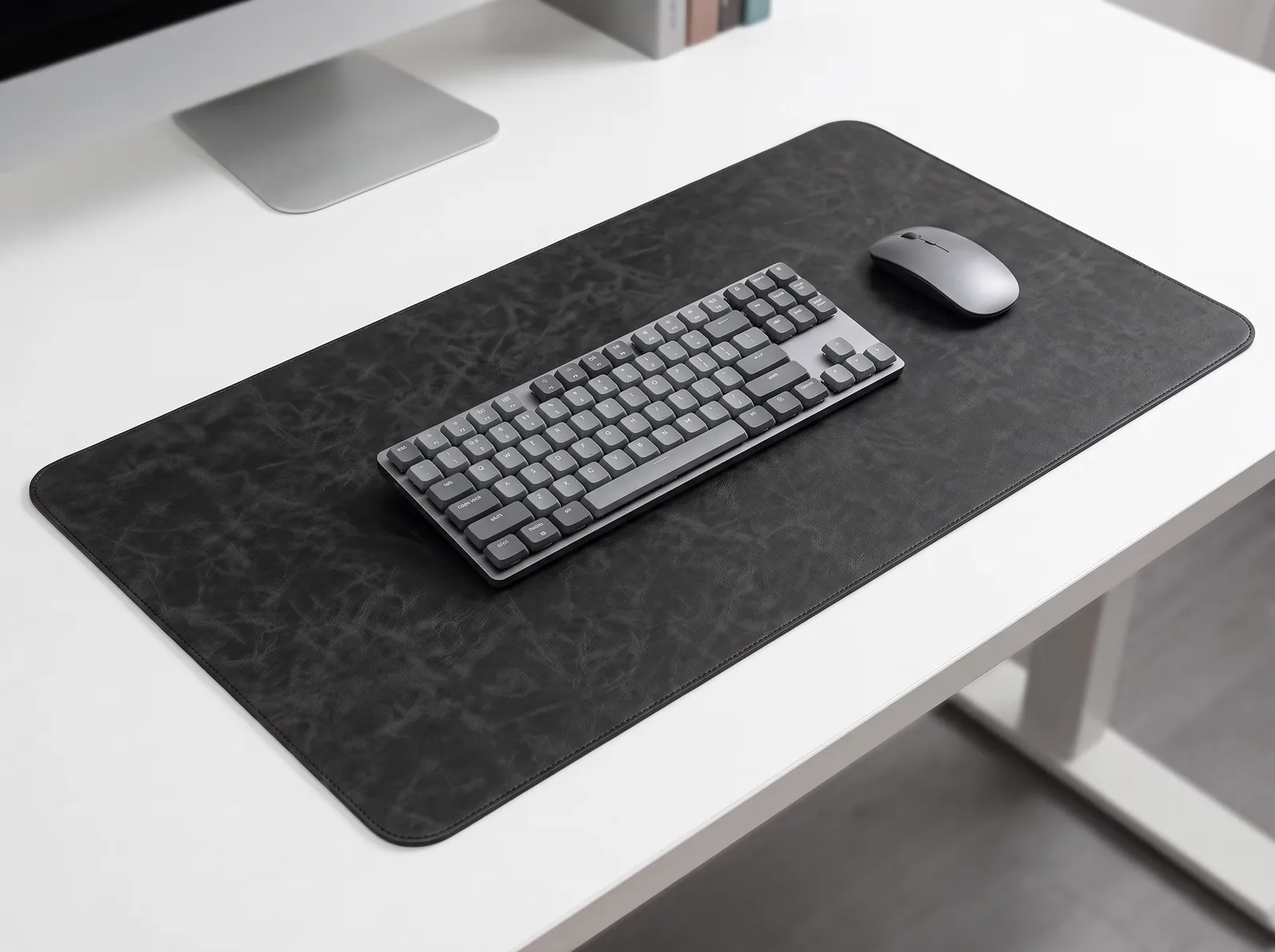
If you type for more than two hours a day, a mechanical keyboard with tactile switches is vastly superior to a membrane keyboard for long-term ergonomics—but only if you follow the rules of geometry.
Membrane keyboards force you to impact a hard plastic baseplate thousands of times an hour. Mechanical keyboards, thanks to mid-point actuation and tactile feedback, allow your fingers to dance across the keys without ever hitting the bottom, saving your tendons from cumulative shock.
However, to unlock this ergonomic benefit, you must neutralize the height of the mechanical keyboard. A firm wrist rest is mandatory. Furthermore, you should pair the keyboard with an XL cork desk mat to provide a subtle layer of acoustic and physical dampening.
For more details on aligning your keyboard with your monitor and chair, refer to our comprehensive ergonomic desk setup guide.