
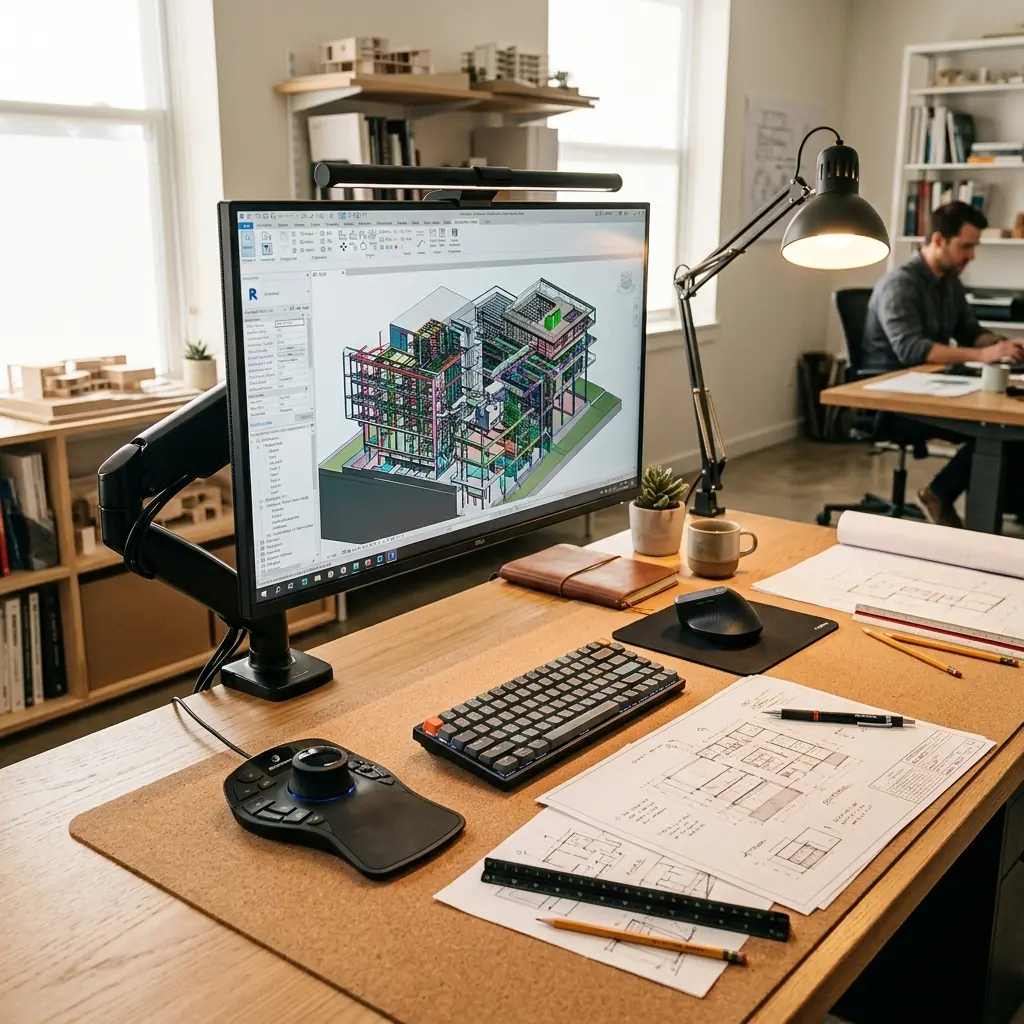
For architects, engineers, and CAD professionals, the desk is a hybrid environment. It must support intense, pixel-perfect digital modeling while simultaneously accommodating the expansive analog space required for physical blueprints, sketches, and architectural scales. The physical toll of this dual workflow is high: operating a CAD controller with one hand, a mouse with the other, and leaning forward to inspect fine details is a recipe for bilateral shoulder pain and chronic ocular fatigue.
An effective architects and CAD professionals desk setup cannot be built with standard office furniture. It requires heavy-duty mounting hardware capable of supporting massive ultra-high-resolution displays, and an input geometry optimized for two-handed navigation. For professionals building a studio environment from the ground up, the core principles established in the TidySetup Starter Kit provide the necessary foundation of stability and clean surface area.
In this guide, I will detail how to optimize a workstation specifically for demanding 3D modeling workflows, covering the ergonomics of CAD controllers, the necessity of large 4K displays, and how to manage the physical desk surface for analog drafting.
The Ergonomic Demands of CAD Workflows
Unlike writers who use a single keyboard, or financial analysts who use a keyboard and mouse, architects frequently employ a three-input system: a 3D controller (like a SpaceMouse) in the non-dominant hand, a high-precision mouse in the dominant hand, and a keyboard in the center for hotkeys and command entry. This forces the arms wider apart and locks the body into a highly static, tension-filled posture.
“The primary ergonomic hazard for CAD professionals is ‘static loading’ in the shoulders. Holding the arms wide to operate a SpaceMouse and a standard mouse simultaneously places continuous, low-level tension on the trapezius and deltoid muscles, leading to chronic upper back pain.”
The Architect’s Ergonomic Risk Profile
- Bilateral Shoulder Strain — The wide stance required to operate a SpaceMouse on the left and a standard mouse on the right simultaneously.
- Cervical Spine Compression — “Turtling” or leaning the head forward to inspect microscopic details in complex CAD wireframes.
- Digital Eye Strain — Operating highly complex, high-contrast UI (like AutoCAD or Revit) for 10+ hours a day.
- Surface Contention — Physical blueprints competing for desk space with keyboards and monitors, forcing awkward body twisting.
Input Geometry: Mastering the 3D Controller
The 3D controller (SpaceMouse) revolutionizes CAD navigation by allowing you to pan, zoom, and rotate models simultaneously. However, its placement is critical. Placing it too far out forces your shoulder to bear the weight of your arm; placing it too high causes wrist extension.

The 3-Input Placement Strategy
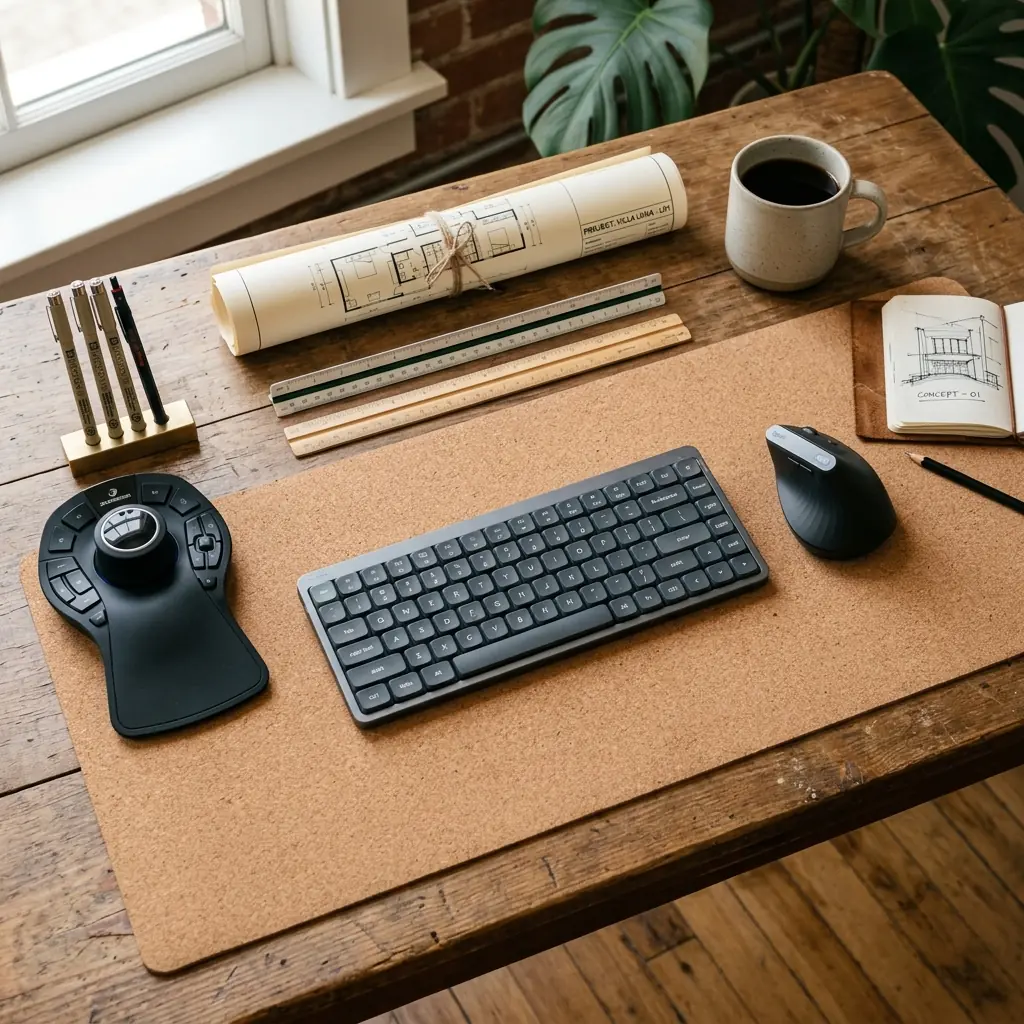
- The Keyboard is the Anchor — Ditch the full-size keyboard. A numpad pushes your right-hand mouse dangerously far away. Use a compact (TKL or 65%) mechanical keyboard and center it exactly with your body and your monitor.
- Position the SpaceMouse — Place the 3D controller immediately to the left of the keyboard. Your left elbow must remain at 90 degrees, resting lightly on the chair’s armrest or hanging naturally. Do not reach forward.
- Position the Vertical Mouse — Place your right-hand mouse immediately to the right of the compact keyboard. Using a vertical mouse is highly recommended to keep the right forearm in a neutral “handshake” posture.
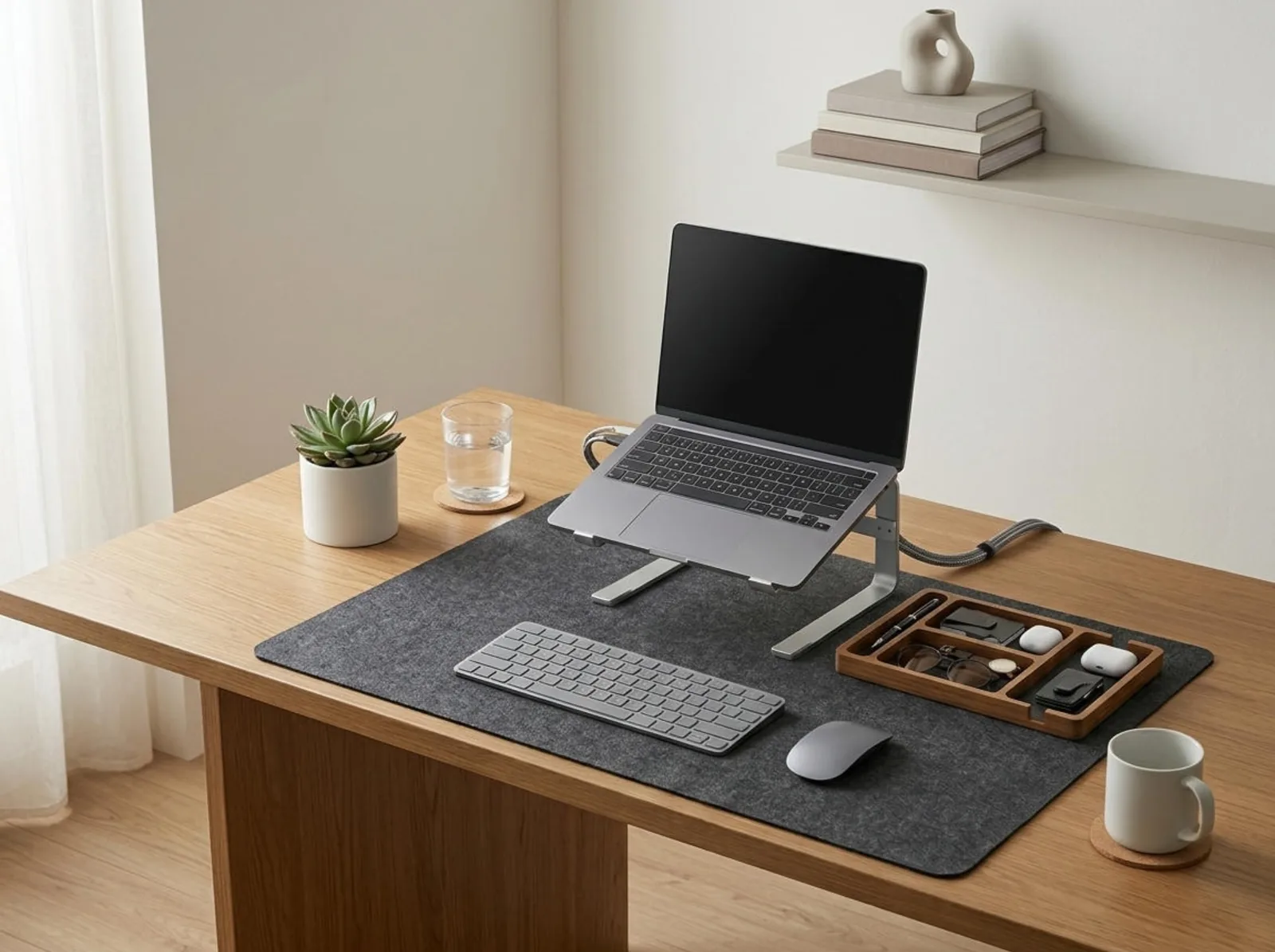
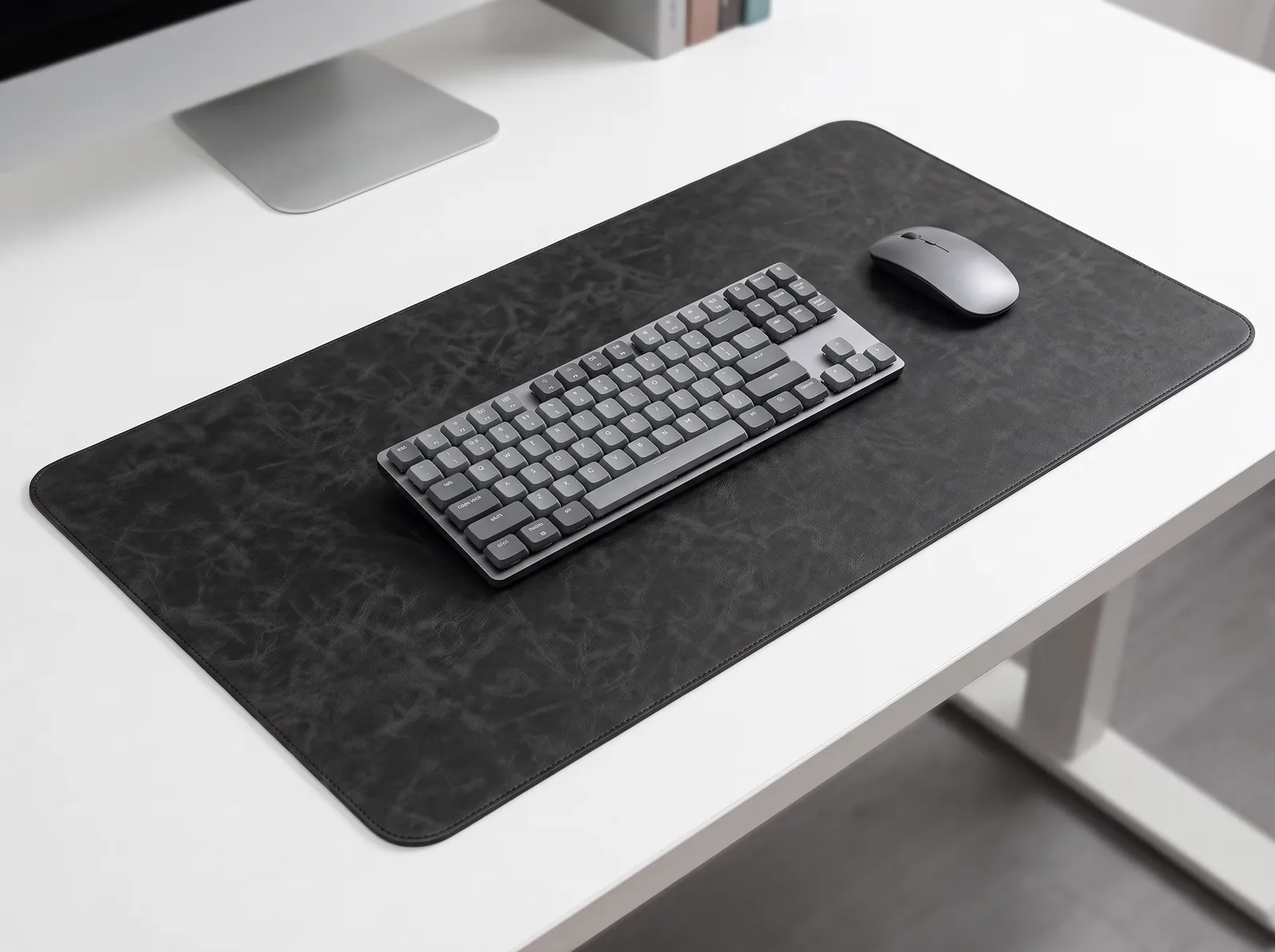
- Use an XL Desk Mat — Anchor all three devices on an extra-large natural cork desk mat. The cork provides a subtle cushion for the heels of your hands during long modeling sessions.
The Visual Workspace: Massive Displays & Mounting
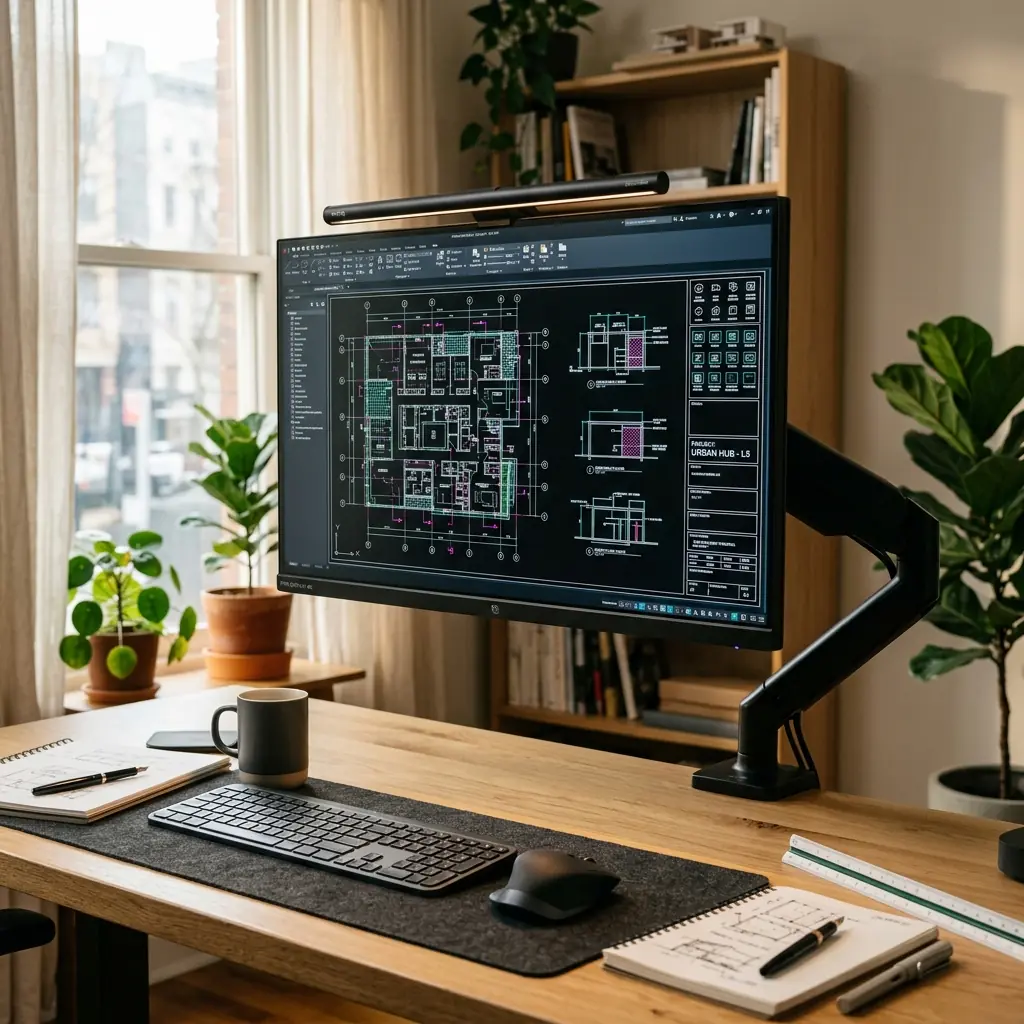
In architecture, screen real estate translates directly to productivity and accuracy. Dual 24-inch monitors are insufficient due to the distracting center bezel cutting through the model workspace. The professional standard has shifted to a single, massive high-resolution display.
Monitor Requirements for Architects
- Size and Resolution — A single 32-inch 4K monitor, or a 34-inch to 38-inch ultrawide monitor. 4K resolution is non-negotiable for reading fine vector lines without eye strain.
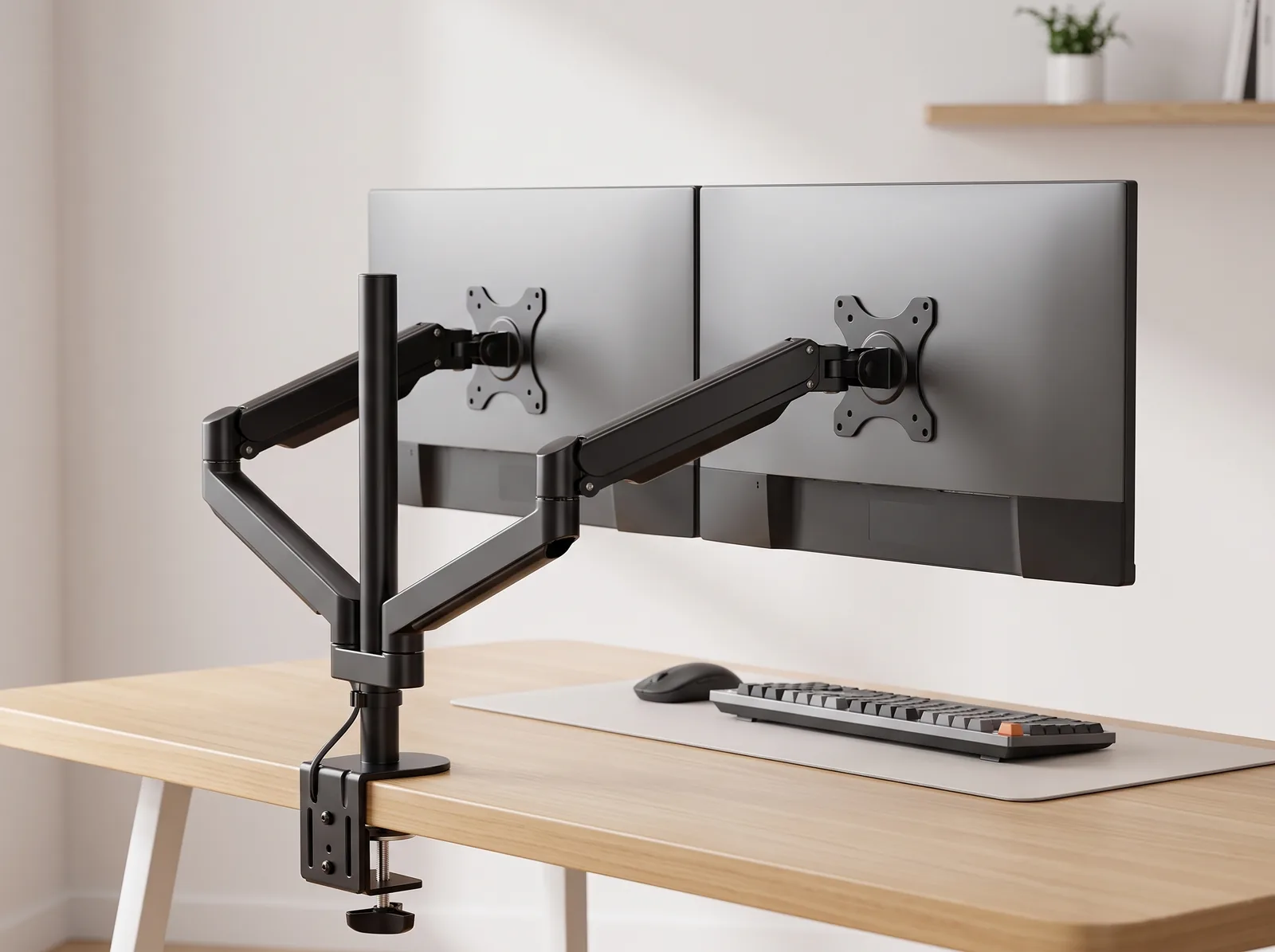
- The Heavy-Duty Arm — A 32-inch monitor weighs significantly more than standard displays. You must use a heavy-duty monitor arm rated for at least 20 lbs. Factory monitor stands consume the exact desk space you need for blueprints.
- Eye-Level Alignment — Mount the monitor so the top bezel is 2 to 3 inches above your seated eye level. Because a 32-inch screen is very tall, positioning it too high forces the neck into extension (looking up), which is just as damaging as looking down.
For a step-by-step installation guide for heavy displays, review our monitor arm setup guide.
Organizing the Analog/Digital Hybrid Desk
Architects need a desk that functions as a computer workstation and a traditional drafting table simultaneously. A standard 48-inch desk is too small. You need a desk that is at least 60 to 72 inches wide and 30 inches deep.
Managing the Surface Area
Because the monitor is mounted on an arm, the surface directly beneath the screen is entirely free. Use this space strategically:
- The Drafting Zone — When reviewing physical D-size (24″x36″) blueprints, push your compact keyboard and mice directly under the monitor. This instantly converts your desk into an analog drafting table.
- The Tools Zone — Keep architectural scales, fine-liners, and measuring tools organized in a low-profile tray to the far right or left, outside the immediate mouse zone.
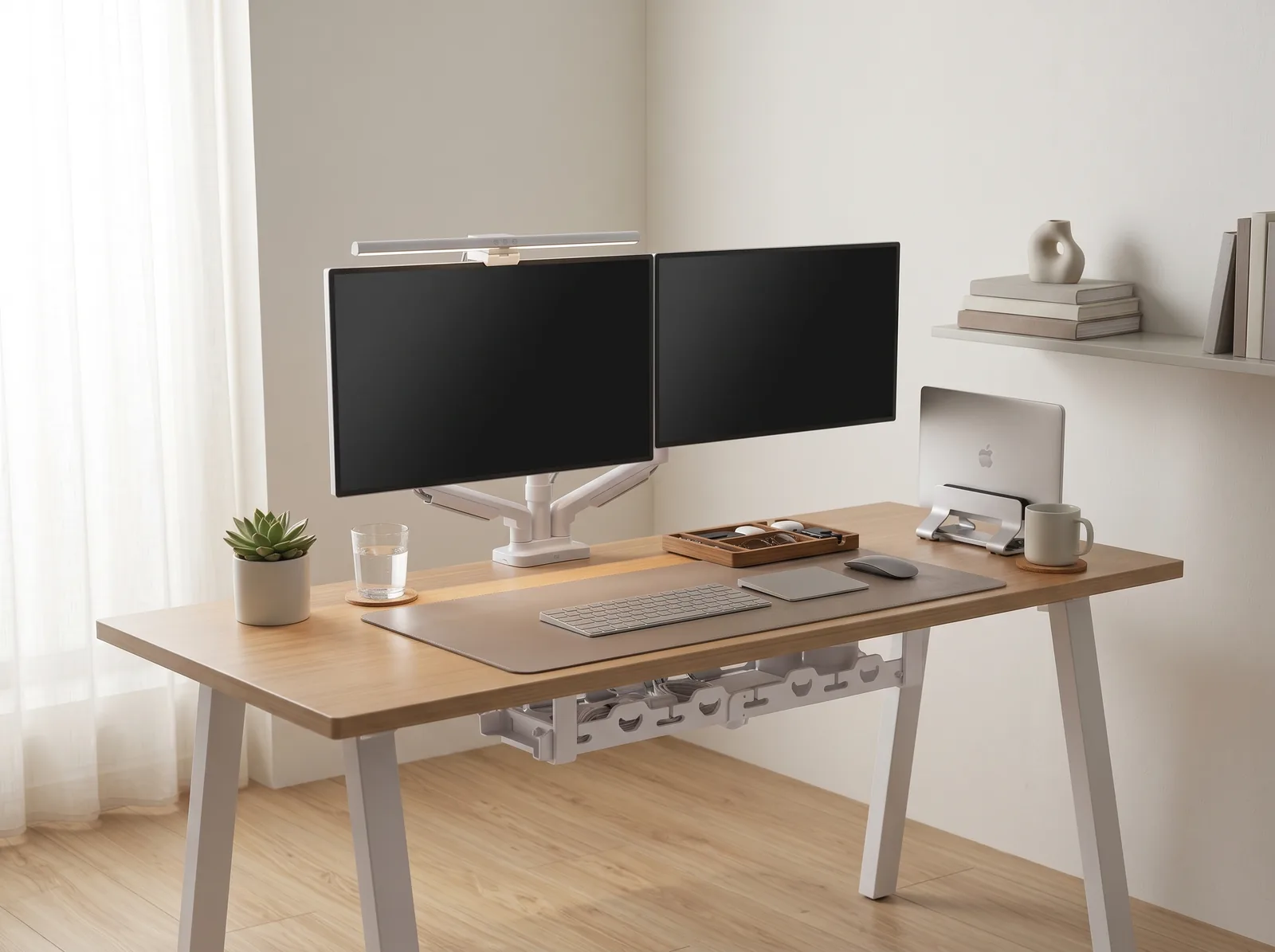
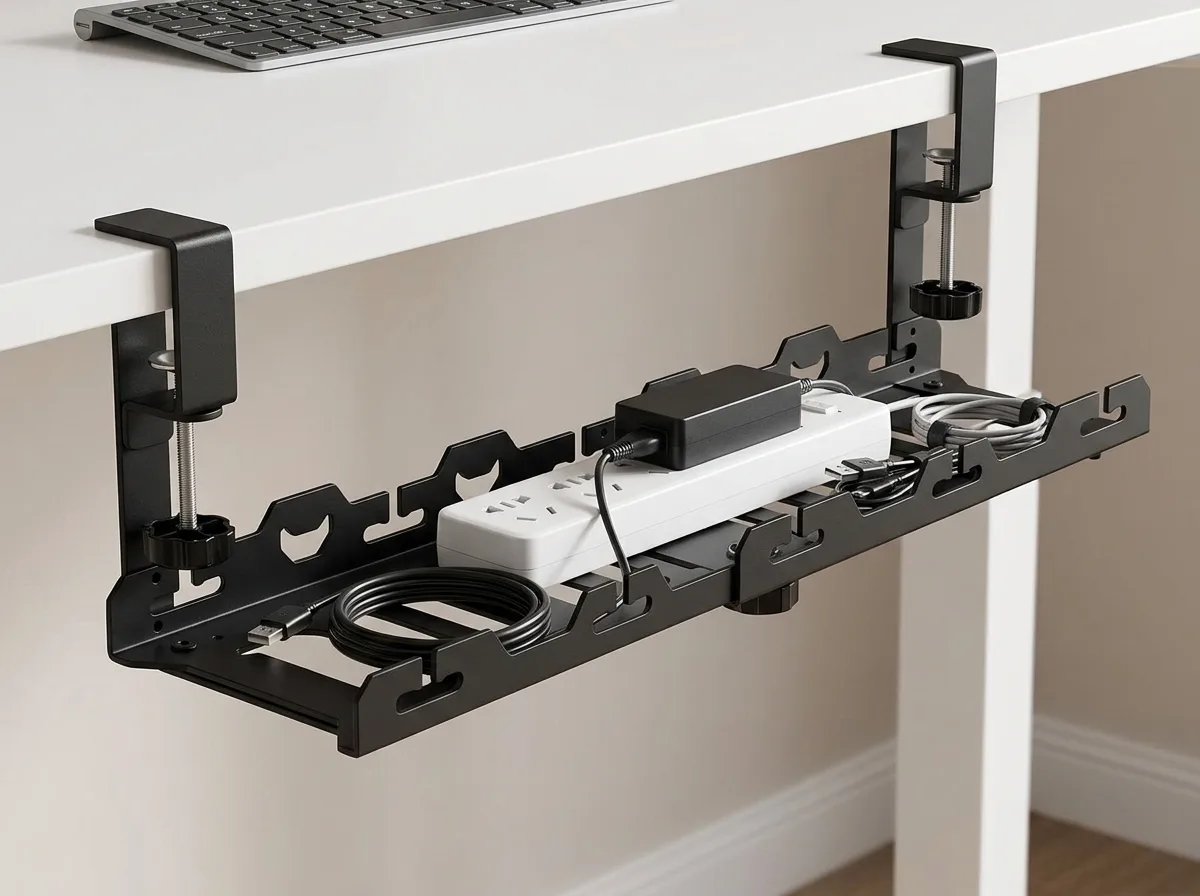
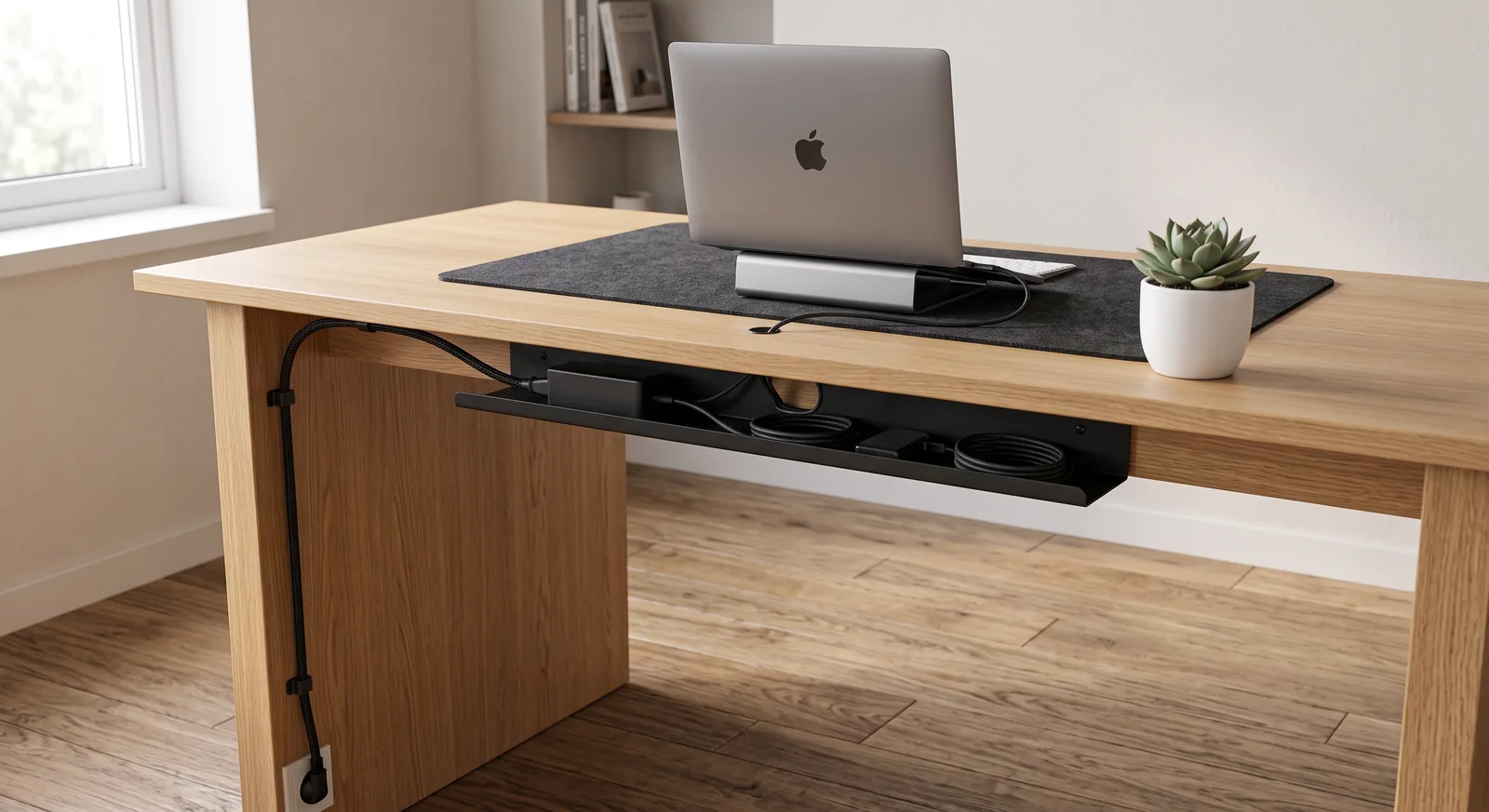
- Cable Invisibility — With so many input devices, cable management is critical. Use an under-desk tray to house power strips, and route all USB cables through the monitor arm channels. See our desk cable management guide to achieve a clean surface.
When outfitting a dual digital-drafting workstation, coordinating individual mounts, wire baskets, and surface pads can create compatibility headaches. The Advanced Desk Setup Kit bundles an articulating monitor arm with an under-desk cable tray, a protective desk pad, and a 50cm monitor light bar, instantly converting a cluttered computer desk into an open architectural canvas.
Part of TidySetup’s comprehensive resource series: explore our master Ergonomic Workstation Alignment Master Guide for complete workstation benchmarks.
Posture and Studio Lighting

Your chair must accommodate the slight forward lean often required during intense focus, while still supporting the lumbar spine. An ergonomic mesh chair with a forward-tilt function allows the seat pan to angle slightly downward, opening the hip angle and reducing pressure on the lower spine when leaning into the desk.
Lighting for Contrast and Accuracy
CAD wireframes are notoriously taxing on the eyes. Studio lighting must eliminate screen glare while illuminating paper blueprints.
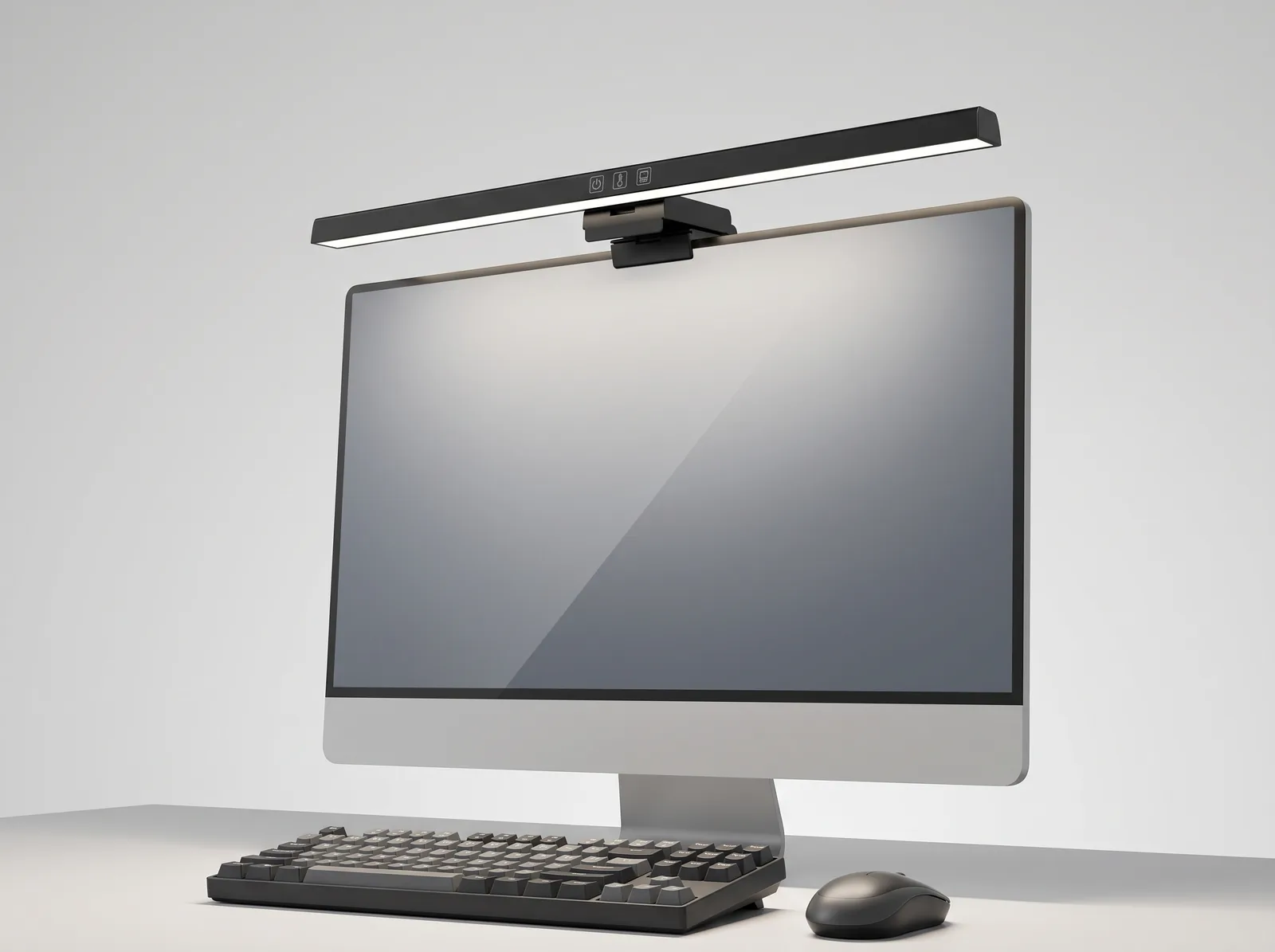
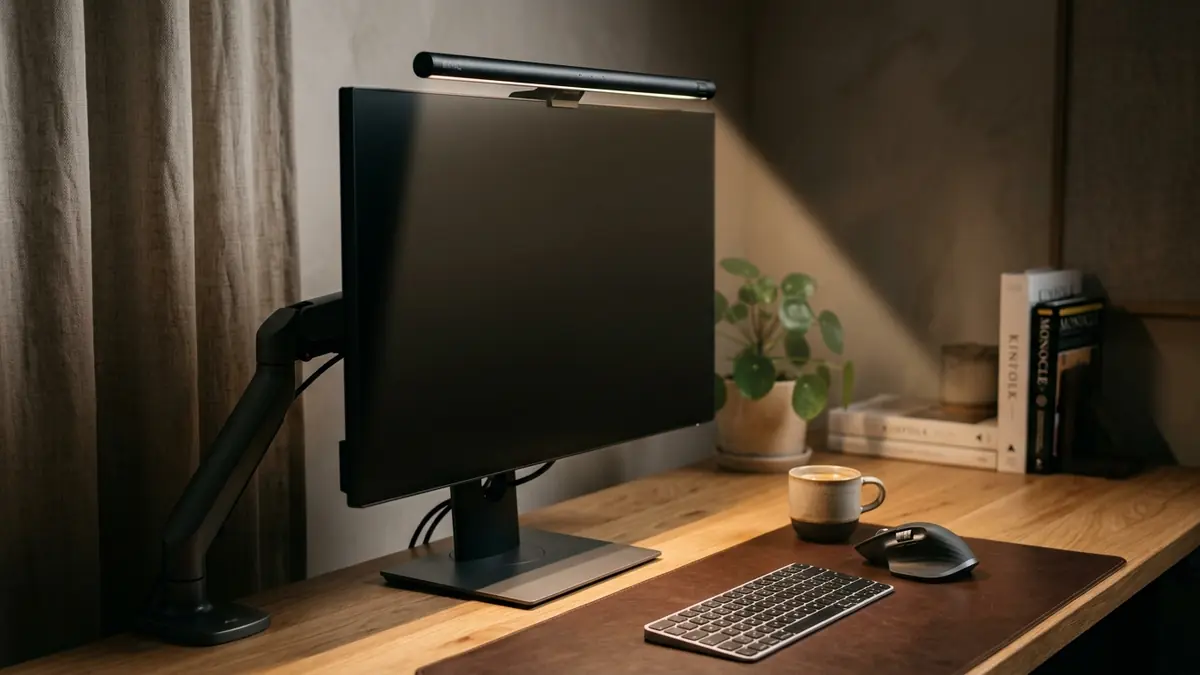
- Monitor Light Bar — This is essential for architects. It casts asymmetrical light down onto your desk (illuminating sketches and keyboards) without hitting the screen and washing out contrast.
- Articulated Drafting Lamp — Keep an articulated task lamp clamped to the side of the desk for direct, bright illumination when working purely in analog mode.
For more on optimizing your studio lighting, explore our complete workspace environmental design guide.
The Complete Architect Workstation: Step-by-Step
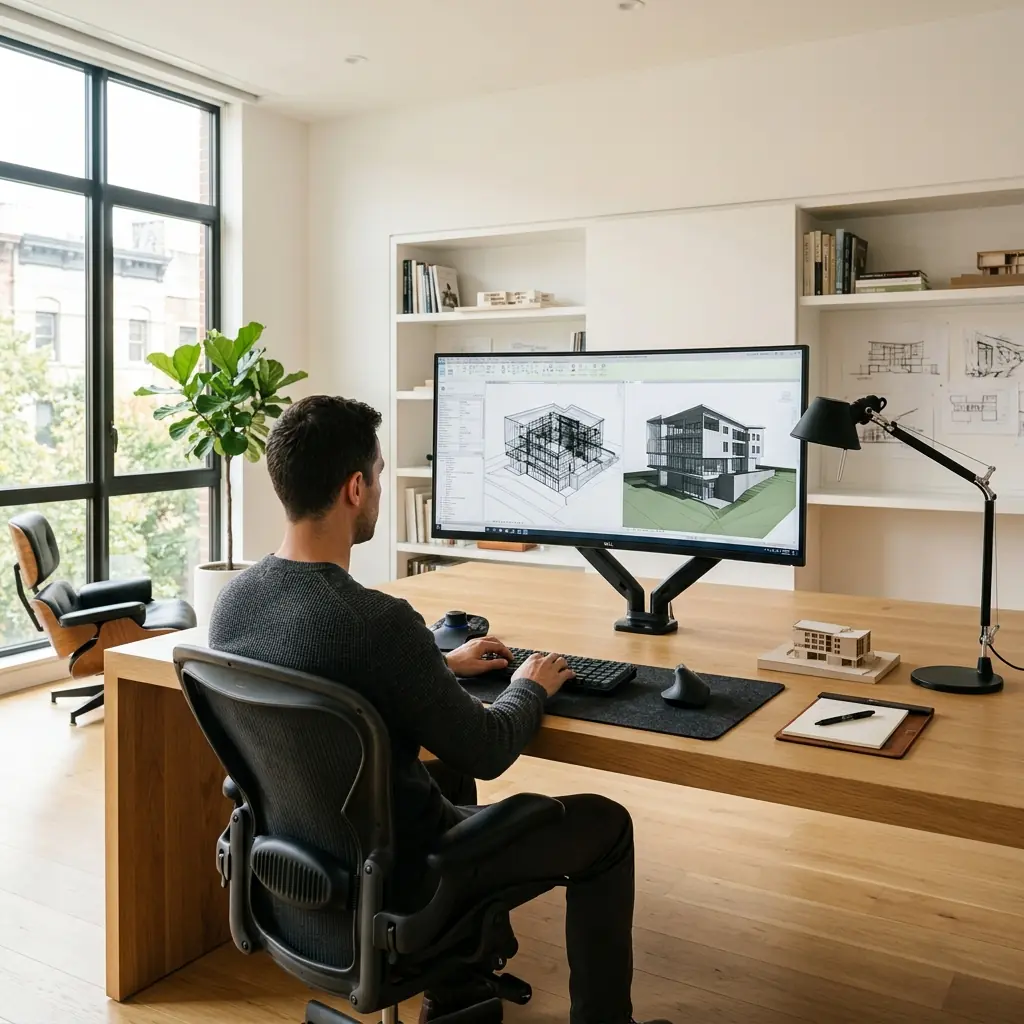
- Invest in desk real estate — Start with a desk at least 60 inches wide and 30 inches deep.
- Mount the display — Secure a massive 32″ 4K monitor on a heavy-duty arm, top edge just above eye level.
- Establish the input layout — Anchor a compact keyboard in the center, SpaceMouse tight to the left, vertical mouse tight to the right.
- Define the zone — Place all three inputs on an extra-large cork desk mat.
- Clear the drafting space — Push inputs under the monitor when referencing physical blueprints.
- Control the light — Install a monitor light bar to illuminate the desk surface without washing out the screen.
- Support the spine — Adjust your ergonomic chair to support the lower back, ensuring your elbows remain at 90 degrees while operating the 3D controller.
Frequently Asked Questions
Is a curved ultrawide monitor better than a flat 32-inch monitor for CAD?
This is heavily debated in the architectural community. While a 34″ or 38″ curved ultrawide provides massive horizontal space (great for timelines or tool palettes), the curve can introduce slight visual distortion of straight lines, which is problematic for precise architectural drafting. Many professionals prefer a high-quality, color-accurate flat 32-inch 4K monitor for perfect geometric representation.
Do I really need a SpaceMouse?
If you spend more than 3 hours a day in 3D modeling software (Rhino, Revit, SolidWorks, SketchUp), a 3D controller is a massive ergonomic and productivity upgrade. It offloads the panning/zooming/orbiting workload from your primary mouse hand to your non-dominant hand, drastically reducing the repetitive strain that causes carpal tunnel syndrome.
Why shouldn’t I use a full-size keyboard with a numpad?
A full-size keyboard forces your right hand to reach across the numpad to grasp the mouse. When combined with a SpaceMouse on the left, this forces your arms into a wide, unnatural “V” shape, causing severe static tension in your shoulders. A compact keyboard keeps both arms closer to the body. You can use a standalone USB numpad and place it to the left of the SpaceMouse if you require frequent numerical data entry.
Can I use a standing desk for CAD work?
Yes, but high-precision CAD work is often easier when seated because sitting provides more stability for micro-movements of the mouse. If you use a standing desk, alternate every 45–60 minutes. When standing, ensure your elbows remain perfectly at 90 degrees and the monitor height is readjusted (as the distance from your eyes to your elbows changes slightly when standing versus sitting).
Conclusion
An architect’s desk setup must balance the heavy computational demands of 3D modeling with the tactile needs of traditional drafting. By eliminating the factory monitor stand, adopting a compact keyboard to improve the geometry of your 3-input system, and utilizing layered lighting, you can create an environment that supports intense focus and protects your shoulders and neck from chronic pain.
If you are ready to overhaul your studio with commercial-grade mounting, invisible wire routing, and balanced task illumination, explore the complete TidySetup Advanced Desk Setup Kit.
To ensure your new studio setup adheres to the foundational rules of biomechanics, review our complete ergonomic desk setup guide.
Architectural drafting environments often demand wide dual-screen views; utilizing a sturdy dual monitor arm stand ensures both high-resolution monitors stay rigid and perfectly aligned across long design sessions.