
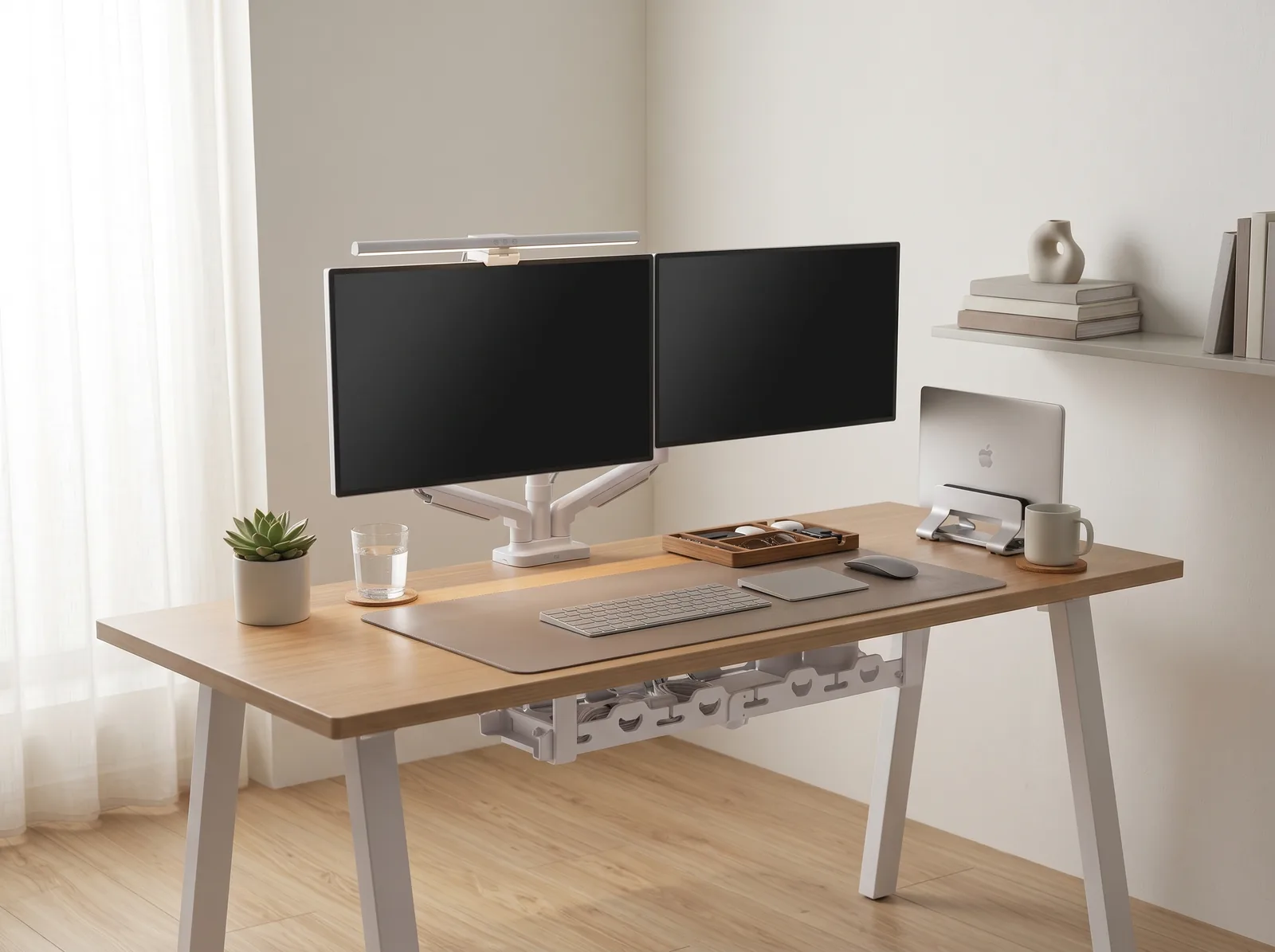
Minimalist home office desk setup for a financial analyst featuring dual 27-inch monitors, mechanical keyboard with numeric keypad, and aluminum calculator
For financial analysts, screen real estate is not a luxury—it is a strict professional requirement. Modeling complex cash flows, cross-referencing SEC filings, and tracking live market data simultaneously demands a dual monitor setup. However, configuring two large screens side-by-side introduces specific ergonomic risks that single-monitor users rarely encounter, primarily related to repetitive lateral neck rotation and peripheral eye strain.
Building an effective dual monitor workstation for financial analysts requires more than just buying two screens and placing them on a desk. It requires precise alignment, the right mounting hardware, and an input configuration that accommodates the heavy numeric data entry intrinsic to the role. If you are beginning from a blank slate, the TidySetup Starter Kit offers the stable, clean foundation required to support heavy dual-monitor hardware.
In this guide, I will detail how to optimize a dual-screen setup specifically for financial modeling and analysis, covering monitor arm configuration, keyboard selection for data entry, and organizational strategies for a high-performance desk.
The Ergonomic Risks of Dual Monitors in Finance
Financial analysis involves long hours of intense focus, often switching rapidly between a dense Excel model on one screen and source documents on another. This workflow creates a unique ergonomic risk profile.
“The primary ergonomic hazard of a dual monitor workstation is the ‘tennis match’ effect: constantly rotating the neck side-to-side to view content placed at the extreme edges of the screens, leading to chronic cervical spine tension.”
The Analyst’s Ergonomic Risk Profile
- Neck and cervical spine — Sustained lateral rotation (looking sideways) or placing the primary screen off-center causes asymmetrical neck strain.
- Right shoulder and wrist — The necessity of a numeric keypad pushes the mouse further to the right, causing external shoulder rotation and increased reach distance.
- Eyes — Scanning across 48+ inches of bright screen real estate causes severe tracking fatigue and digital eye strain.
- Lower back — Long hours spent leaning forward to read small, dense financial data in spreadsheets compresses lumbar discs.
Configuring the Dual Monitor Setup
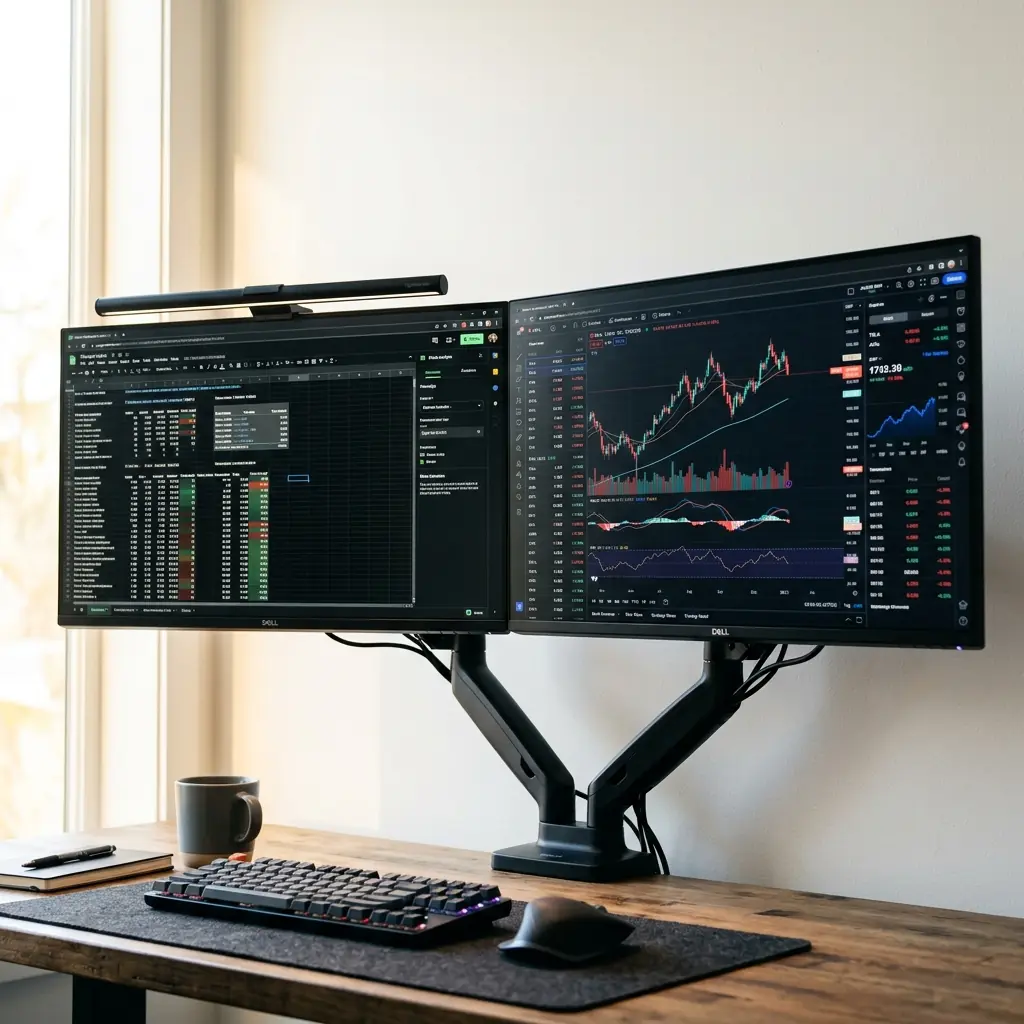
The standard “V-shape” dual monitor setup (two screens angled toward you, with the bezel gap directly in the center) is the most common configuration—and ergonomically, it is often the worst choice for a financial analyst. The center of your vision should rest on your primary active work, not the plastic bezel separating the screens.
The “Primary/Secondary” Configuration
For financial modeling, where one document (the Excel model) commands 80% of your attention, use the primary/secondary layout:
- Center the Primary Monitor — Place your main screen directly in front of you. You should not have to turn your head to view your primary workspace.
- Angle the Secondary Monitor — Place the second screen immediately adjacent to the primary, angled inward at 30 to 45 degrees.
- Set the Height — The top edge of both monitors must be 2–3 inches above seated eye level.
- Maintain Distance — Ensure both screens are 20–30 inches away from your eyes to reduce focal strain.
Why a Dual Monitor Arm is Non-Negotiable
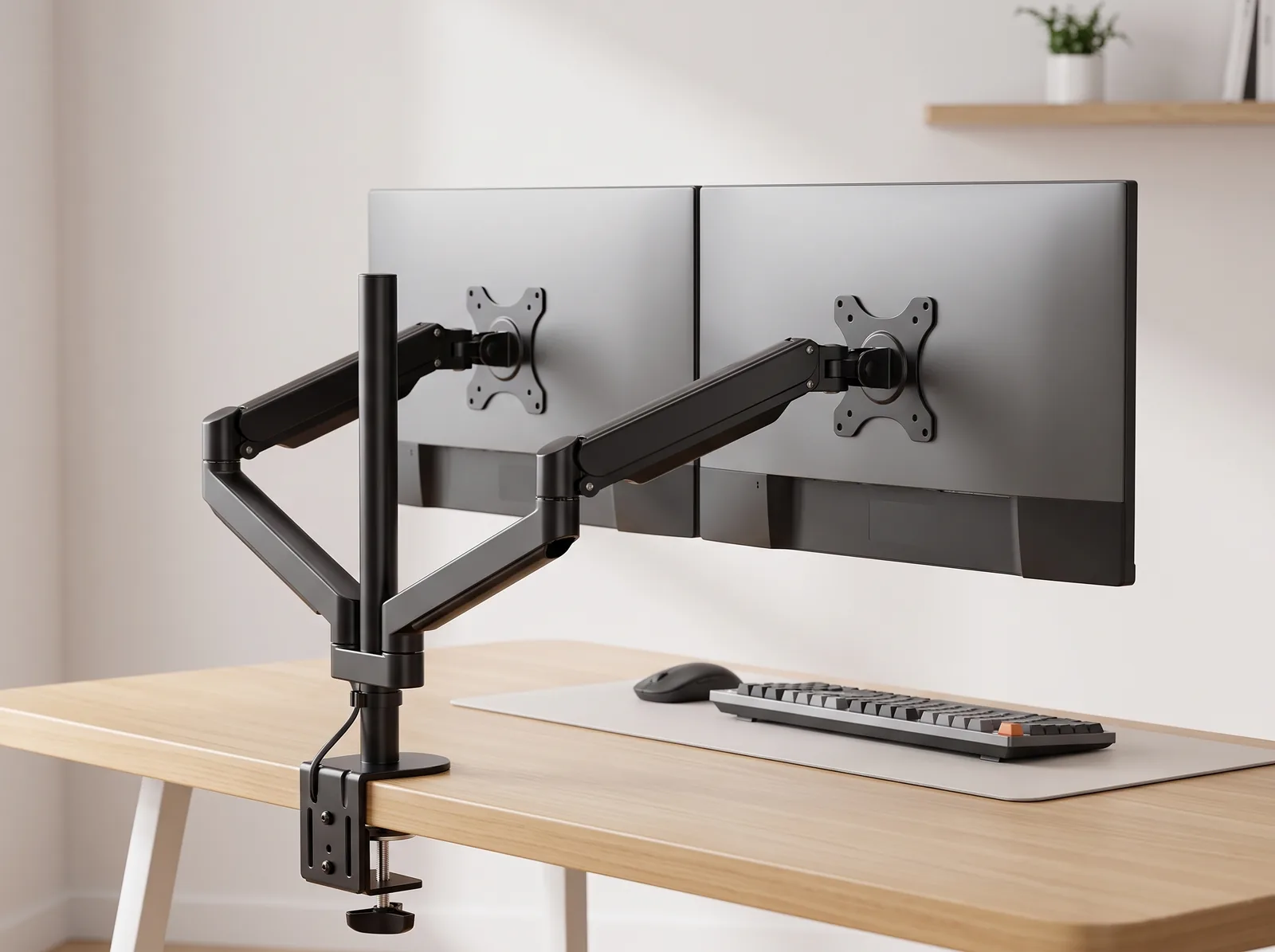
Factory monitor stands take up massive amounts of desk space and rarely adjust high enough to meet ergonomic standards. A heavy-duty dual monitor arm is essential for this workstation. It allows you to align the screens perfectly, eliminate the gap between them, and reclaim the desk surface underneath for reviewing printed documents or ledgers.
For a step-by-step installation guide, review our monitor arm setup guide.
Input Ergonomics: The Numpad Dilemma
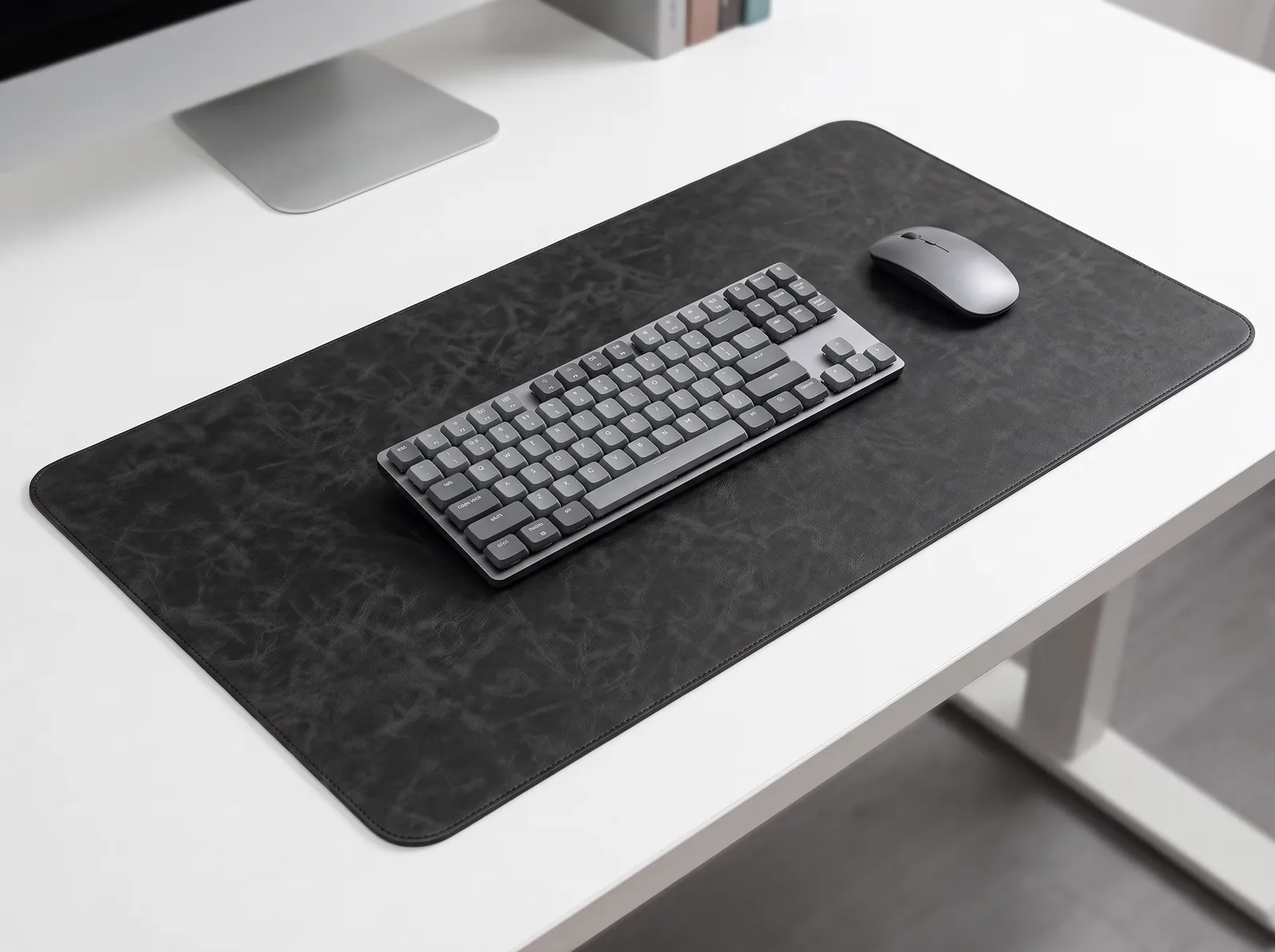
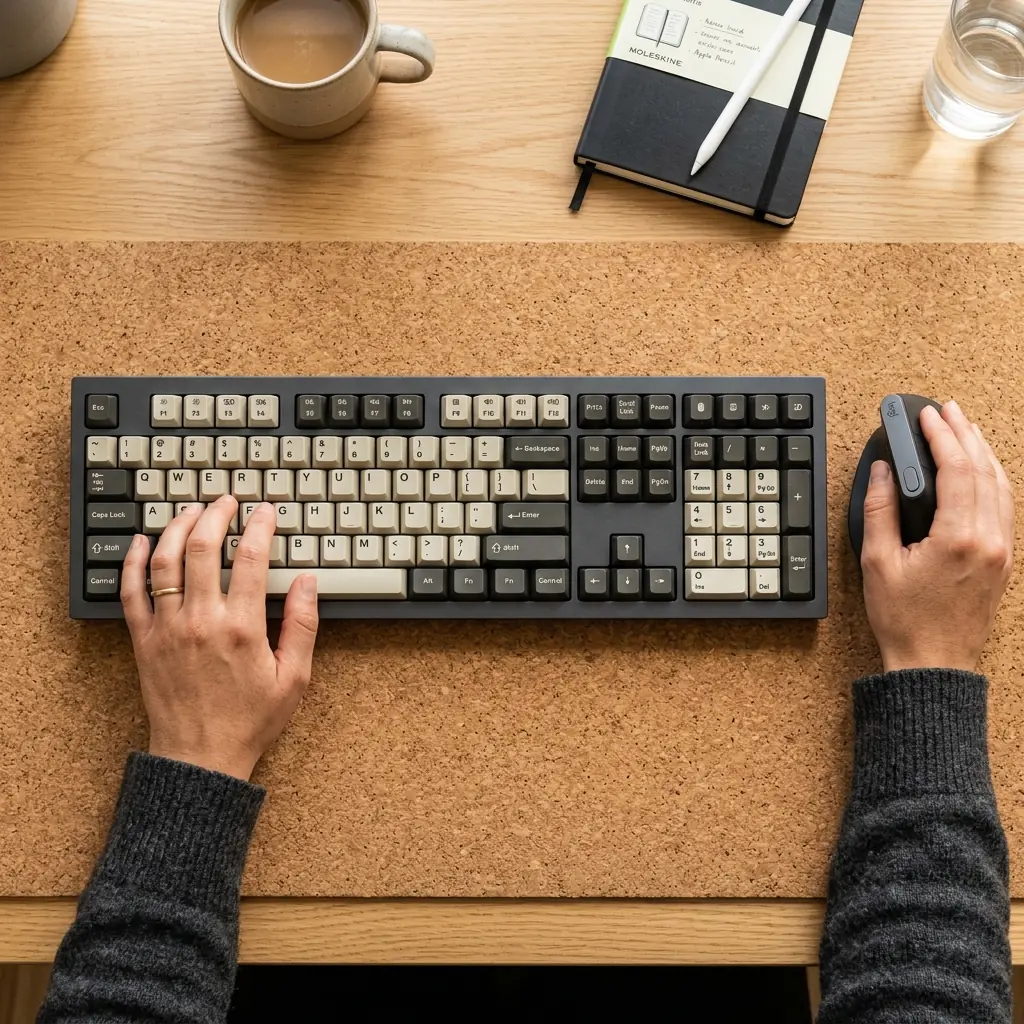
Most ergonomic advice recommends compact (TKL or 65%) keyboards to keep the mouse close to the body. However, financial analysts require a numeric keypad for rapid data entry. A full-size keyboard is necessary, but it introduces an ergonomic compromise.
Managing the Full-Size Keyboard
When you use a keyboard with a built-in numpad on the right side, it forces your mouse hand further away from your body. Over a 10-hour day, this external shoulder rotation leads to deep aching in the right shoulder blade and trapezius.
- Align to the “G” and “H” keys — Center your body to the alphanumeric portion of the keyboard (usually between the G and H keys), not the physical center of the entire keyboard. This keeps your typing posture neutral.
- Use a Vertical Ergonomic Mouse — Because your right arm must reach further outward, a vertical mouse is highly recommended. It keeps the forearm in a neutral “handshake” position, reducing the compounding strain on the wrist and elbow.
- Consider a Standalone Numpad — The optimal ergonomic solution is a compact TKL keyboard paired with a standalone USB numeric keypad placed to the left of the keyboard (if you are willing to learn left-handed data entry) or positioned only when actively needed.
Organizing the Analyst’s Desk Surface
A financial analyst’s desk must support deep focus. Visual clutter translates directly to cognitive load, increasing the chance of errors in complex models.

The 3-Zone Organization System
Divide your desk into strict functional zones:
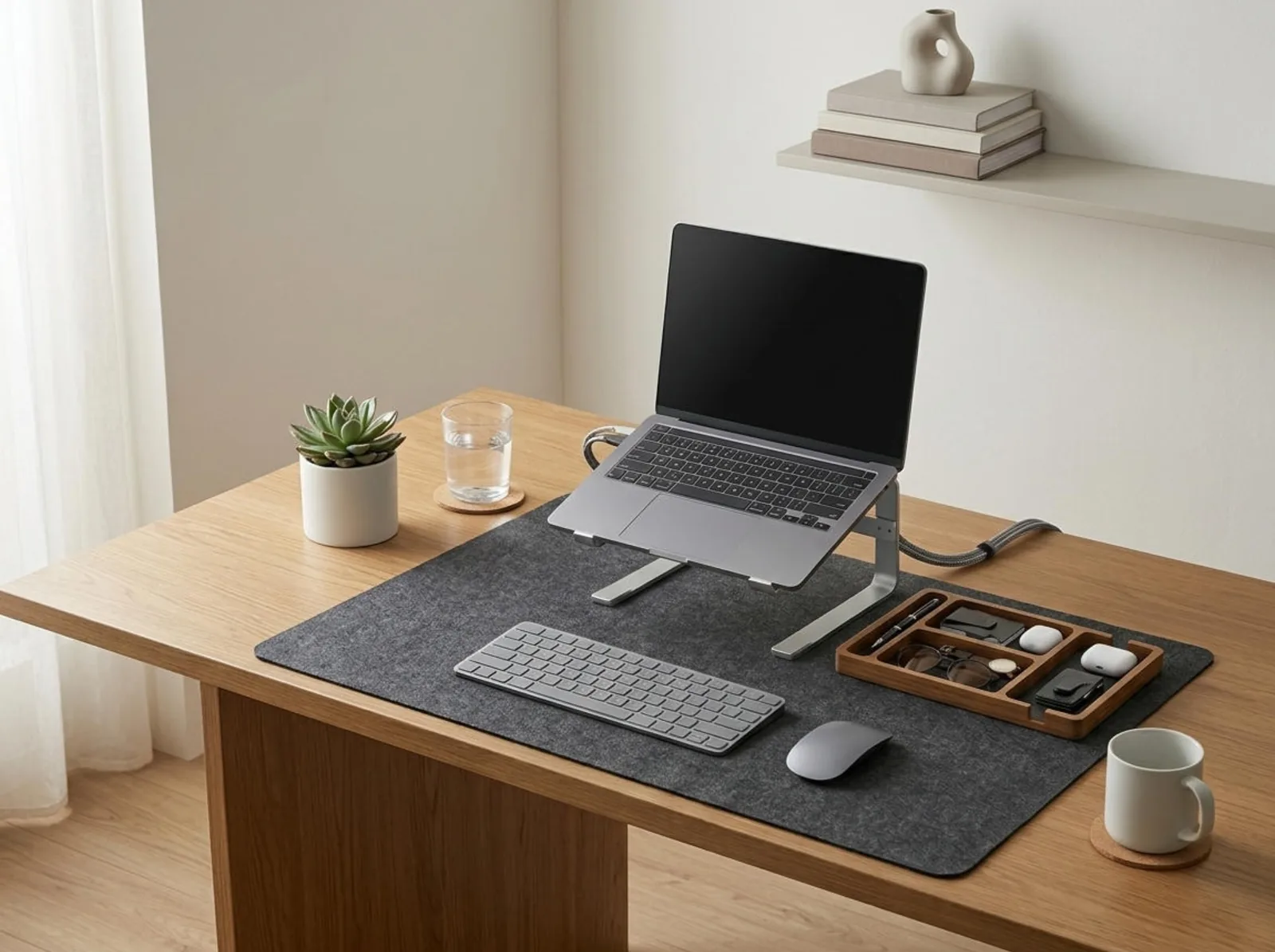
- Zone 1: Active Input (The Cork Mat) — A large natural cork desk mat defines your active area. Only your keyboard and mouse belong here. The mat anchors the keyboard during heavy data entry and provides a subtle cushion for the heels of your hands during breaks.
- Zone 2: Analog Calculation (Left Side) — Keep your dedicated financial calculator (e.g., HP 12C or BA II Plus) and a notepad immediately to your non-dominant side.
- Zone 3: Storage (Right Corner) — Use a solid wood desk organizer to hold pens, highlighters, and charging cables. Do not let these items scatter across the desk.
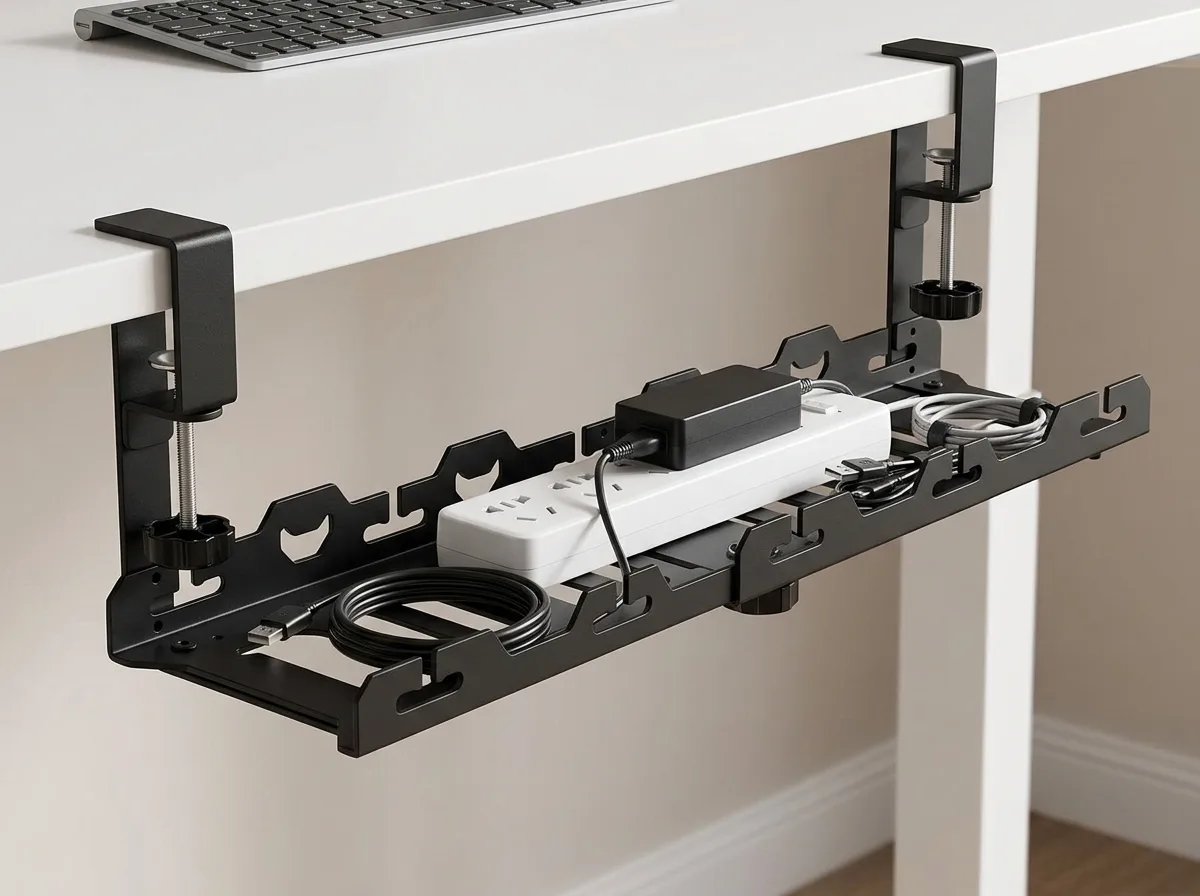
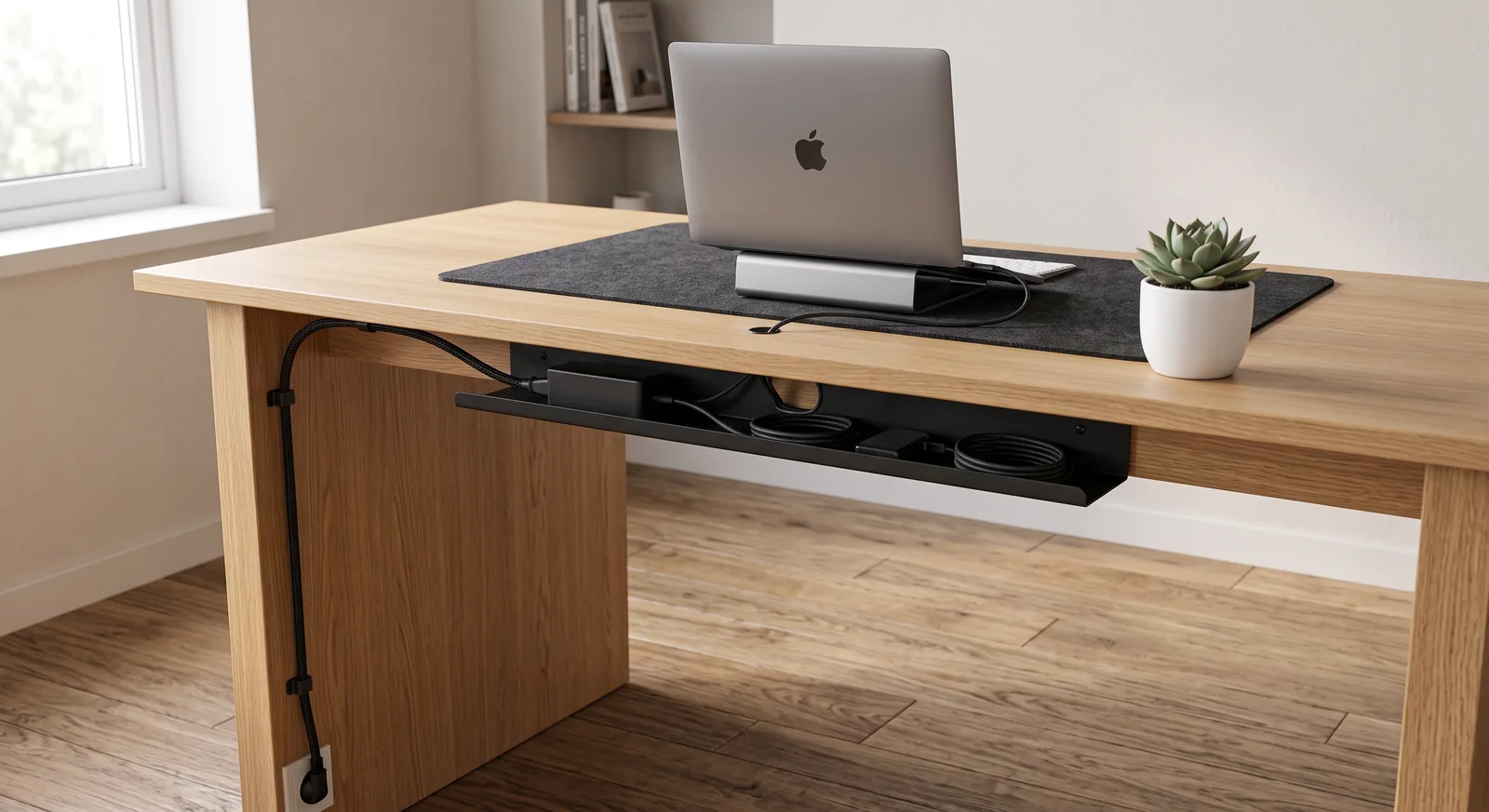
Furthermore, cable management is mandatory. With dual monitors, a full-size keyboard, and charging cables, the workspace quickly becomes a rat’s nest. Utilize an under-desk cable tray to route all cords invisibly. See our desk cable management guide for implementation details.
Posture and Environmental Focus

Your posture is the final piece of the ergonomic puzzle. Sit back in your chair to utilize the lumbar support. Do not perch on the front edge of the seat—a common habit when leaning in to read small spreadsheet cells. If you cannot read the data while leaning back, increase the UI scaling in Windows or Excel rather than destroying your posture.
Lighting for Screen-Heavy Work
Staring at dual 27-inch monitors is the equivalent of staring into two bright lamps. To prevent eye strain:
- Use dark mode — Whenever possible, use dark mode for your operating system and supported applications to reduce overall light emission.
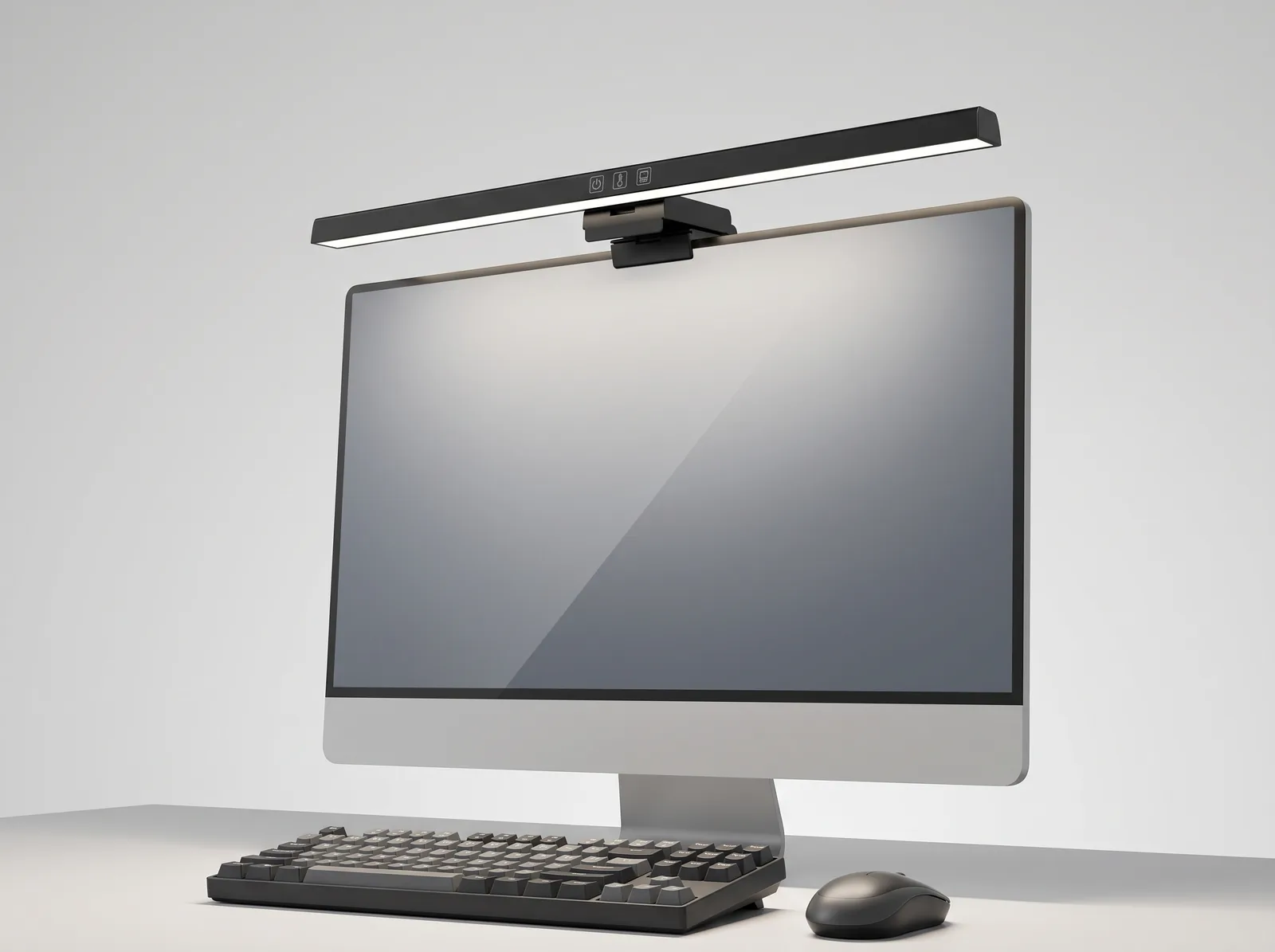
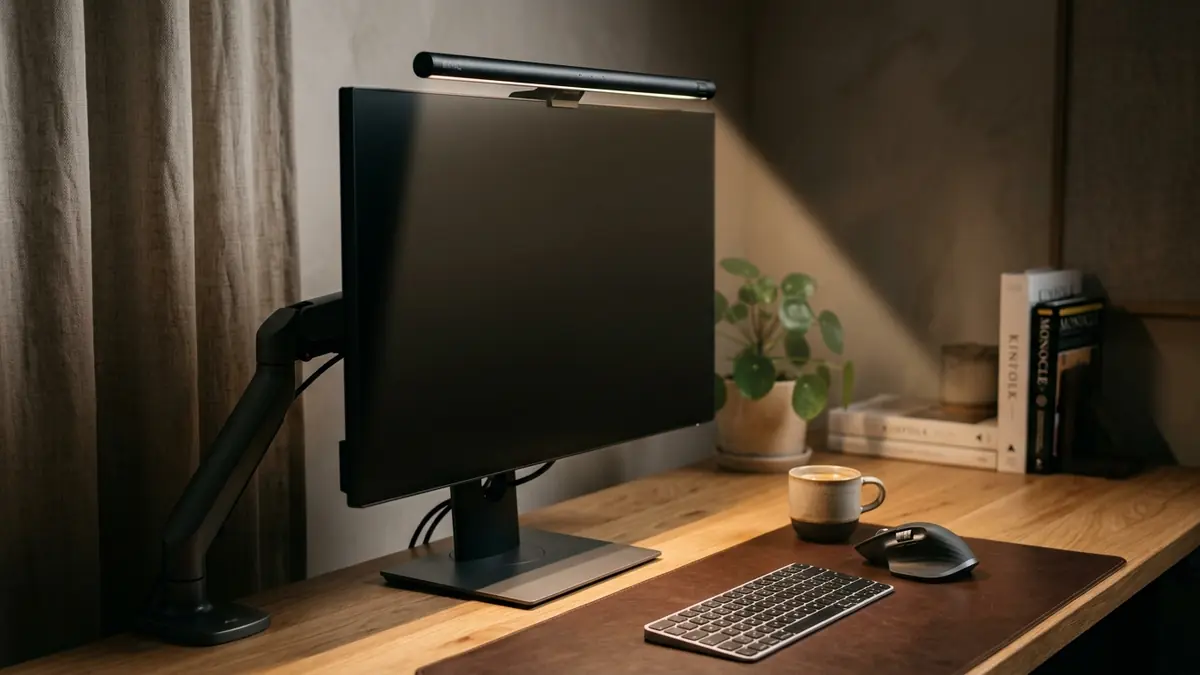
- Install a monitor light bar — Mount a light bar on the primary monitor. It illuminates your desk (calculator, notepad) without adding glare to the screens, balancing the contrast between the bright monitors and the dark room.
The Complete Analyst Workstation: Step-by-Step
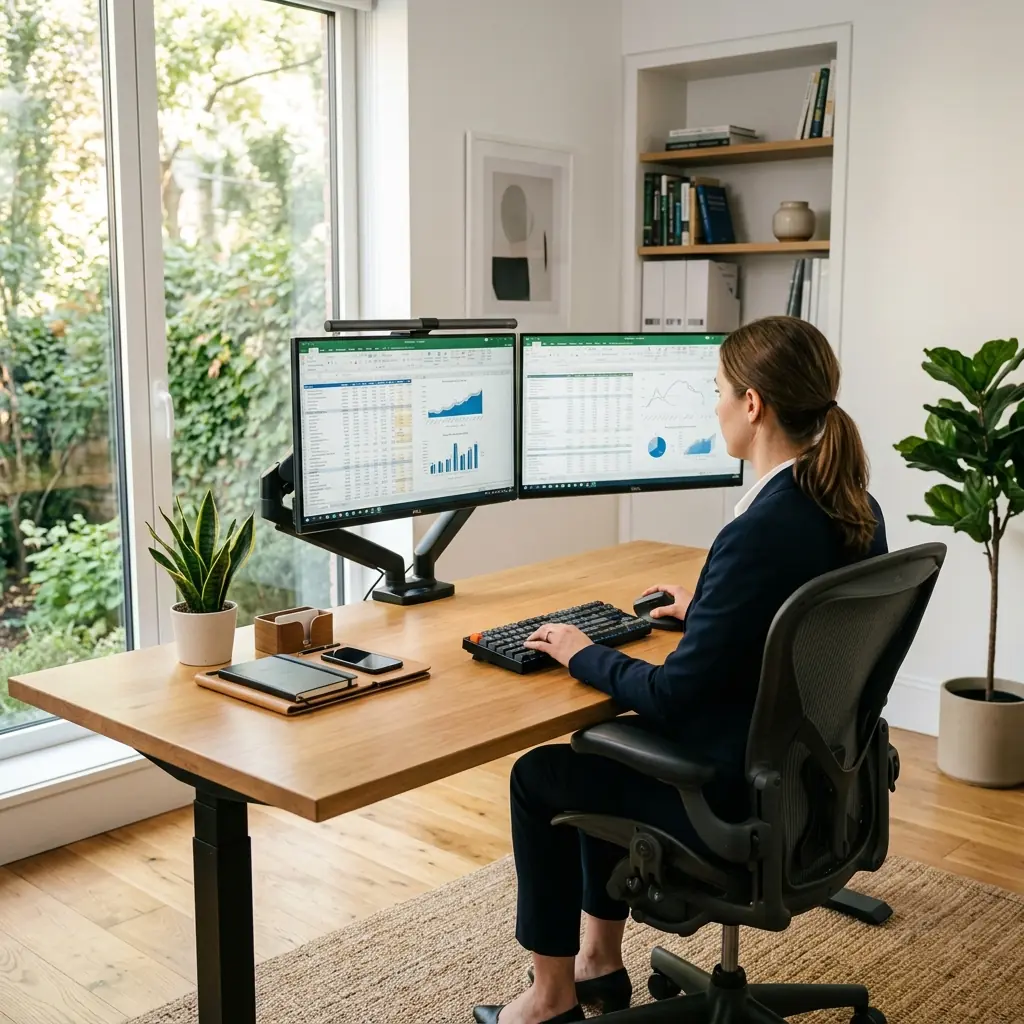
- Install the dual monitor arm — Clamp it securely to the desk before attaching the screens.
- Configure the primary/secondary layout — Center the main monitor perfectly in front of your chair; angle the second monitor inward.
- Set the height — Adjust the arm so the top edge of both screens is 2–3 inches above your eye level.
- Position the keyboard — Place the keyboard on the cork mat, aligning the “G/H” keys with the center of your chest.
- Add the vertical mouse — Position it immediately adjacent to the numpad to minimize reach.
- Organize analog tools — Place your financial calculator and notepad in Zone 2 (non-dominant side).
- Manage the cables — Route monitor power, display cables, and peripheral cords through the monitor arm channels and into an under-desk tray.
- Adjust lighting — Turn on the monitor light bar and adjust screen brightness to match the ambient room light.
Frequently Asked Questions
What size monitors are best for financial analysts?
Dual 27-inch monitors running at 1440p (QHD) or 4K resolution are generally considered the sweet spot for financial analysts. This size allows you to view dozens of Excel columns simultaneously without the text becoming unreadably small, and two 27-inch screens fit comfortably on a standard 60-inch wide desk.
Should analysts use a single ultrawide monitor instead of dual monitors?
It depends on workflow. A single 34″ or 49″ ultrawide monitor eliminates the center bezel and is excellent for massive, continuous timelines or massive spreadsheets. However, dual monitors are often preferred by analysts because Windows snap features make it easier to sharply divide workspaces (e.g., a PDF prospectus full-screen on the left, Excel full-screen on the right) without manual window sizing.
Is a mechanical keyboard better for data entry in finance?
Yes. Mechanical keyboards with tactile switches (like Cherry MX Brown) provide physical feedback when a key is registered. This feedback significantly improves data entry accuracy and speed, reducing the number of “bottom-out” impacts that cause finger fatigue over long modeling sessions.
How can I reduce eye strain with a dual monitor setup?
Ensure both monitors are 20–30 inches away from your face. Match the brightness of your screens to the ambient lighting in the room—monitors should not look like glowing lightboxes in a dark room. Use a monitor light bar to illuminate your desk surface, and practice the 20-20-20 rule to rest your focal muscles.
Conclusion
A dual monitor workstation for financial analysts is a high-performance environment. By abandoning the V-shape monitor layout in favor of a primary/secondary configuration, properly aligning your posture to a full-size keyboard, and utilizing a vertical mouse, you can eliminate the neck and shoulder pain that typically plagues heavy spreadsheet users. Protect your focus through strict desk minimalism, and your workstation will support your career for the long term.
To ensure your new dual-monitor setup adheres to foundational ergonomic principles regarding desk height and seating posture, review our complete ergonomic desk setup guide.
Financial modelers who need real-time data feeds alongside laptop spreadsheets benefit greatly from an articulated dual monitor and laptop gas mount to keep both displays perfectly aligned at eye level.
Part of TidySetup’s comprehensive resource series: explore our master Ergonomic Workstation Alignment Master Guide for complete workstation benchmarks.