
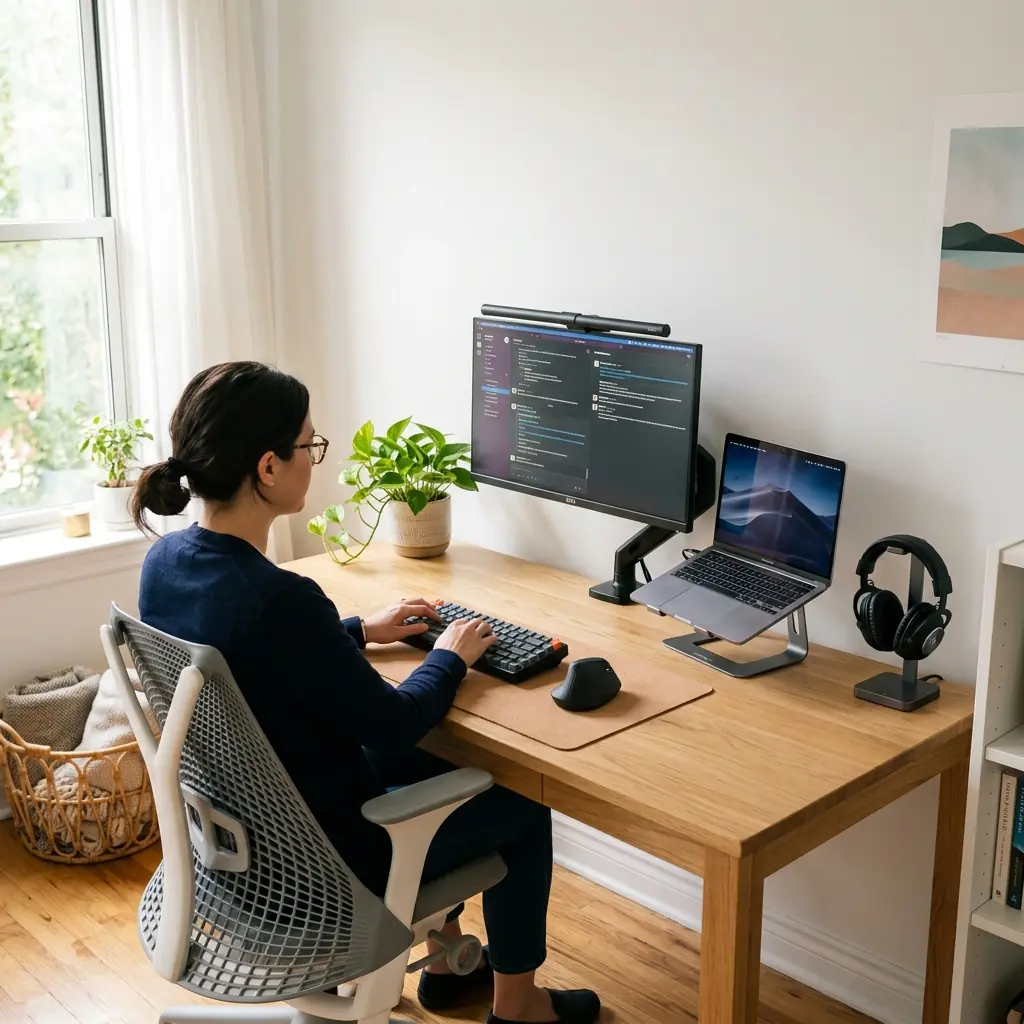
Remote work has fundamentally changed what a home office needs to be. In 2026, it is not enough to have a laptop on a kitchen table — a professional home office desk setup for remote workers must support full workdays of focused output, video calls that look and sound professional, and the kind of ergonomic comfort that sustains performance across months and years rather than days.
The good news: building a genuinely excellent home office desk setup for remote workers does not require a large budget or a dedicated room. It requires deliberate choices across a handful of core elements — your desk and chair, your screen positioning, your communication tools, your cable management, and your environment. The TidySetup Starter Kit provides the ergonomic foundation that every other layer in this guide builds upon.
In this guide, I’ll walk through every element that separates a functional remote setup from a truly professional one — with specific, measurable recommendations drawn from over 500 workspace evaluations.
What Does a Professional Remote Work Desk Setup Actually Need?
A home office desk setup for remote work has five non-negotiable components. Everything else is a refinement. These five elements determine whether you work with discomfort and friction, or with sustained comfort and professional presence.
- Ergonomic screen positioning — Monitor at eye level, 20–30 inches from your face, to prevent the neck and eye strain that derails productivity over long days
- Proper keyboard and mouse placement — Elbows at 90–100°, wrists neutral, mouse immediately beside the keyboard
- Professional video call setup — Camera at eye level, clean background, good lighting facing you
- Acoustic management — Noise control for both your concentration and your meeting audio quality
- Cable management — A clean desk reduces visual stress, improves focus, and signals professionalism in video calls
“A home office desk setup is the complete arrangement of furniture, tools, and accessories that form a remote worker’s workspace, optimized for comfort, productivity, sustained ergonomic health, and professional communication across a full workday.”
The Remote Worker Ergonomics Risk Profile
| Risk Area | Common Cause | Primary Fix |
|---|---|---|
| Neck and upper back | Laptop screen at desk height | Laptop stand + external monitor at eye level |
| Lower back | Non-ergonomic chair, no lumbar support | Ergonomic chair with lumbar adjustment |
| Wrists and forearms | Keyboard too high or at wrong angle | Desk at correct height; keyboard flat/negative tilt |
| Eye strain | Poor lighting, wrong viewing distance | Monitor light bar + 20–30 inch viewing distance |
| Cognitive fatigue | Cluttered, cable-strewn desk surface | Cable management + desk organization system |
How to Set Up Your Monitor for Remote Work
Most remote workers using a laptop suffer from the same problem: the built-in screen sits at desk height, which is 8 to 12 inches below where the eyes should be pointing. Over a full workday, this forces continuous forward head tilt — adding approximately 27 pounds of load to the cervical spine with every inch of forward head posture, according to research published in Surgical Technology International.
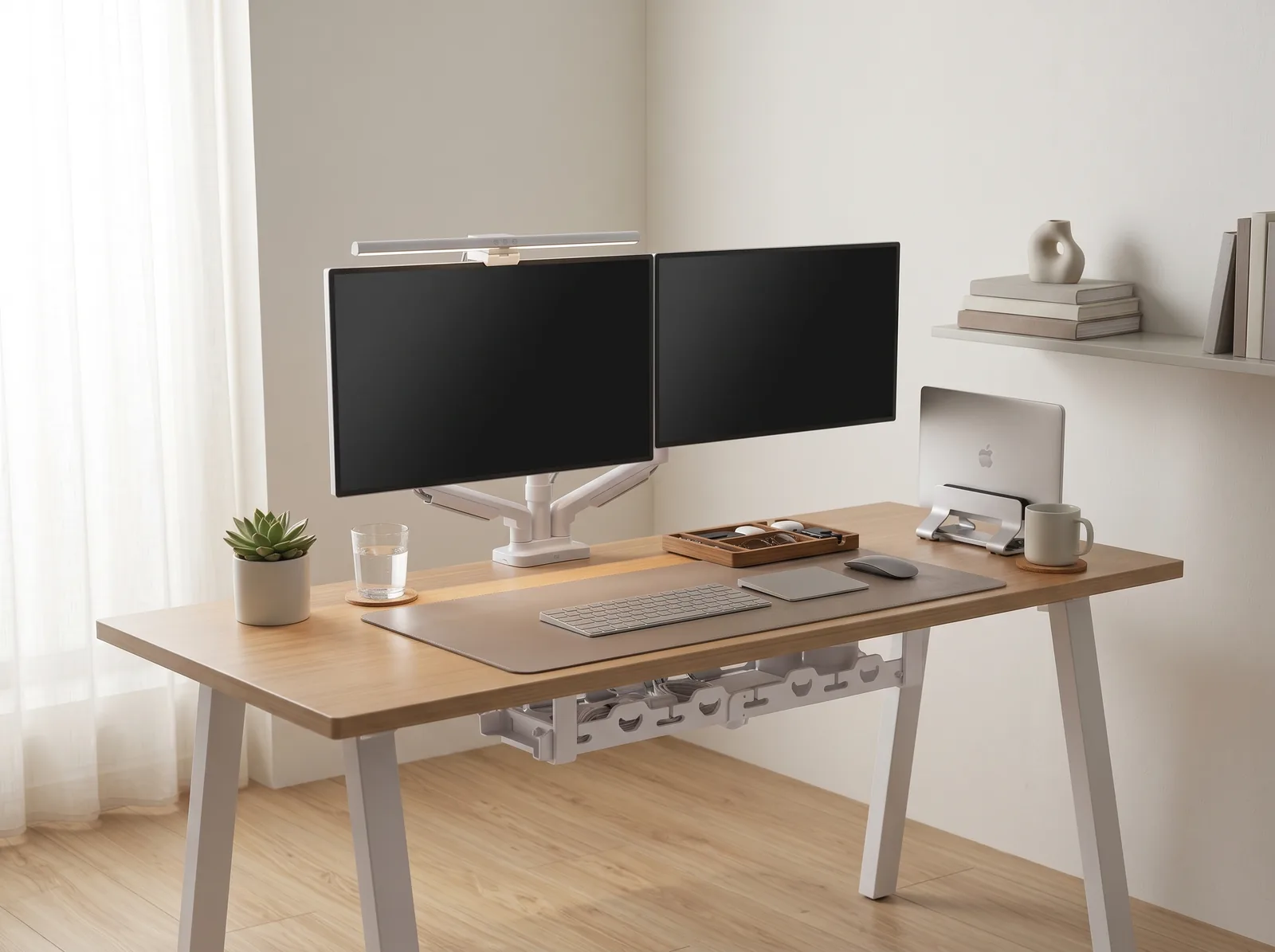
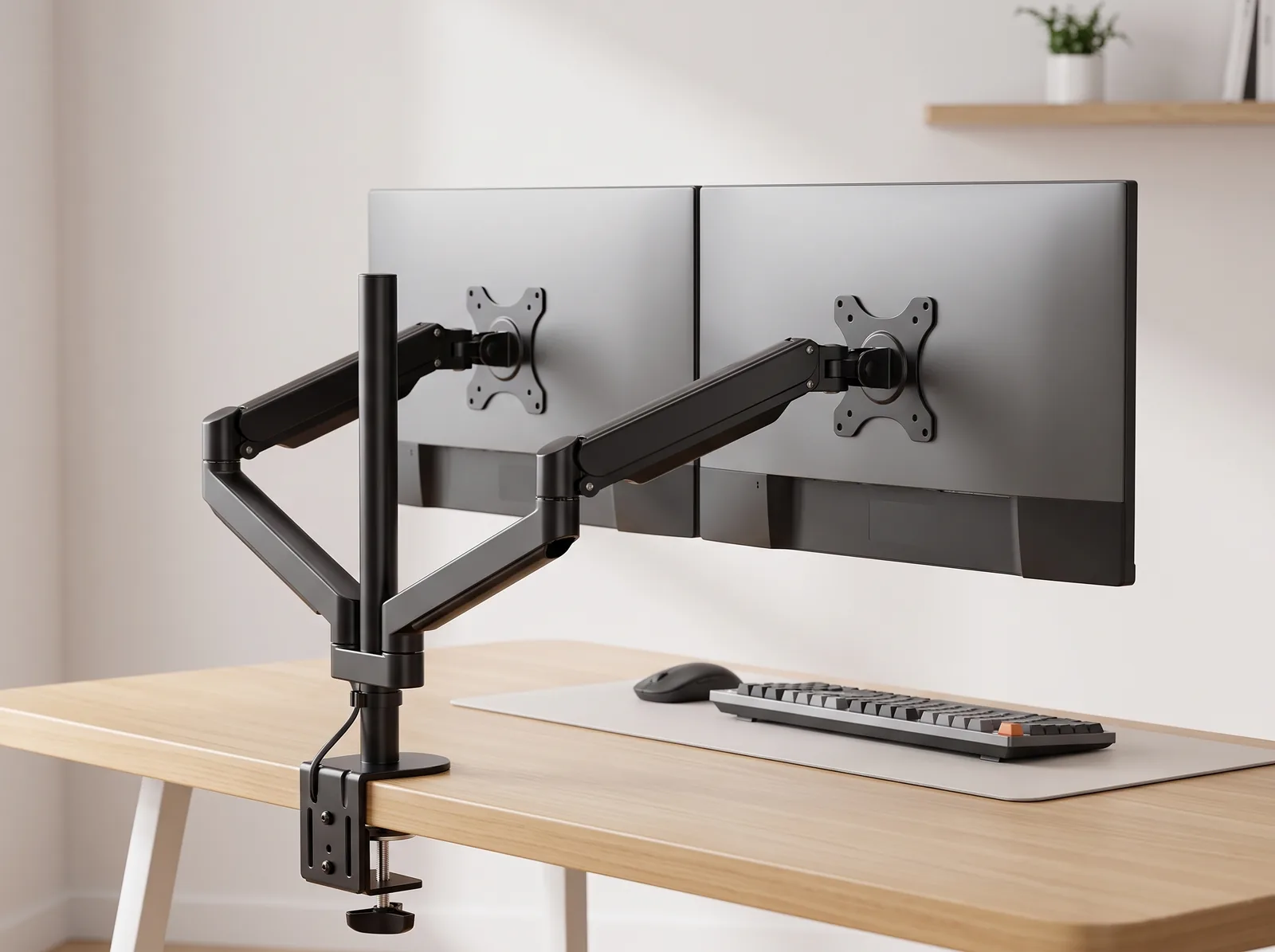
The solution is a dedicated external monitor on a monitor arm — an adjustable mounting system that attaches a display to the desk and allows precise height, depth, and angle adjustments. Position the top edge 2–3 inches above your seated eye level, at 20–30 inches of viewing distance.
Monitor Setup for Remote Workers: Priority Order
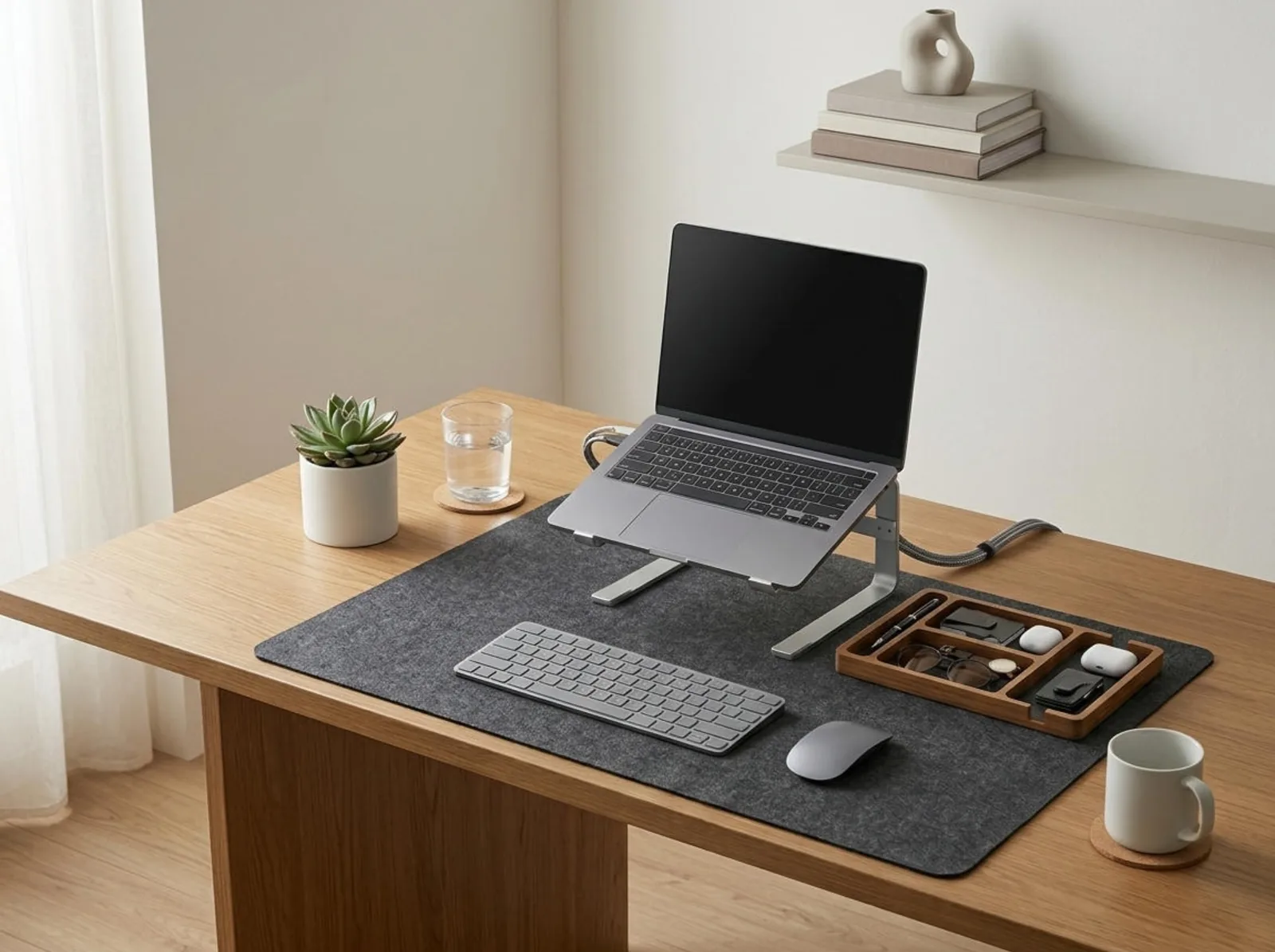
- If you have a laptop only — Add an aluminum laptop stand + external keyboard and mouse. This raises the screen and costs under $100 total.
- If you have a laptop + external monitor — Put the external monitor on a monitor arm at eye level; use the laptop as a secondary screen on a laptop stand, or close it.
- If you have a desktop — Mount the monitor on an arm, set height to the eye-level standard, and position at arm’s length.
For a detailed walkthrough of monitor arm installation and positioning, see our monitor arm setup guide. For the ergonomic desk height that supports all of this, see our standard desk height guide.
“The most impactful single change for a remote worker’s home office desk setup is raising the screen to eye level — either by mounting an external monitor on an arm or elevating a laptop on a stand and connecting an external keyboard. This one adjustment eliminates the forward head posture that drives the majority of neck and upper back pain in desk workers.”
How to Build a Professional Video Call Setup at Home
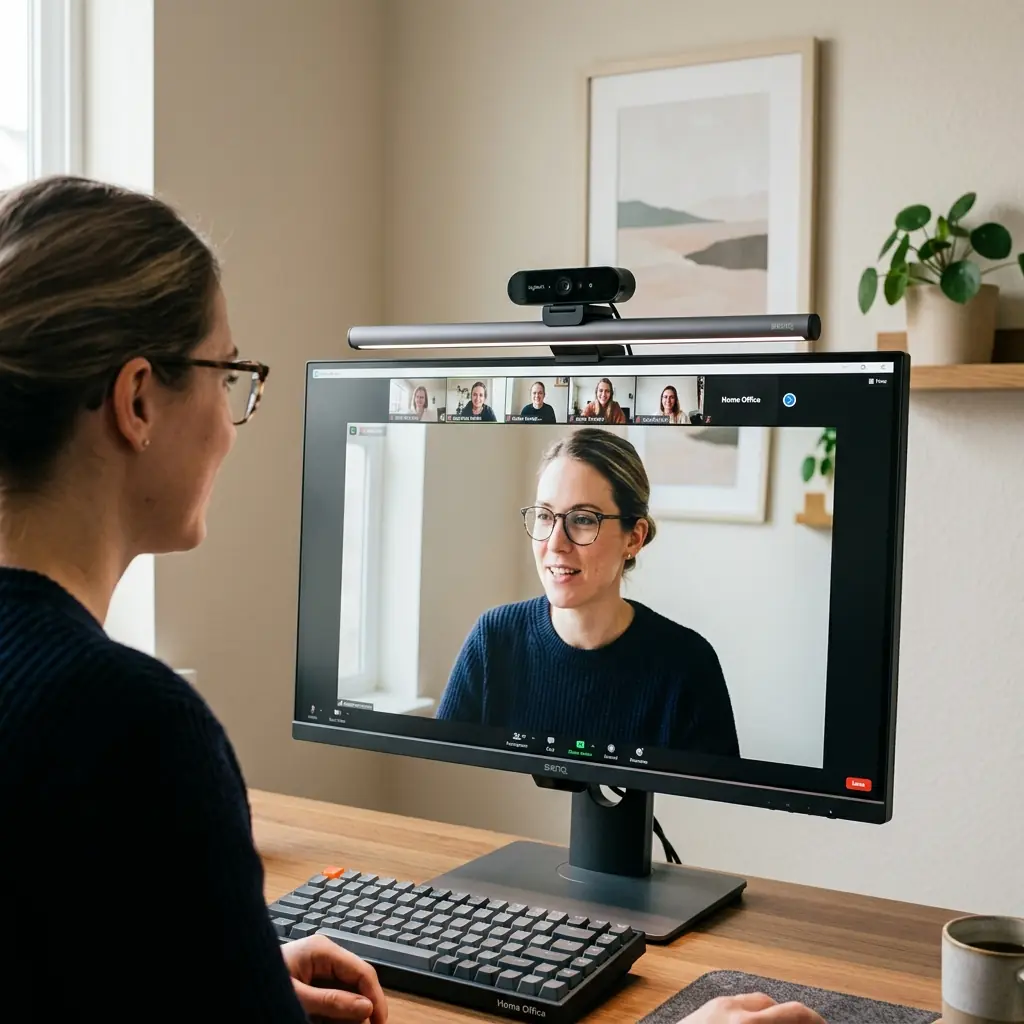
In 2026, your video call setup is your professional face. A grainy, poorly lit webcam at desk angle communicates carelessness. A well-positioned camera, good lighting, and a clean background communicates professionalism, intentionality, and respect for your collaborators’ time.
The Three Elements of a Professional Video Setup
- Camera at eye level — Mount a webcam on top of your monitor (not below it, and not on a laptop at desk height). A camera below eye level creates an unflattering upward angle and makes you appear to be looking down at participants. Camera at eye level creates natural, direct eye contact.
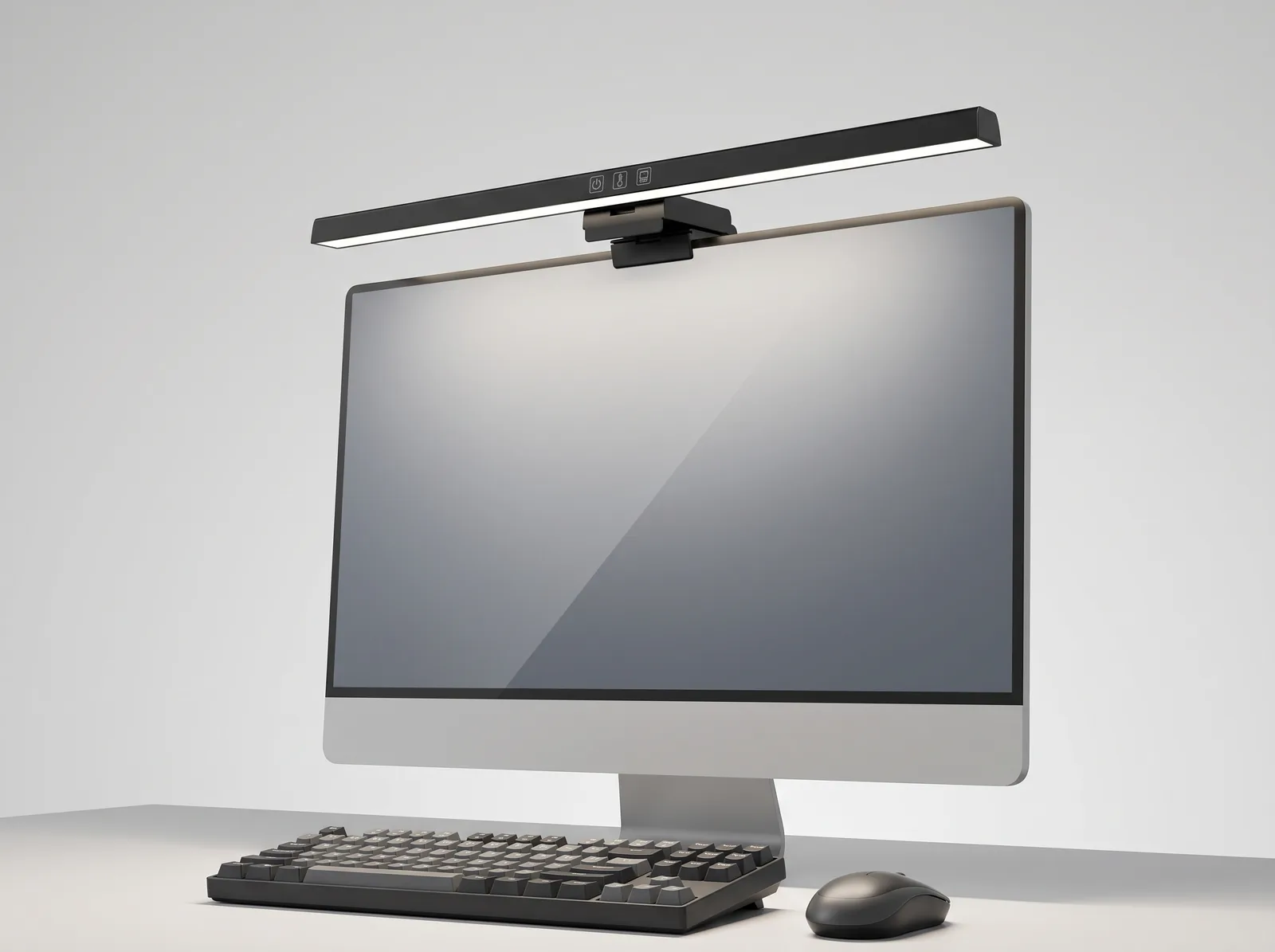
- Light facing you, not behind you — The most common home office video call mistake is sitting with a window behind the screen, which backlights the subject and makes them appear as a silhouette. Position your desk perpendicular to a window, or place a monitor light bar or small LED panel in front of you to provide even facial illumination.
- Clean, neutral background — A white or light neutral wall behind you reads as professional. A cluttered bookshelf or a busy room creates visual noise that distracts meeting participants. Cable management is directly visible in your background — a tidy desk signals the same care and organization you bring to your work.
Video Call Setup Checklist
- ☐ Webcam mounted at eye level (top of external monitor)
- ☐ Light source in front of you — not behind
- ☐ Background is clean and neutral
- ☐ No cables visible in camera frame
- ☐ Headset or quality microphone for clear audio
- ☐ Camera resolution: 1080p minimum for professional quality
Organizing the Remote Work Desk Surface
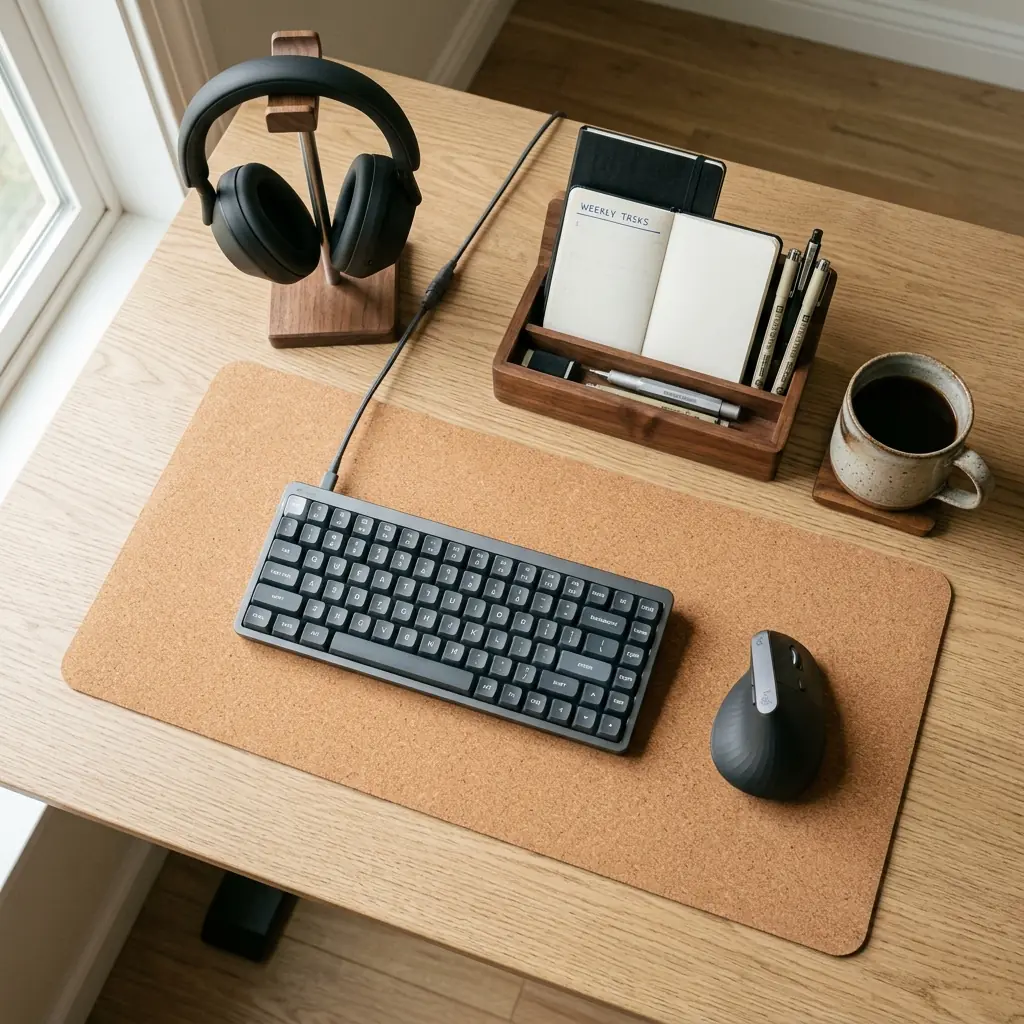
Remote workers have one organizational challenge that office workers don’t: the home environment constantly competes for desk space. Mail, household items, and personal objects creep onto the work surface unless there is a clear system that keeps the desk a dedicated workspace.
In over 500 workspace evaluations, I’ve found that the most productive remote workers share one trait: their desk surface contains only items that are actively used for work. Everything else has a home somewhere else. Achieving this requires three things: a fixed active work zone, a storage solution for peripherals, and a daily reset habit.
Remote Work Desk Organization System
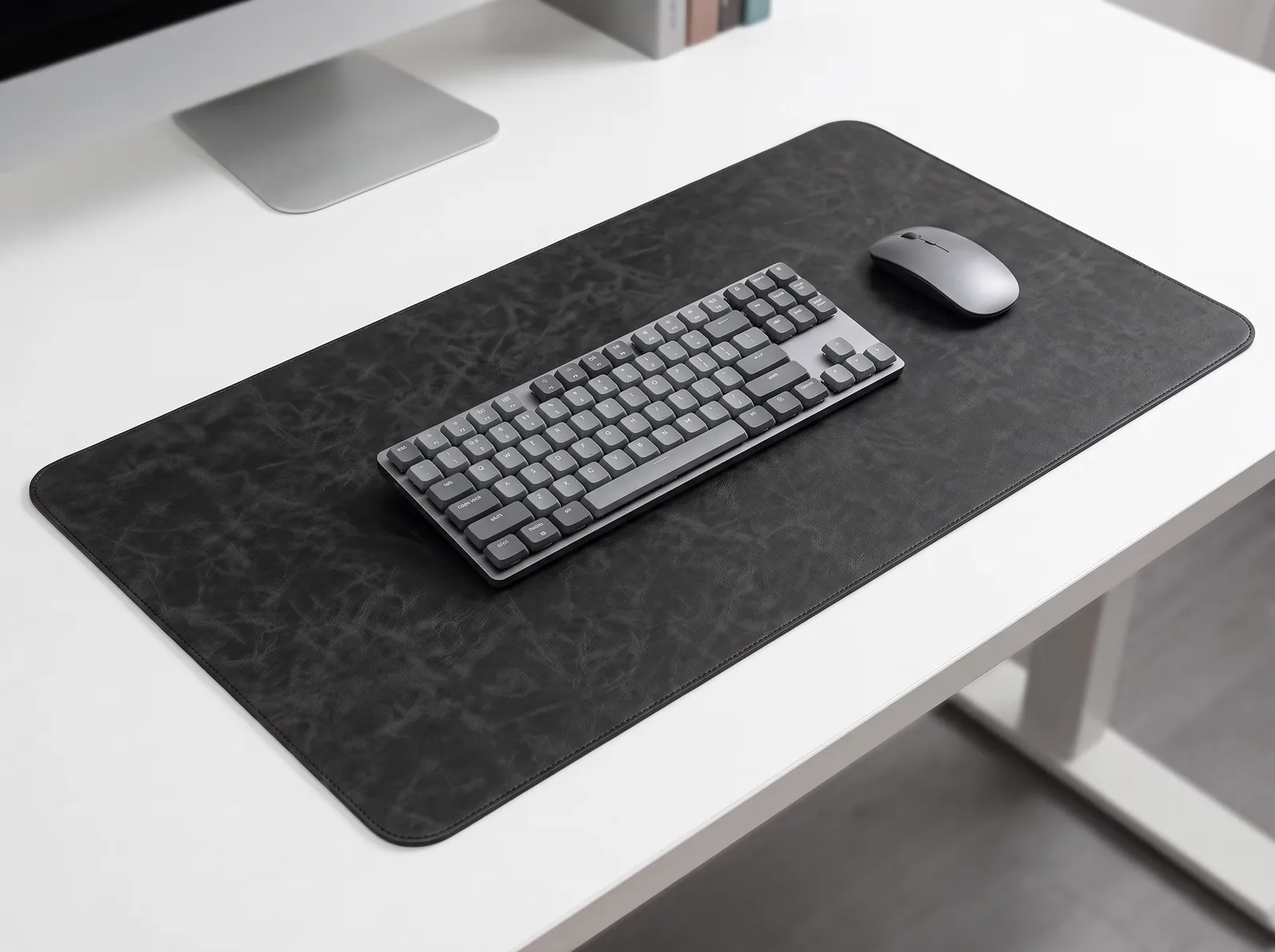
- Cork desk mat — Defines the active work zone. Keyboard, mouse, and notepad stay on the mat. Nothing else. The mat’s edge is the boundary.
- Headset stand — Keeps the headset off the desk surface and at arm’s reach. A headset lying flat on the desk takes up significant space and looks cluttered in video calls.
- Solid wood desk organizer — Provides designated compartments for pens, charging cables, a small notebook, and business cards. Removes the “scatter” that causes visual stress and decision fatigue.
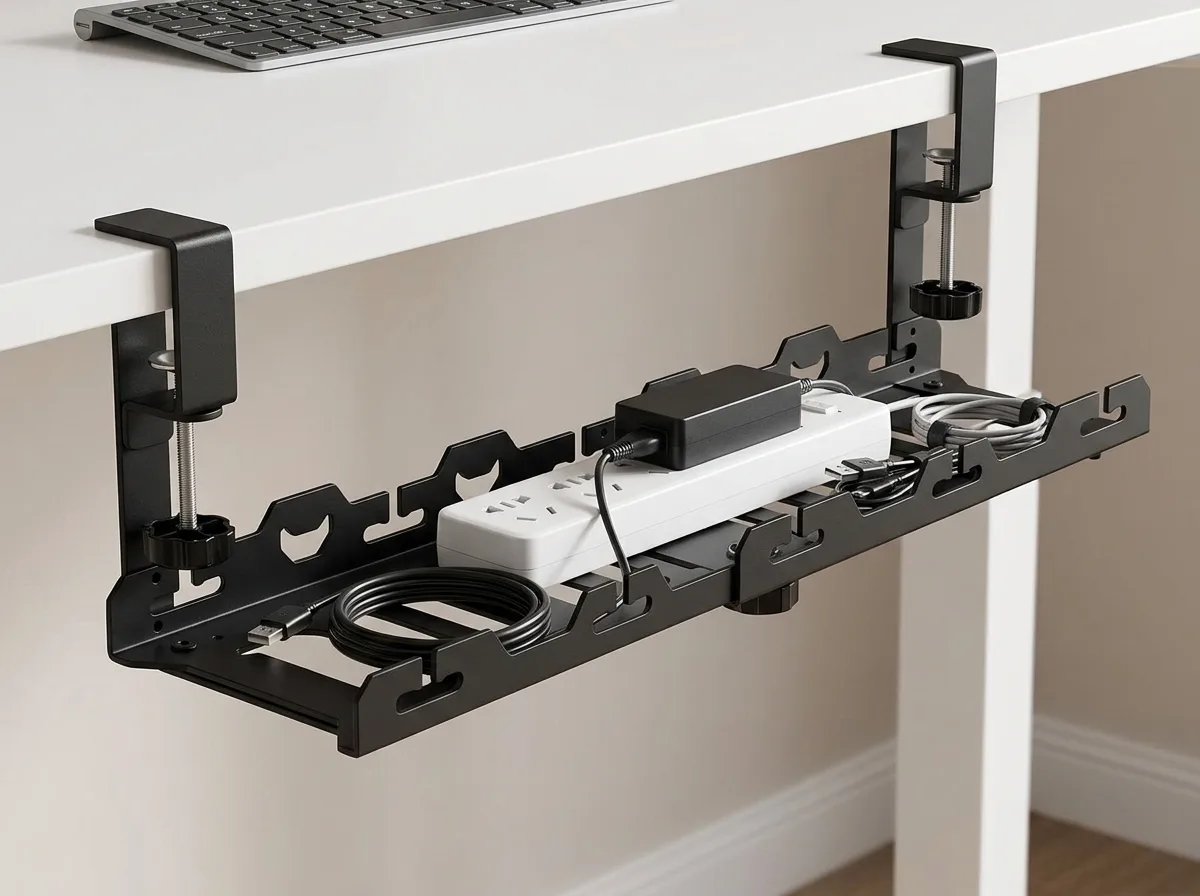
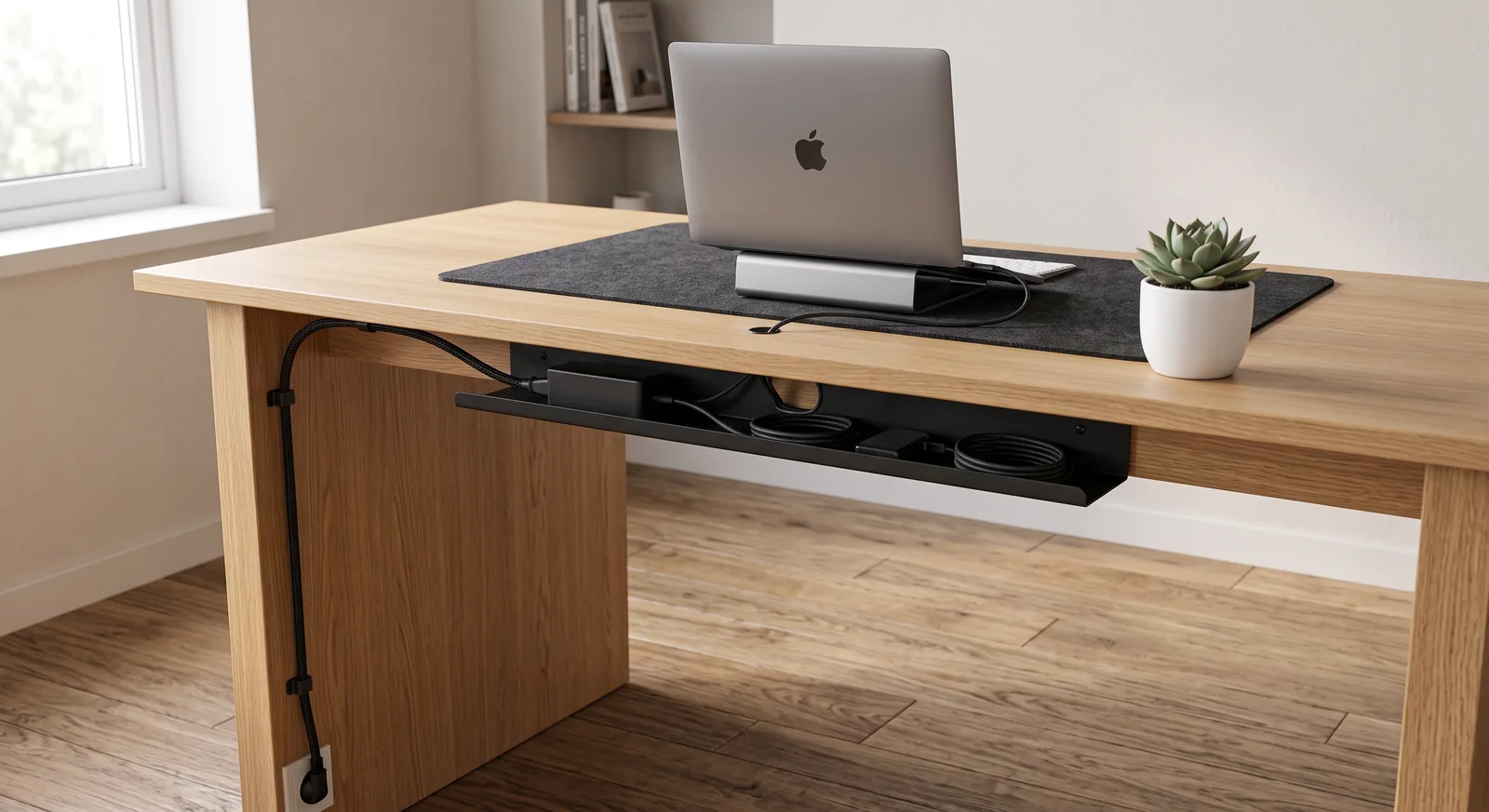
- Under-desk cable tray — Routes all power and peripheral cables out of sight. A remote worker’s desk typically has 4–8 cables; all of them can be hidden under the desk with a cable tray and sleeve.
For desk organizer configuration, see our solid wood desk organizer setup guide. For cable management strategy, our complete desk cable management guide covers every scenario.
Should Remote Workers Use a Standing Desk?
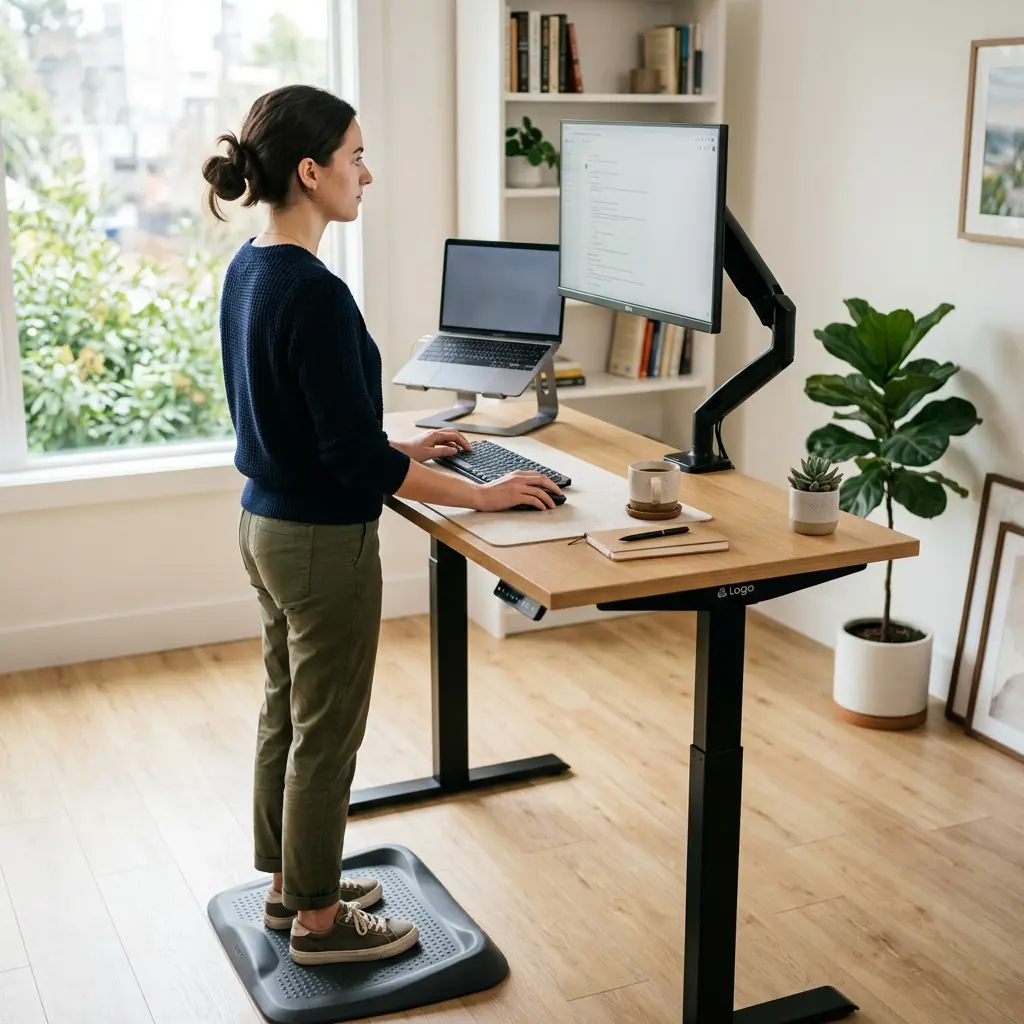
Standing desks are one of the most frequently asked-about investments for remote workers — and the answer is nuanced. A standing desk does not automatically improve health or productivity. An electric height-adjustable standing desk used correctly — alternating between sitting and standing every 30–60 minutes — provides measurable benefits: reduced lumbar disc pressure, improved lower-limb circulation, and higher reported energy levels during afternoon hours.
Standing all day, however, causes its own problems: lower limb fatigue, varicose vein risk, and lower back strain from sustained static standing. The benefit is in the alternation, not the standing itself.
Standing Desk Ergonomics for Remote Workers
| Element | Seated Height | Standing Height |
|---|---|---|
| Desk surface | 28–30 inches | 38–46 inches (elbow height while standing) |
| Monitor top edge | 2–3″ above seated eye level | 2–3″ above standing eye level |
| Keyboard position | Elbows at 90–100°, wrists neutral | Same rule applies — elbows at 90–100° |
| Foot position | Flat on floor | Anti-fatigue mat; weight shifting encouraged |
For remote workers considering a standing desk, I recommend starting with the ergonomic foundations first — monitor arm, laptop stand, proper chair — and adding a height-adjustable desk as a deliberate upgrade once the sitting setup is fully optimized. For a detailed comparison, see our guide on standing vs. sitting desk health impacts.
The Complete Remote Work Home Office Setup: Step-by-Step
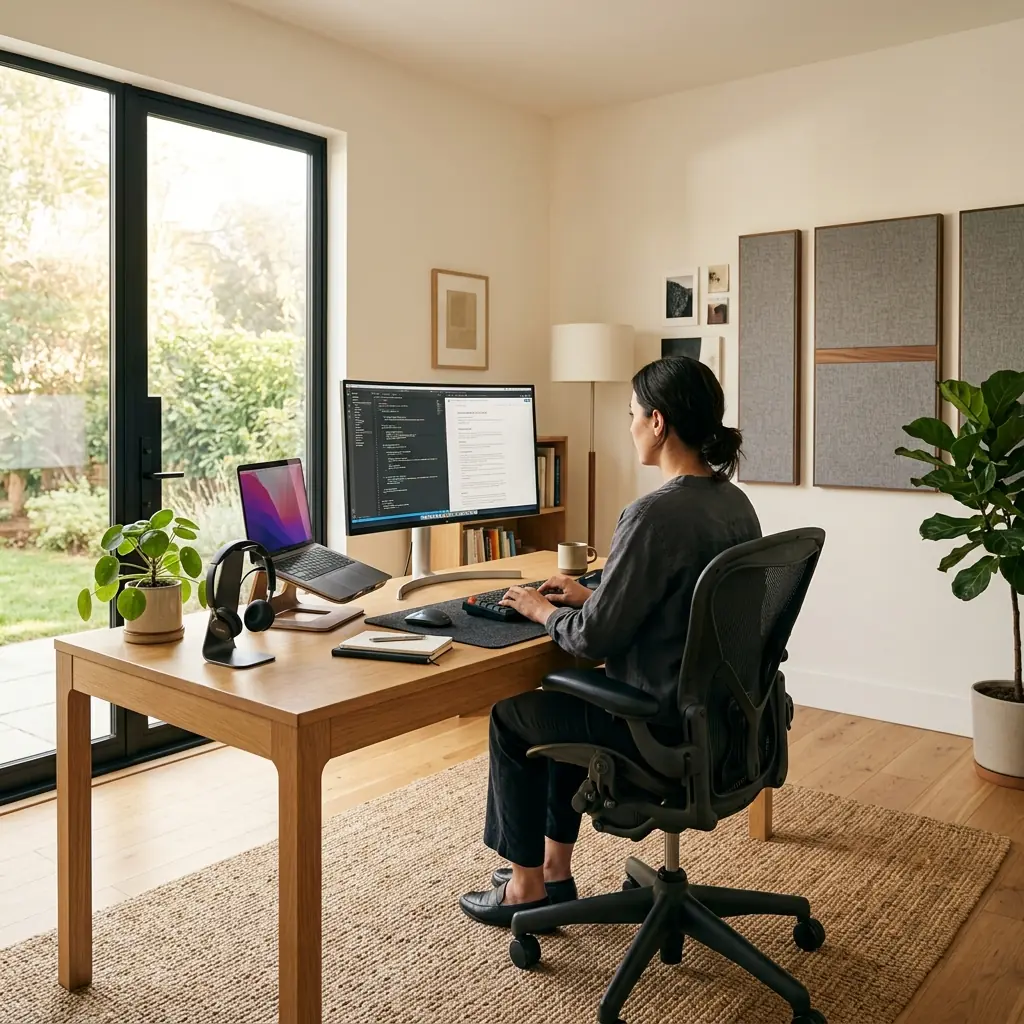
- Set desk height — 28–30 inches for seated work. Elbows at 90°, wrists flat on the keyboard.
- Install monitor arm — External monitor top edge 2–3 inches above seated eye level, at 20–30 inches distance.
- Elevate the laptop — Aluminum stand + external keyboard and mouse. Close the laptop lid or use as secondary screen.
- Mount webcam at eye level — Top of external monitor. Position light source in front of you, never behind.
- Add a cork desk mat — Anchors keyboard and mouse; defines the active work zone.
- Set up headset stand — Keeps headset off the desk surface, accessible but not taking up Zone 1 space.
- Add desk organizer — Pens, notebook, charging cable neatly stored off the mat.
- Route all cables under the desk — Cable tray + sleeve. Aim for zero visible cables in video call frame.
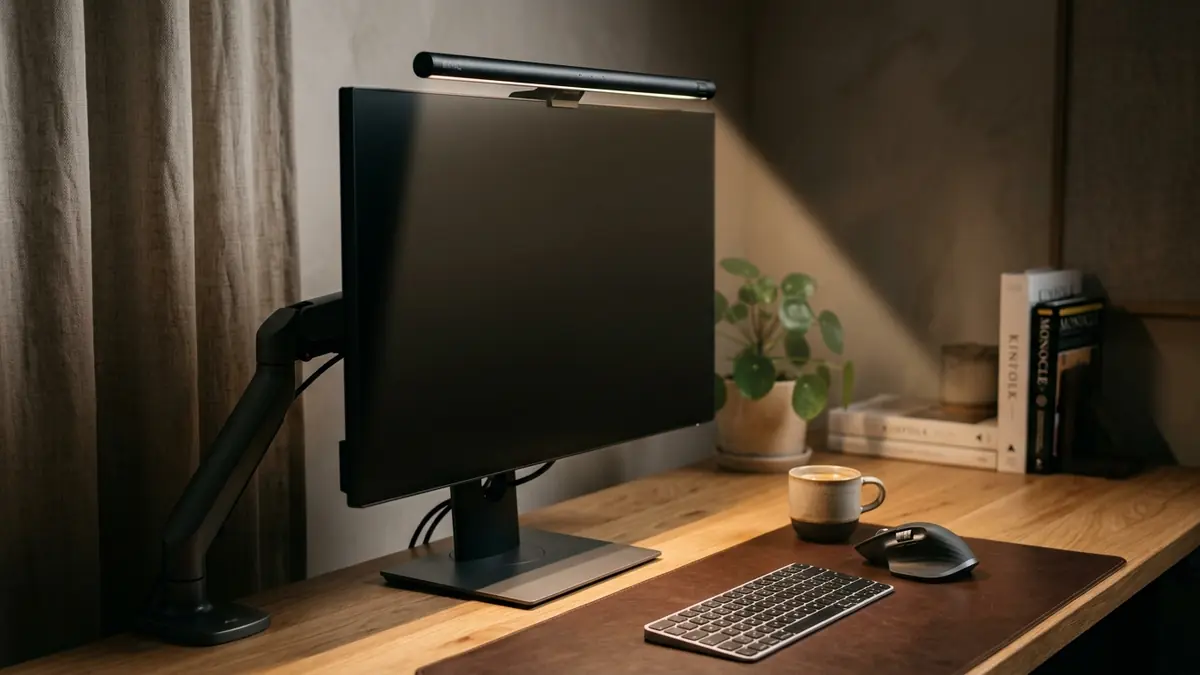
- Install monitor light bar — 4,000K for work hours; also serves as front fill light for video calls.
- Set chair lumbar support — Natural lower back curve maintained; feet flat on floor.
Frequently Asked Questions
What is the most important part of a home office desk setup for remote workers?
The single most important element is screen positioning. A monitor or laptop screen at desk height forces forward head posture that causes chronic neck and upper back pain. Raising the screen to eye level — using a monitor arm for an external display, or a laptop stand for a laptop — eliminates this problem and has the highest ergonomic return of any single investment in a remote work setup.
How much should I spend on a home office desk setup?
A genuinely professional remote work desk setup can be built for $300–$600, covering the key items: an ergonomic chair ($150–$300), a monitor arm ($40–$80), a laptop stand ($30–$60), an external keyboard and mouse ($50–$100), and a cork desk mat ($25–$40). The video call and cable management layers add another $50–$100. A standing desk is an optional upgrade ($400–$800) and is most beneficial once the sitting setup is already optimized.
Do I need a dedicated room for a home office?
No. A dedicated room is ideal for acoustic isolation and visual separation from household distractions, but it is not required for a professional setup. The core ergonomic principles — eye-level monitor, correct keyboard height, proper chair support — apply equally in a studio apartment corner setup. Adding a small acoustic panel and a white noise machine can address the noise challenges of a shared space without a separate room.
What is the best webcam setup for remote work video calls?
For professional video calls, a 1080p webcam mounted at eye level on top of your external monitor, paired with a monitor light bar or small LED panel positioned in front of you, provides the most professional appearance. The combination of eye-level framing and front-facing light eliminates the two most common video call problems: unflattering upward angles and backlit silhouettes.
How do I manage cables in a home office desk setup?
The most effective approach is combining three tools: an under-desk cable tray to hold the power strip and bulk cable length, a cable sleeve to bundle the main run from desk to tray, and adhesive cable clips to route individual cables along desk edges. A USB docking station reduces the total cable count by consolidating peripheral connections into one or two cables from the desk surface to the laptop.
Is a standing desk worth it for remote workers?
A height-adjustable standing desk is worth the investment for remote workers who log 8+ hour days and experience afternoon fatigue or lower back pain. The benefit comes from alternating between sitting and standing every 30–60 minutes — not from standing all day. For remote workers on a budget, optimizing the sitting setup first delivers a higher return per dollar than a standing desk purchased before the sitting ergonomics are correct.
What desk size is best for a home office setup?
For most remote workers, a desk between 48 and 60 inches wide provides the surface area needed for a monitor arm, laptop stand, keyboard, mouse, and desk organizer without feeling cramped. Depth matters too: a minimum of 24 inches allows the monitor to be positioned at the ergonomic 20–30 inch viewing distance. L-shaped desks offer additional surface for reference materials but require careful ergonomic planning to avoid lateral rotation to secondary screens.
Conclusion
A professional home office desk setup for remote workers in 2026 is built on a handful of deliberate choices that compound over time. The right screen height eliminates chronic neck pain. The right video setup communicates professionalism in every meeting. The right cable management and desk organization reduce the daily friction that slowly erodes focus and energy.
Start with the two changes that deliver the most return: raise your screen to eye level, and manage your cables so the desk surface is completely clear. Each improvement you layer on top of that foundation — better lighting, a quality headset, a desk organizer, and eventually a standing desk — builds toward a workspace that is genuinely restorative rather than merely functional.
For the ergonomic principles that apply across all home office setups, see our complete ergonomic desk setup guide. And for the environmental factors — lighting, acoustics, and air quality — that elevate a home office from functional to exceptional, see our workspace environmental design guide.
For remote professionals looking for a turn-key solution, investing in a complete ergonomic workspace bundle eliminates the guesswork of matching individual mounting arms, trays, and desk accessories.
Part of TidySetup’s comprehensive resource series: explore our master Minimalist Workspace Architecture Blueprint for complete workstation benchmarks.