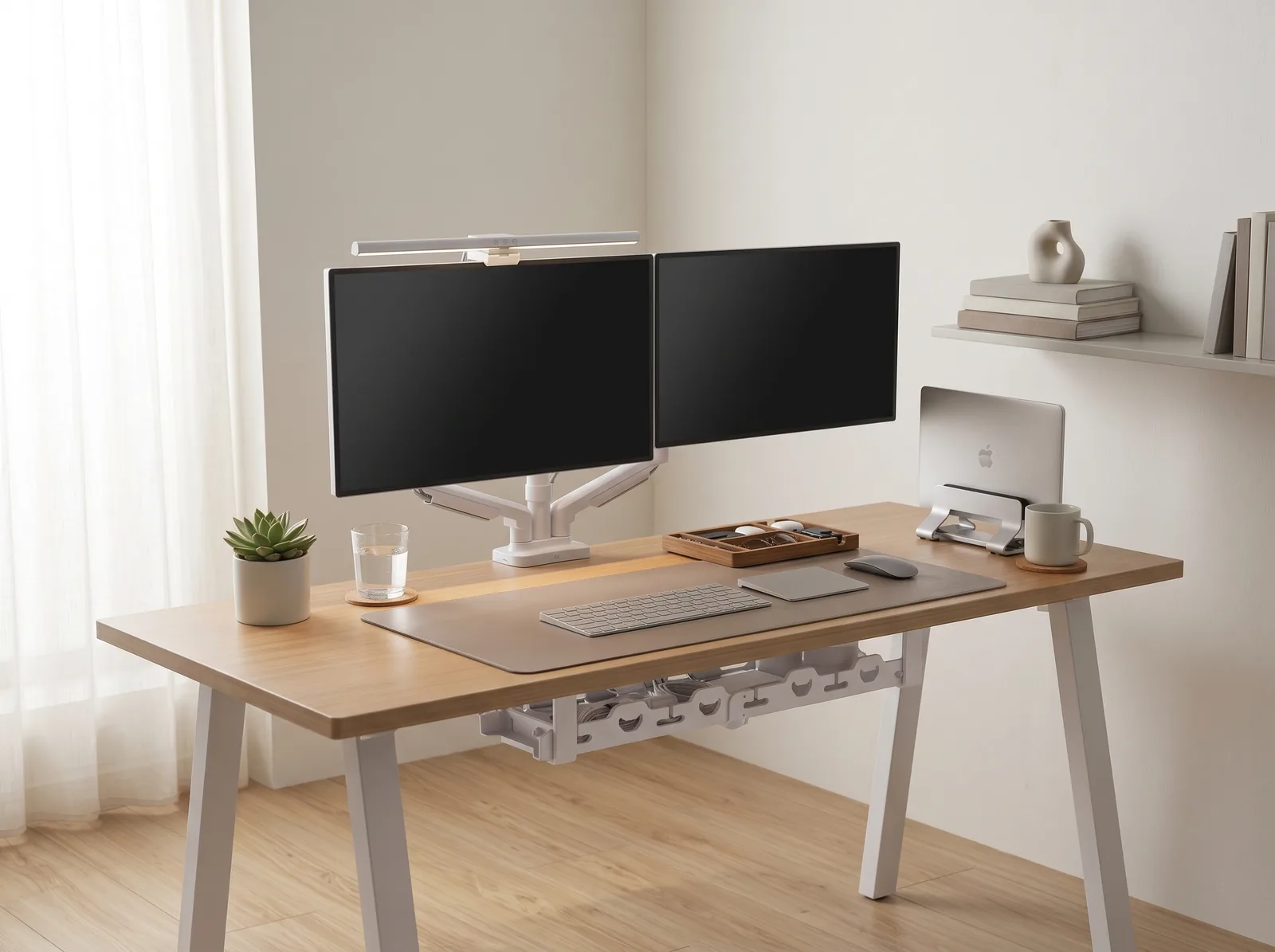
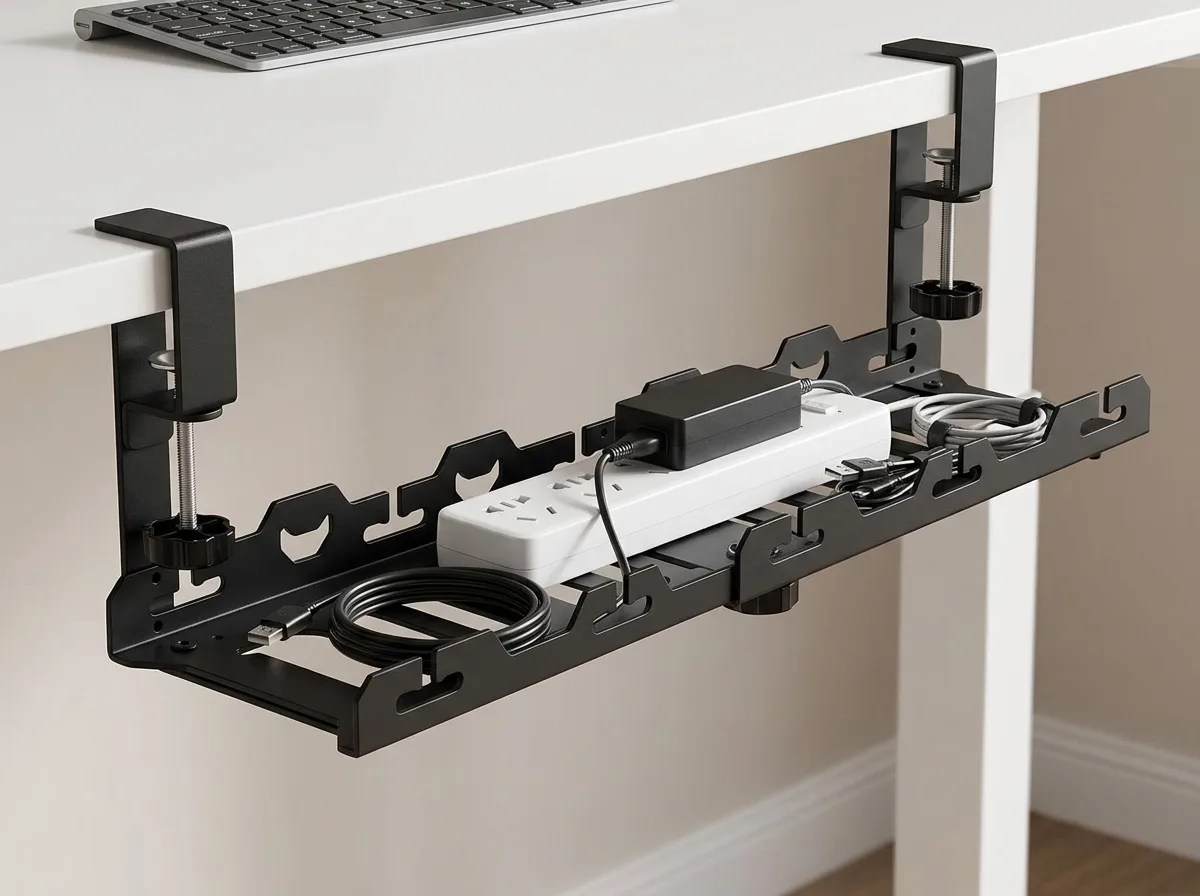
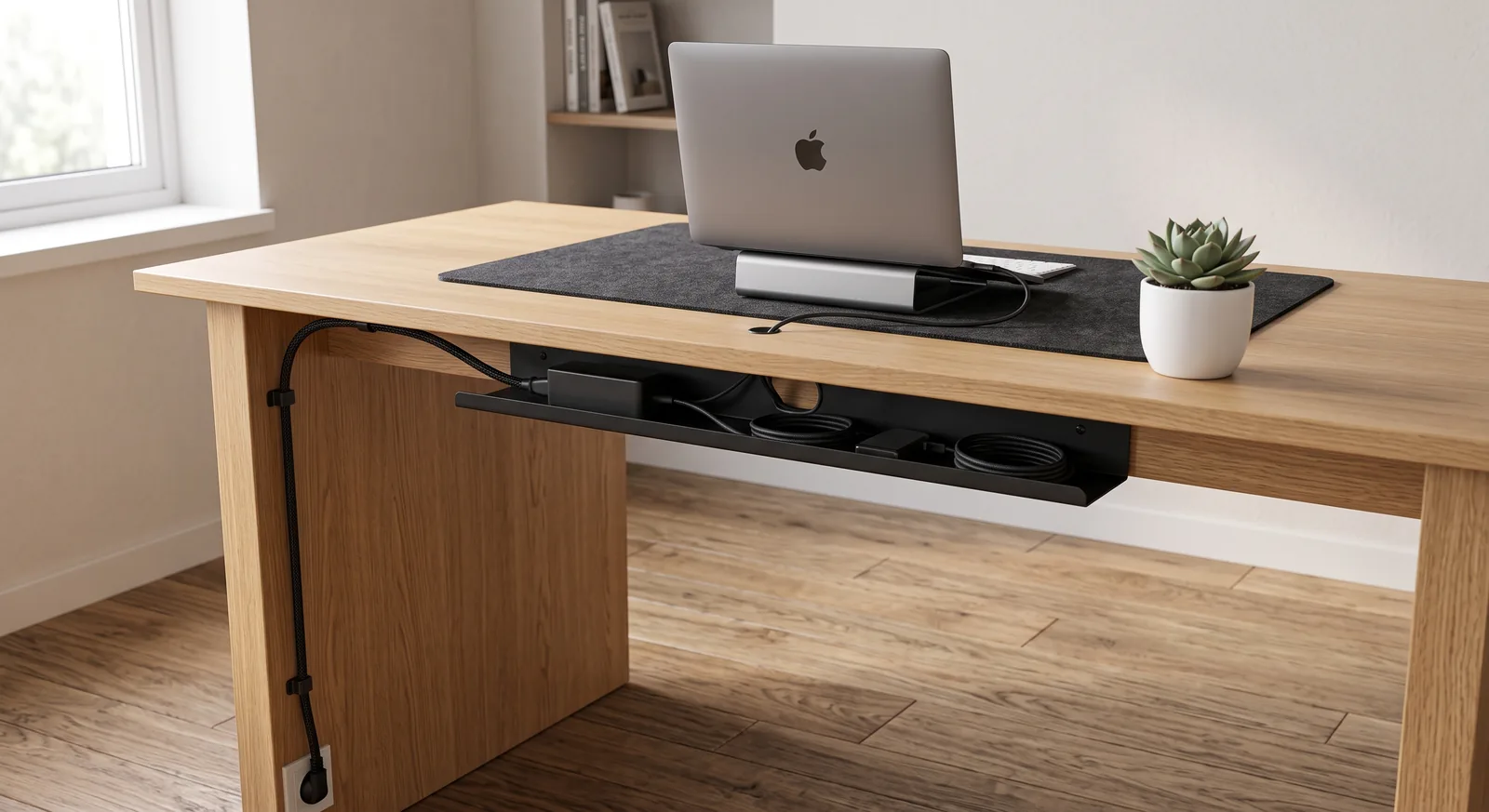
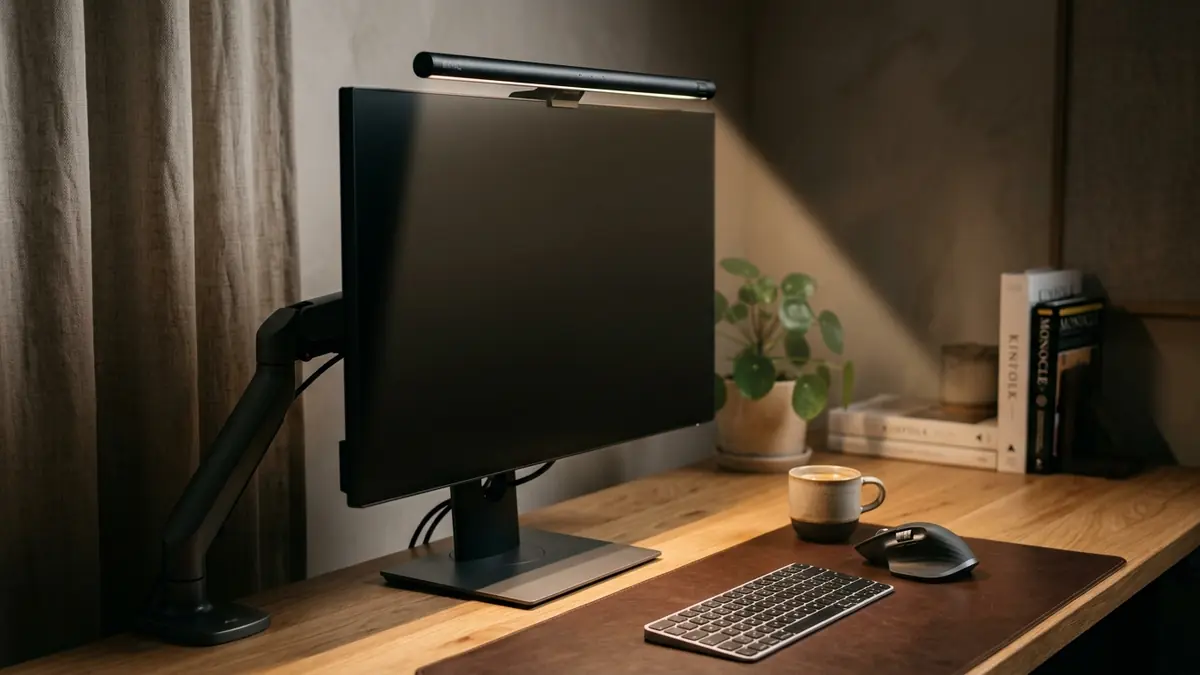
Running two or three displays instantly doubles your visual real estate, but it also creates an overwhelming rat’s nest of power cables, display cords, and USB interconnects behind your screens. The solution is establishing a structured multi-monitor cable routing protocol that organizes wires by screen, routes them through articulating arm channels, and drops them cleanly into an under-desk tray. In this guide, I will share the exact grouping matrices and channel routing methods I use across professional workspace overhauls to render multi-screen wiring completely invisible.
For a complete commercial-grade setup combining dual gas-spring arms, heavy-duty cable trays, and surface protection, explore the Advanced Desk Setup Kit.
The Anatomy of Multi-Monitor Cable Clutter
Multi-monitor cable clutter occurs because adding a secondary display and laptop dock introduces between 6 and 10 separate high-gauge cords to the rear of your desk. Without dedicated channel routing, these stiff cables hang visibly beneath the screen bezels, cross over each other, and pull sideways against video ports.
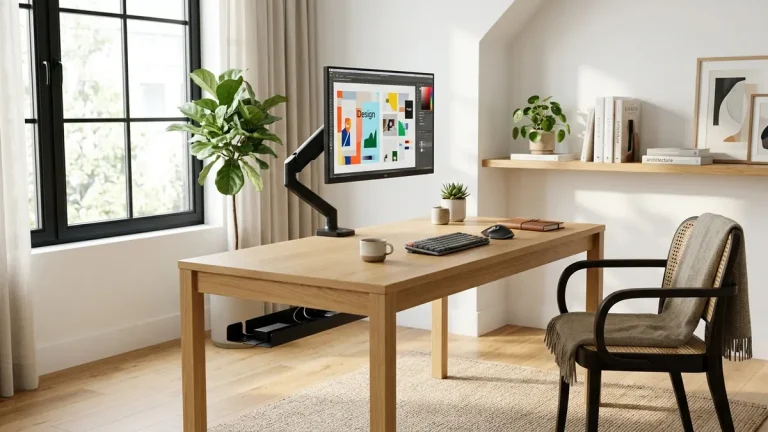
A dual monitor setup requires matching screen heights and focal distances across both panels while consolidating multiple video and power leads into concealed channel pathways.
A typical dual-monitor workstation contains an extensive wiring payload:
- Display 1 (Primary): 1x DisplayPort/HDMI video cable + 1x AC power adapter lead + 1x USB upstream hub cable.
- Display 2 (Secondary): 1x DisplayPort/HDMI video cable + 1x AC power adapter lead.
- Laptop / Docking Station: 1x 100W+ USB-C charging trunk + 1x Thunderbolt dock power supply + 1x audio/webcam lead.
Totaling 6 to 9 distinct lines, this bundle weighs upwards of 3.5 pounds. If routed as a loose bundle, it sags visibly and creates electromagnetic interference (EMI) when unshielded power and video lines run in parallel contact over long distances.
How Do You Route Wires Through Articulating Monitor Arms?
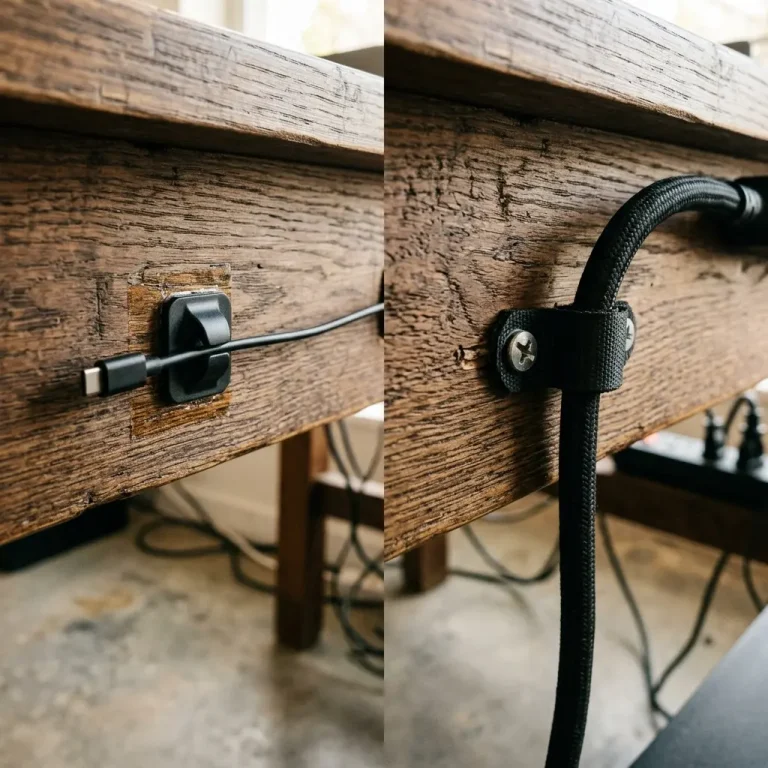
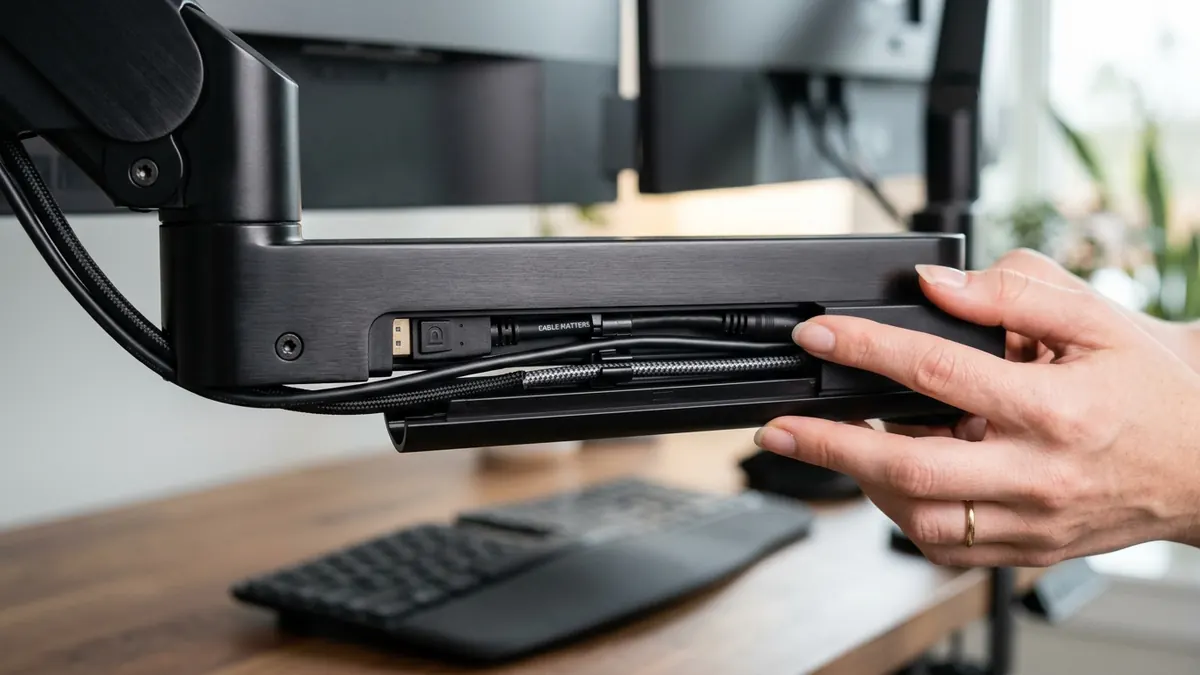
To route wires through articulating monitor arms, bundle each display’s power and video cords into a separate pair using reusable hook-and-loop straps, insert the bundle into the lower arm raceway, and leave a 3-to-4-inch service loop at every pivot elbow before snapping the channel covers shut. This ensures the arm can articulate, rotate, and tilt freely without straining ports.
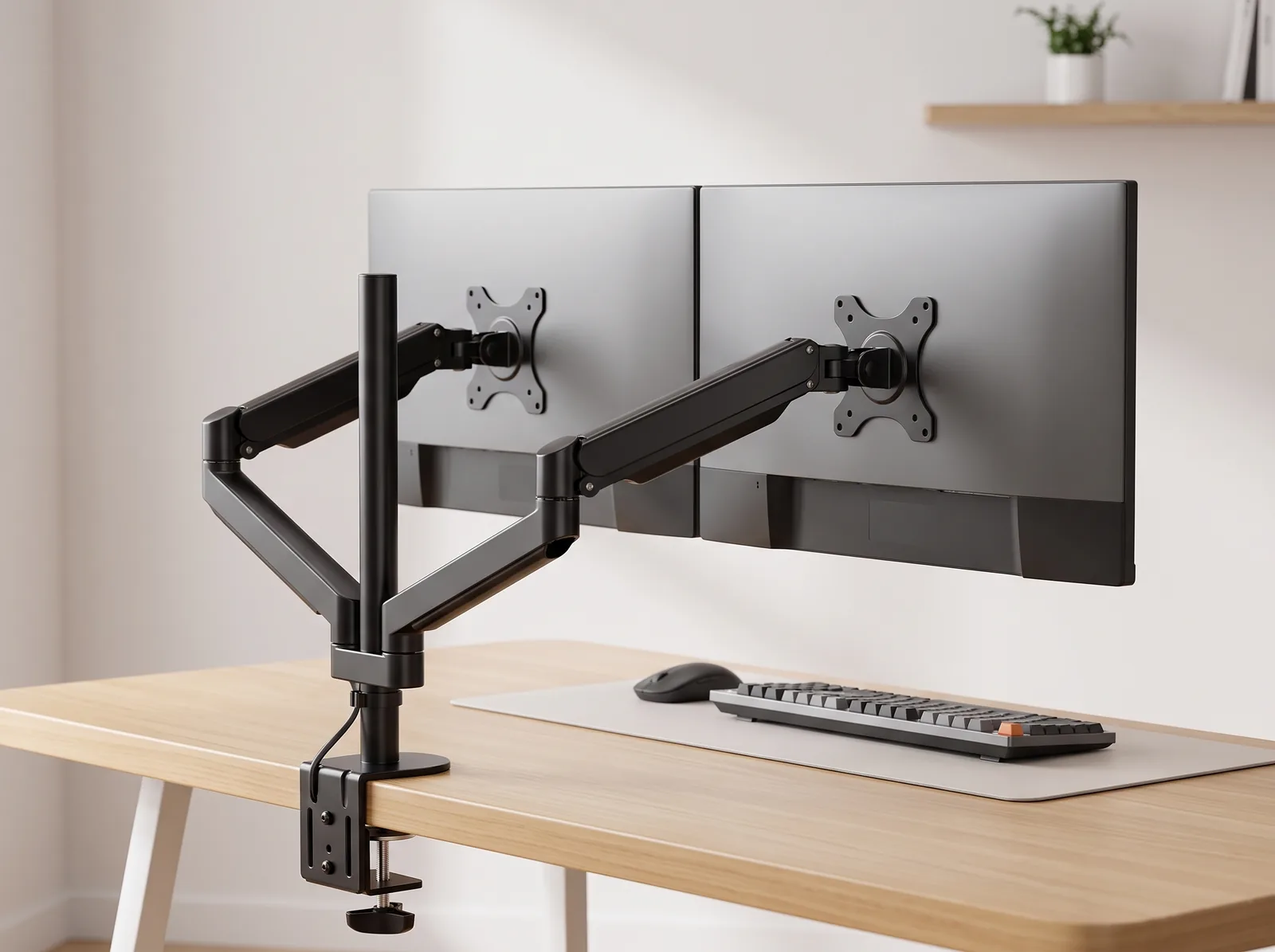
An ergonomic monitor arm maintains optimal viewing distance at 20 to 30 inches while elevating the screen to eye level and concealing video and power cords inside internal raceways.
Using a dedicated heavy-duty mount like the Dual Monitor Arm Stand or the Dual Monitor & Laptop Gas Spring Mount provides independent dual-channel raceways along both the upper and lower aluminum segments. Follow these three best practices:
- Separate Left and Right Screen Paths: Never combine cables from Screen 1 and Screen 2 into a single rigid bundle until they reach the base mount. Keep each screen’s cables isolated to its respective articulating arm.
- Maintain The Pivot Loop: At the mechanical elbow hinge, leave 3 to 4 inches of relaxed slack so the internal copper cores never stretch when the arm extends forward.
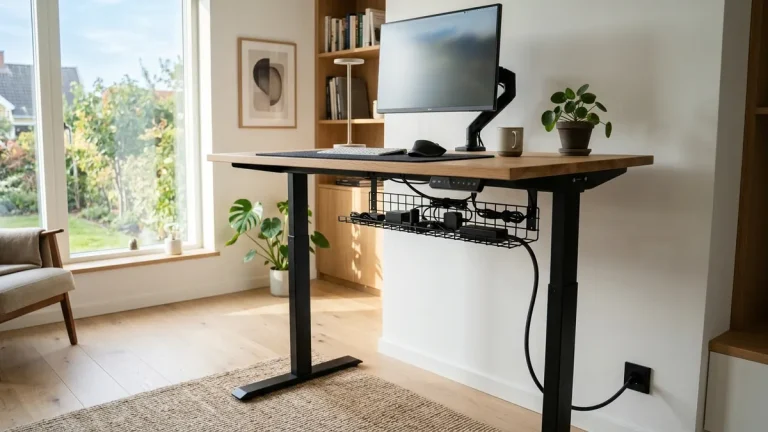
- Drop Directly into the Tray: Position the base clamp directly above your Under-Desk Cable Tray so cables exit the bottom of the pole mount and enter the tray without touching the desk surface.
Learn how to calibrate display heights in our companion tutorial on monitor eye level vs. viewing angles.
The Cable Bundling Matrix: Power vs. High-Bandwidth Data
Proper multi-monitor wire architecture separates high-voltage AC electrical lines from high-bandwidth 4K/8K DisplayPort and USB-C data streams. Grounded in IEEE Electromagnetic Compatibility (EMC) standards and VESA cable shielding specifications, maintaining physical separation between AC power cords and digital video lines prevents electromagnetic interference (EMI), visual jitter, and display flicker. Running cheap, unshielded power supplies tightly wrapped against digital video cables can induce electrical noise, causing screen flickering and frame drops.
| Cable Category | Cables Included | Routing Standard | Interference & Safety Protocol |
|---|---|---|---|
| High-Bandwidth Video | DisplayPort 1.4, HDMI 2.1, Thunderbolt 4 | Upper segment internal arm raceway | Avoid tight 90° bends; maintain >2″ bend radius |
| DC Monitor Power | 19V/24V monitor power leads | Parallel along arm raceway | Pair with video using soft fabric hook-and-loop ties |
| AC Master Power | 110V/230V surge protector power cord | Direct under-desk tray to floor drop | Cross data lines only at 90° angles; never wrap together |
| Peripheral Low-Voltage | Webcam USB, light bar power, audio jack | Central mast raceway drop | Route along rear pole spine directly into dock |
Discover complete system wiring principles in our anchor guide on desk cable architecture.
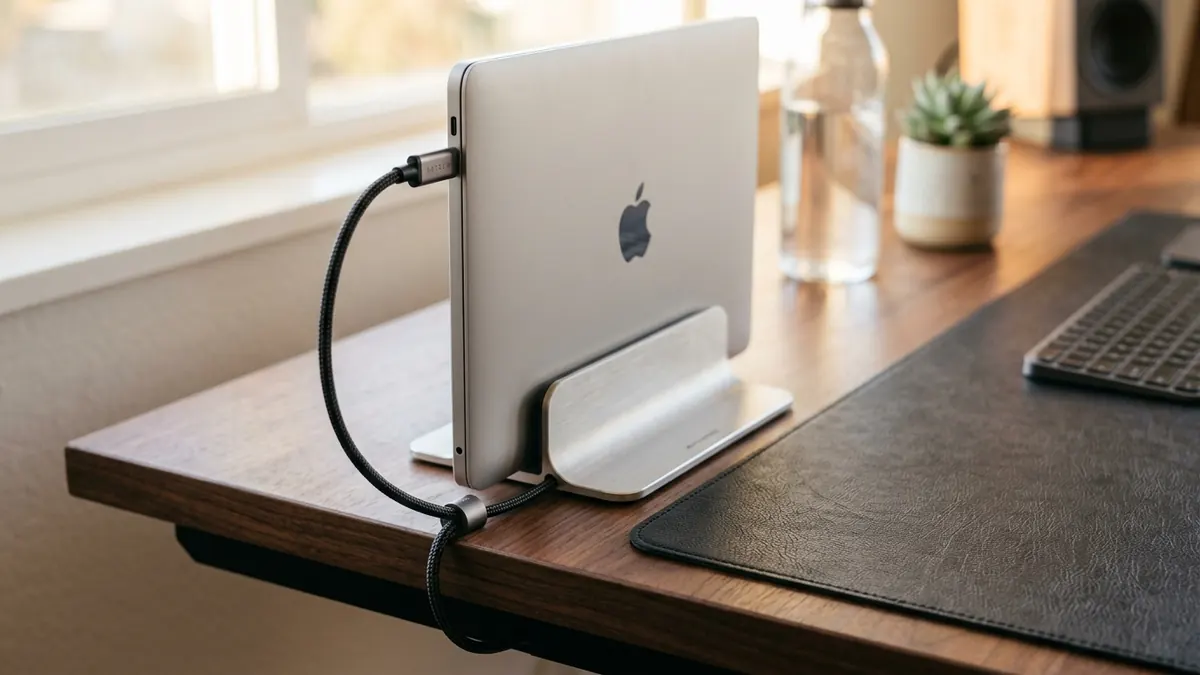
The Single-Cable Laptop Dock Architecture
If your multi-monitor setup is powered by a laptop, the cleanest architectural solution is placing a Thunderbolt or USB-C docking station inside your under-desk tray or behind your primary monitor. This reduces your visible desktop connection to a single high-bandwidth cable that delivers video, power, and data simultaneously.
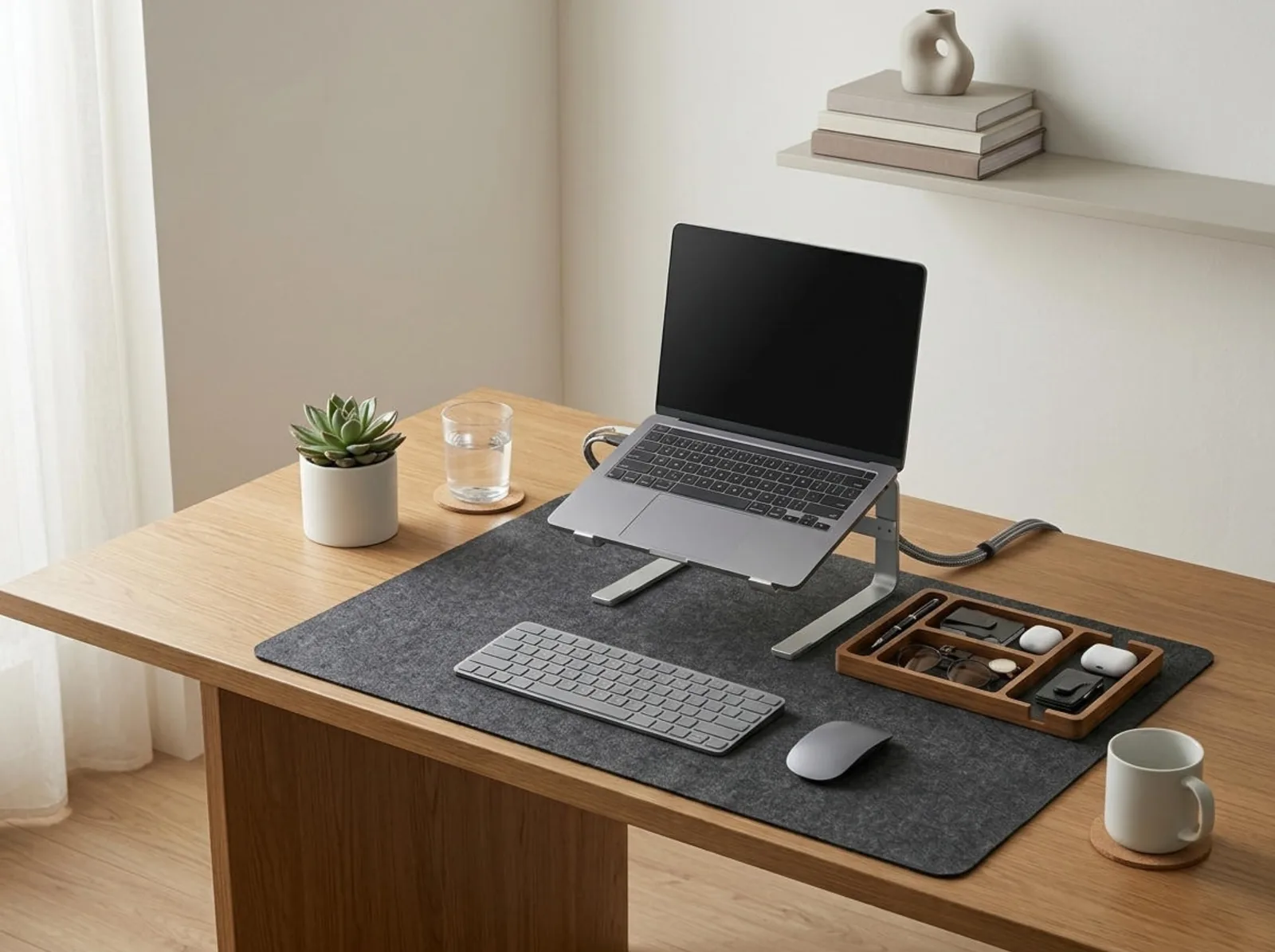
A laptop stand is an elevated platform designed to raise a laptop screen to eye level, reducing neck strain and improving posture during extended use.
Pairing your multi-monitor arms with an Adjustable Aluminum Vertical Laptop Stand allows you to dock your closed MacBook or PC vertically next to your screens, freeing up 80% of your desktop while keeping all video connections concealed behind the screens.
Compare single vs. dual monitor performance in our in-depth analysis of single vs. dual monitor workstation ergonomics.
Step-by-Step Guide: Wiring a Dual Monitor Setup in 5 Steps
Follow this exact 5-step procedural method to wire dual displays with zero visible cords:
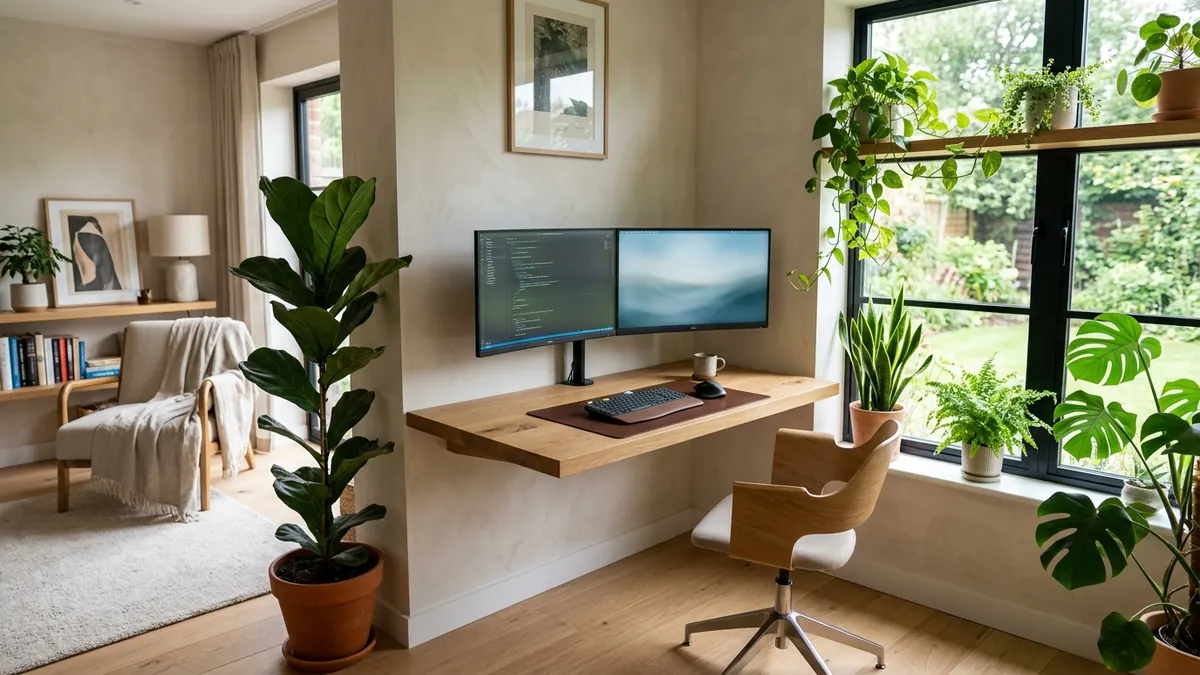
- Step 1: Mount Displays & Position Arms: Secure your Dual Monitor Arm Stand to the rear desk center and attach both display panels via VESA mounts. Set their final working heights.
- Step 2: Connect Cables at the Display Bezels: Plug the DisplayPort and DC power cords into Monitor 1 and Monitor 2, leaving 4 inches of relaxed loop behind each panel.
- Step 3: Feed Through Upper & Lower Arm Raceways: Open the arm channel covers, lay the bundled wires inside each segment, and snap the covers shut.
- Step 4: Perform the Full Articulation Test: Pull both monitors forward, push them back, and rotate them 90 degrees to ensure cables never bind or pull taut at hinge points.
- Step 5: Drop and Bundle in the Under-Desk Tray: Guide all leads out of the arm base directly into your Under-Desk Cable Tray, plugging AC power bricks into the surge protector.
Frequently Asked Questions
How do you hide cables behind a dual monitor setup?
Hide cables by using an articulating dual monitor arm with integrated internal cable channels. Route video and power leads through the upper and lower arm segments, dropping them directly into an under-desk cable tray beneath the mounting base.
Can power and DisplayPort cables be bundled together in monitor arms?
Yes, low-voltage DC monitor power cords can be bundled with shielded DisplayPort or HDMI cables inside monitor arms. However, avoid bundling high-voltage 110V/230V AC extension cords with video cables over long parallel runs to prevent signal flickering.
How much slack should I leave at monitor arm joints?
Leave a 3 to 4 inch expansion loop at every articulating elbow and wrist hinge. This allows full 360-degree rotation, vertical height adjustment, and forward extension without placing tension on video ports.
What is the best way to connect a laptop to dual monitors?
The cleanest method is using a single-cable Thunderbolt 4 or USB-C dock mounted inside an under-desk tray. All monitor and peripheral cables connect to the dock, leaving only one slim cable traveling to your laptop.
What cable lengths should I buy for dual monitor arms?
Standard 3-foot cables are usually too short for articulating arms. Choose 6-foot or 10-foot (1.8m to 3m) DisplayPort and power extension cables to accommodate the full travel length of arm channels down to the under-desk tray.
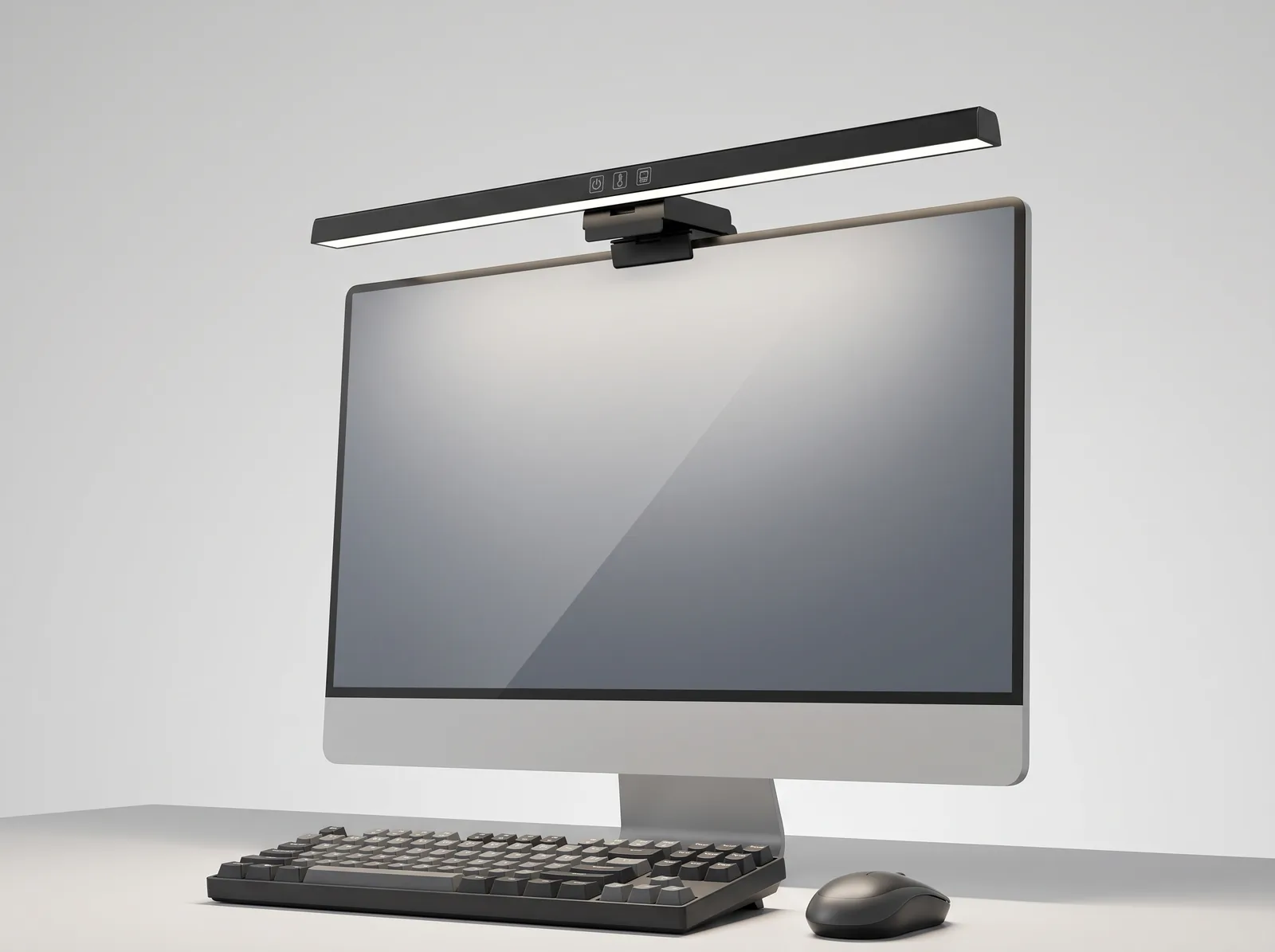
Do monitor light bar cables fit inside monitor arm channels?
Yes. Thin USB-C power cords for monitor light bars easily fit alongside display cables inside standard monitor arm raceways, routing invisibly down into your under-desk USB power hub.