
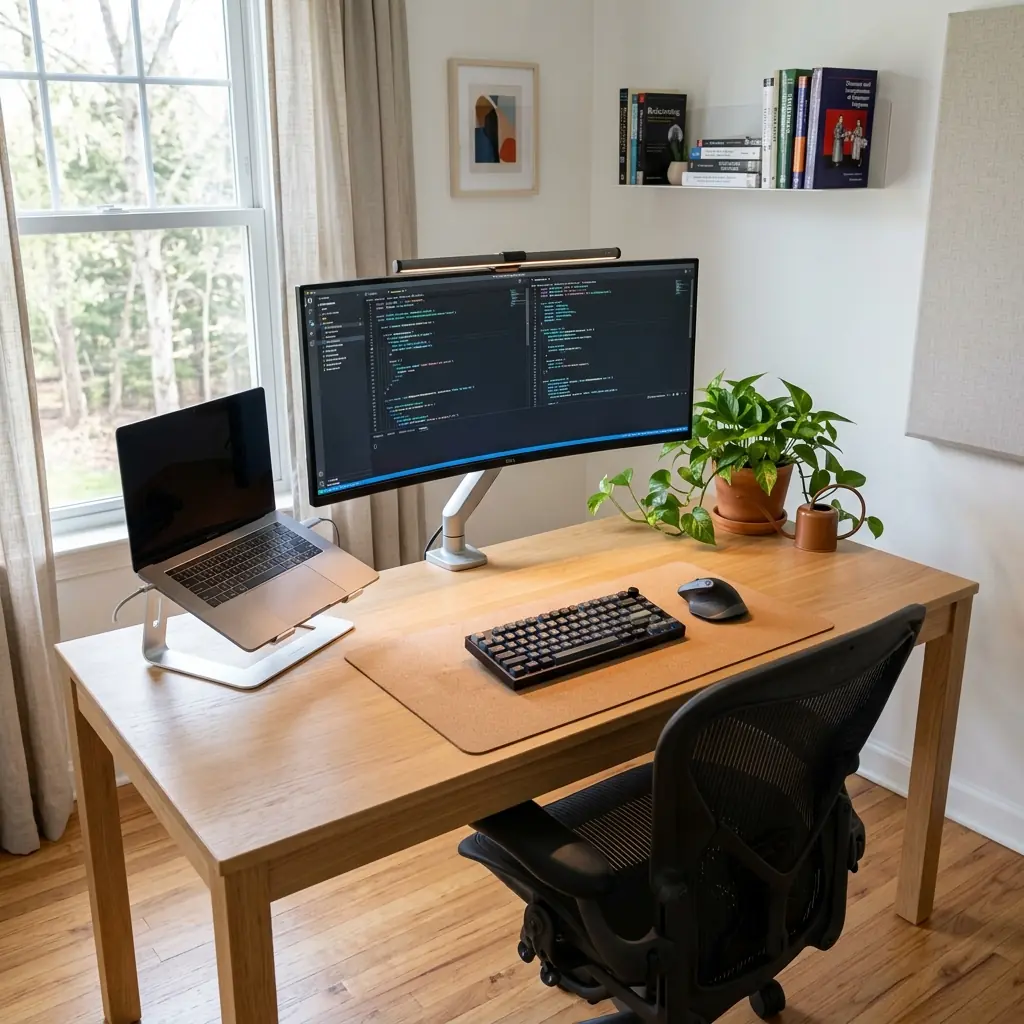
Software developers spend more consecutive hours at a desk than almost any other profession — writing code, debugging, reviewing pull requests, attending video calls, and reading documentation, often for 8 to 12 hours at a stretch. That sustained desk time creates a specific and well-documented set of physical risks: wrist strain from constant typing, neck pain from poor monitor positioning, lower back fatigue from inadequate lumbar support, and eye strain from poorly managed screen lighting.
Part of TidySetup’s comprehensive resource series: explore our master Ergonomic Workstation Alignment Master Guide for complete workstation benchmarks.
An ergonomic desk setup for software developers is not simply a comfortable workspace — it is a health investment that directly protects your ability to work at the highest level over a long career. The good news is that most of the changes that matter most are straightforward, one-time adjustments. If you’re starting from scratch, the TidySetup Starter Kit gives you a clean ergonomic foundation to build on.
If you prefer a comprehensive, ready-to-deploy workstation ecosystem, the Advanced Desk Setup Kit combines modular monitor arms, integrated cable management, and ergonomic desk accessories into a unified, high-performance setup.
In this guide, I’ll walk you through every element of the developer ergonomic desk setup — from monitor configuration and keyboard placement to laptop stands, cable management, and the environmental factors that affect sustained focus.
What Makes a Developer’s Desk Setup Unique?
A developer’s ergonomic needs differ from a general office worker in three key ways. First, developers typically use more screen real estate — multiple monitors or large ultrawide displays — which creates different ergonomic positioning demands. Second, keyboard and mouse usage is extremely high-volume and continuous, making wrist and forearm ergonomics critical. Third, deep work sessions are longer and more cognitively intense, making environmental factors like lighting and noise management more important than in roles with frequent task switching.
Understanding these differences is the starting point for building a setup that genuinely supports your work rather than simply looking good in a desk setup photo.
“An ergonomic workstation is a workspace configured to support the body’s natural posture, reduce strain, and prevent repetitive stress injuries during prolonged work — and for software developers, the risk of repetitive strain injury is significantly elevated by the sustained, high-volume nature of keyboard and mouse use.”
The Developer Ergonomics Risk Profile
- Wrists and forearms — Highest risk area; constant typing creates cumulative stress if wrist position is incorrect
- Neck and cervical spine — Multi-monitor setups frequently cause lateral neck rotation if not properly positioned
- Lower back — Long sessions without movement cause lumbar fatigue and disc pressure
- Eyes — Extended screen time plus dark-mode IDE contrast can accelerate digital eye strain
How Should a Developer Position Their Monitor?
Monitor positioning is the single highest-impact ergonomic adjustment for software developers. The correct position reduces cervical spine flexion, prevents upper trapezius tension, and eliminates the forward head posture that causes chronic neck and shoulder pain.

The standard ergonomic rule — applicable to all screen workers — is that the top third of the monitor should align with your natural line of sight when sitting fully upright. For most adults, this places the top edge of the monitor approximately 2–3 inches above seated eye level.
Monitor Positioning Rules for Developers
- Primary monitor directly ahead — Your most-used screen (IDE, terminal) must sit straight ahead. Never angle your primary monitor to one side.
- Viewing distance: 20–30 inches — Large monitors (27″+) can go to 30 inches; smaller monitors can sit closer to 20 inches. This is one full arm’s length.
- Top edge at or just above eye level — Prevents the downward neck tilt that causes cervical strain over long sessions.
- Secondary monitor: angled inward 30–45° — If using dual monitors, the secondary screen should be to the side and angled toward you, not placed flat.
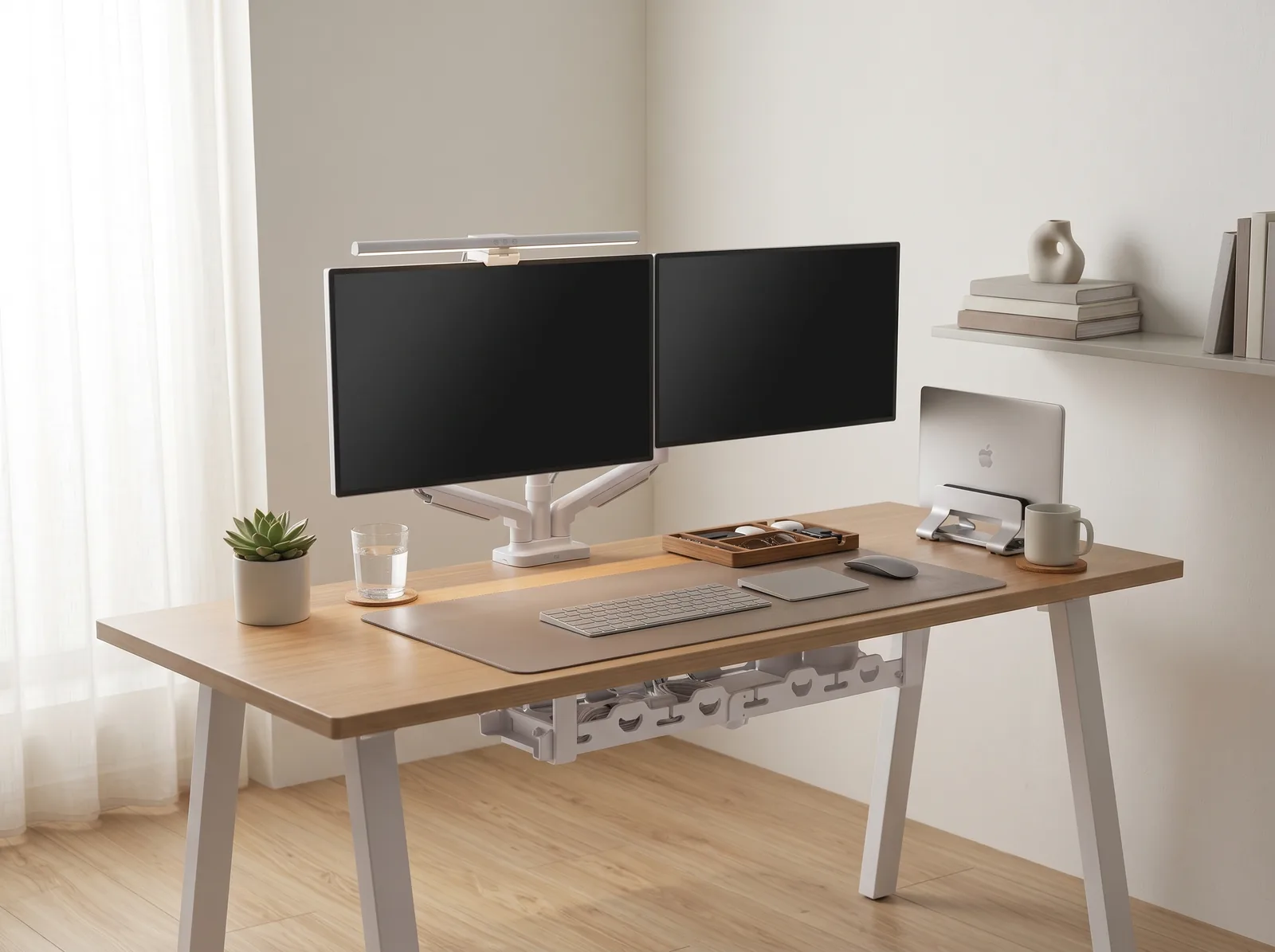
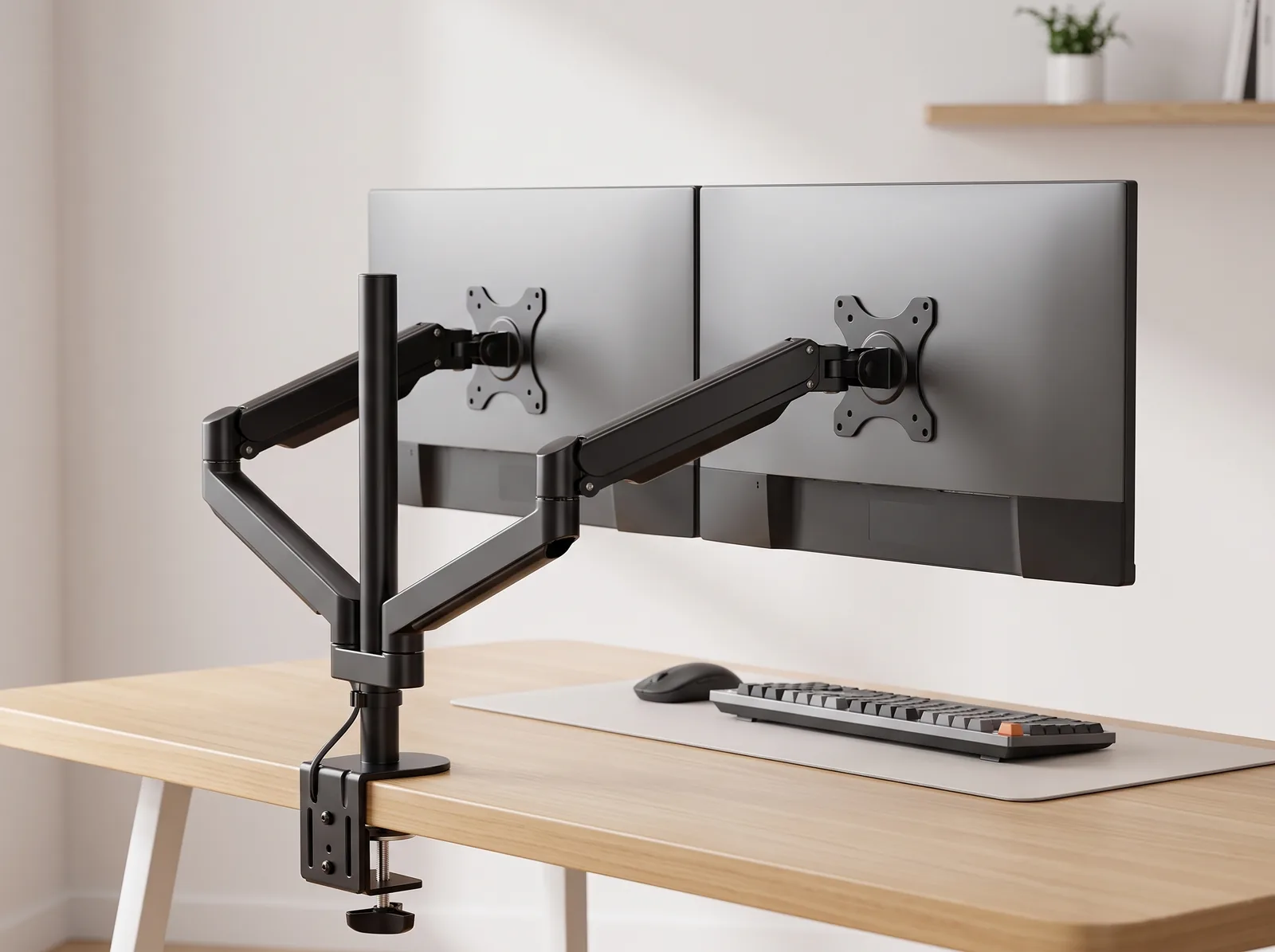
- Use a monitor arm — A monitor arm is an adjustable mounting system that attaches a display to a desk, allowing precise height, depth, and tilt adjustments that monitor stands cannot achieve. For developers, a monitor arm is essential, not optional.
During a workspace audit I conducted for a 40-person engineering team, I found that 71% of developers had their monitors set too low — typically resting on the stock stand at desk height, which is about 4 to 6 inches below where the screen needs to be. Raising the monitor to proper height and switching to a monitor arm resolved neck pain complaints for the majority of those employees within two weeks. For more on setting this up correctly, see our monitor arm setup guide.
“A monitor arm raises the screen by 4 to 8 inches above standard desk height and allows continuous micro-adjustments — making it possible to maintain the ergonomic eye-level rule across different seating positions, including during standing desk use.”
Ultrawide vs. Dual Monitor: Ergonomic Comparison
| Setup | Ergonomic Advantage | Ergonomic Risk | Developer Use Case |
|---|---|---|---|
| Single ultrawide (34″–49″) | No lateral neck rotation; single focal plane | Extreme peripheral content causes eye tracking fatigue | Full-stack devs, terminal + IDE side-by-side |
| Dual monitors (27″ + 27″) | More total pixels; secondary for reference/docs | Lateral rotation if primary is not centered | Backend devs, data engineers, code + browser |
| Laptop + external monitor | Compact, portable-friendly | Laptop screen below eye level if not on stand | Flexible devs who move between office and home |
What Is the Best Keyboard Setup for Developer Ergonomics?
Keyboard ergonomics are where most developers unknowingly accumulate the most long-term damage. The 90-degree elbow rule states that forearms should rest at 90 to 100 degrees relative to the upper arm, with wrists kept neutral and flat on the desk surface — never angled upward, downward, or sideways. Chronic deviation from this position is the primary cause of carpal tunnel syndrome and ulnar nerve entrapment in desk workers.

Keyboard Placement Rules
- Position the keyboard so elbows rest at 90–100° — If your elbows are rising, your desk is too low or your keyboard is too far away
- Keep the keyboard close to your body — Reaching forward strains forearm flexors and rotates the shoulder forward
- Use a negative tilt or flat keyboard — Keyboards with a positive tilt (back higher than front) force wrist extension, increasing carpal tunnel risk
- Place the mouse immediately beside the keyboard — Reaching to the side for a mouse strains the shoulder and rotates the spine
For precise angle and distance guidance, see our ergonomic keyboard placement guide.
Mouse: Vertical vs. Standard for Developers
A vertical ergonomic mouse positions the hand in a handshake orientation — thumb up, palm vertical — which keeps the forearm in a neutral position rather than the pronated (palm-down) position of a standard mouse. For developers logging 8+ hours of daily mouse use, this single switch can meaningfully reduce forearm and wrist strain over time.
| Mouse Type | Forearm Position | Best For | Adjustment Period |
|---|---|---|---|
| Standard mouse | Pronated (palm down) | General use, short sessions | None |
| Vertical mouse | Neutral (handshake) | Long coding sessions, wrist strain prevention | 1–2 weeks |
| Trackball mouse | Neutral, minimal arm movement | Tight desk spaces, wrist injury recovery | 2–3 weeks |
Why Developers Need a Laptop Stand
Many developers work from a laptop — either as their primary machine or paired with an external monitor. When a laptop sits flat on a desk, the screen is positioned at approximately desk height, which is 8 to 12 inches below the ergonomic eye-level standard. Sustained work in this position causes the forward head posture and cervical flexion that leads to chronic neck and upper back pain.
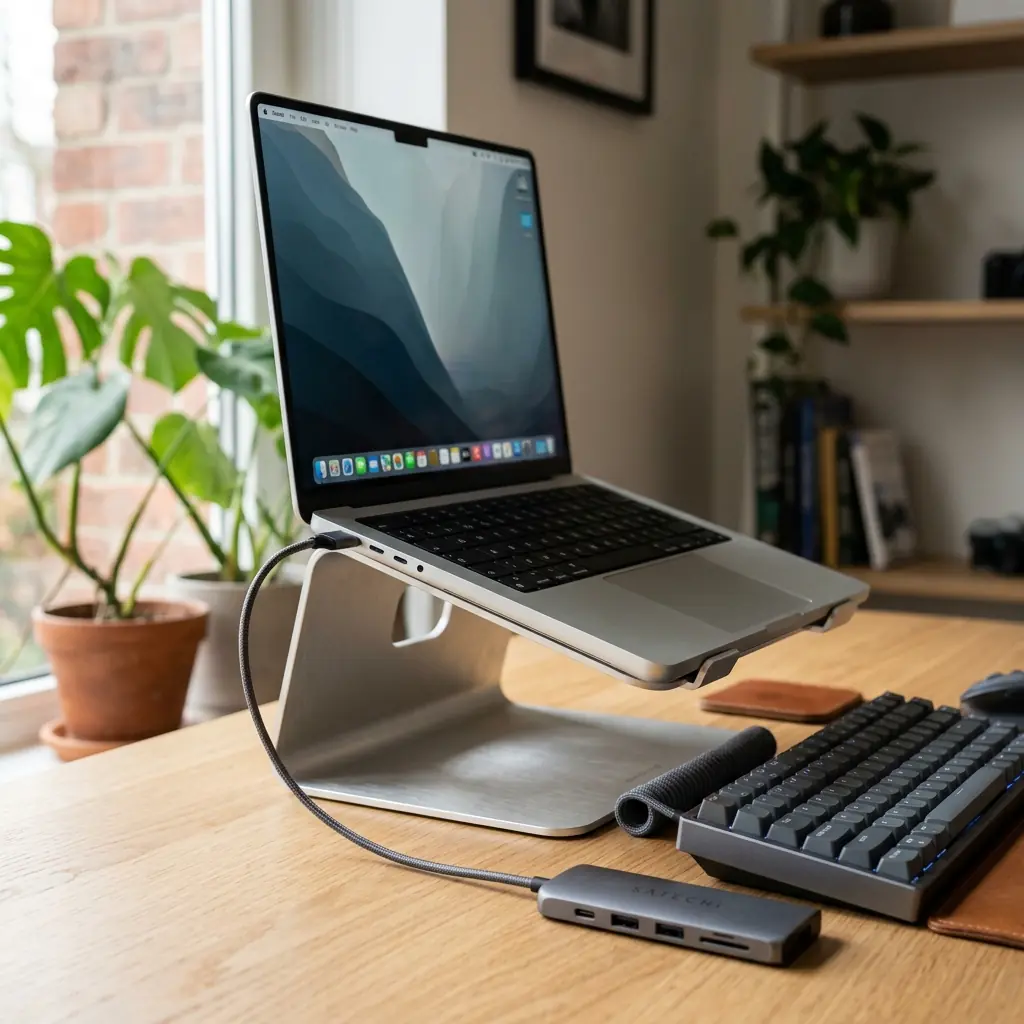
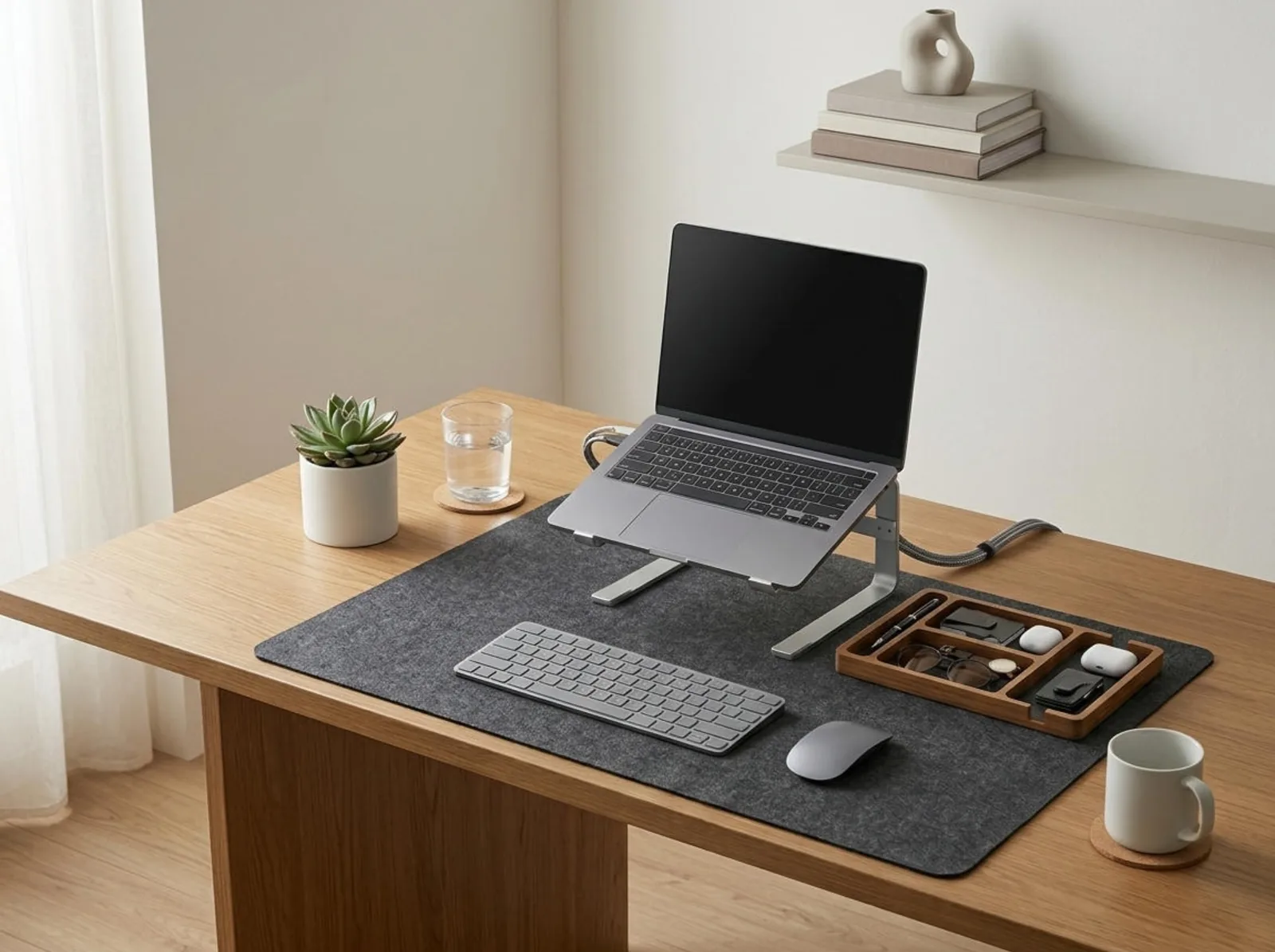
A laptop stand is an elevated platform designed to raise a laptop screen to eye level, reducing neck strain and improving posture during extended use. When the laptop is elevated on a stand and used with an external keyboard and mouse, it becomes functionally equivalent to a desktop workstation in ergonomic terms.
Developer Laptop Stand Setup
- Place the laptop on the stand — raise the screen to match monitor height
- Connect an external keyboard (positioned for 90° elbow rule)
- Connect an external mouse (vertical recommended)
- Add a USB hub or docking station to manage peripheral connections cleanly
- Use the laptop display as a secondary screen or close the lid entirely if using an external monitor
For a head-to-head comparison of stand materials, see our aluminum vs. plastic laptop stand durability guide. The TidySetup ergonomic aluminum laptop stand is designed specifically for this configuration.
Cable Management for Developer Desks
A developer desk typically hosts more cables than any other home office setup: monitor cables, USB-C or Thunderbolt cables, keyboard and mouse receivers, audio interfaces, charging cables, and ethernet. Without active cable management, this becomes both a visual distraction and a practical hazard.
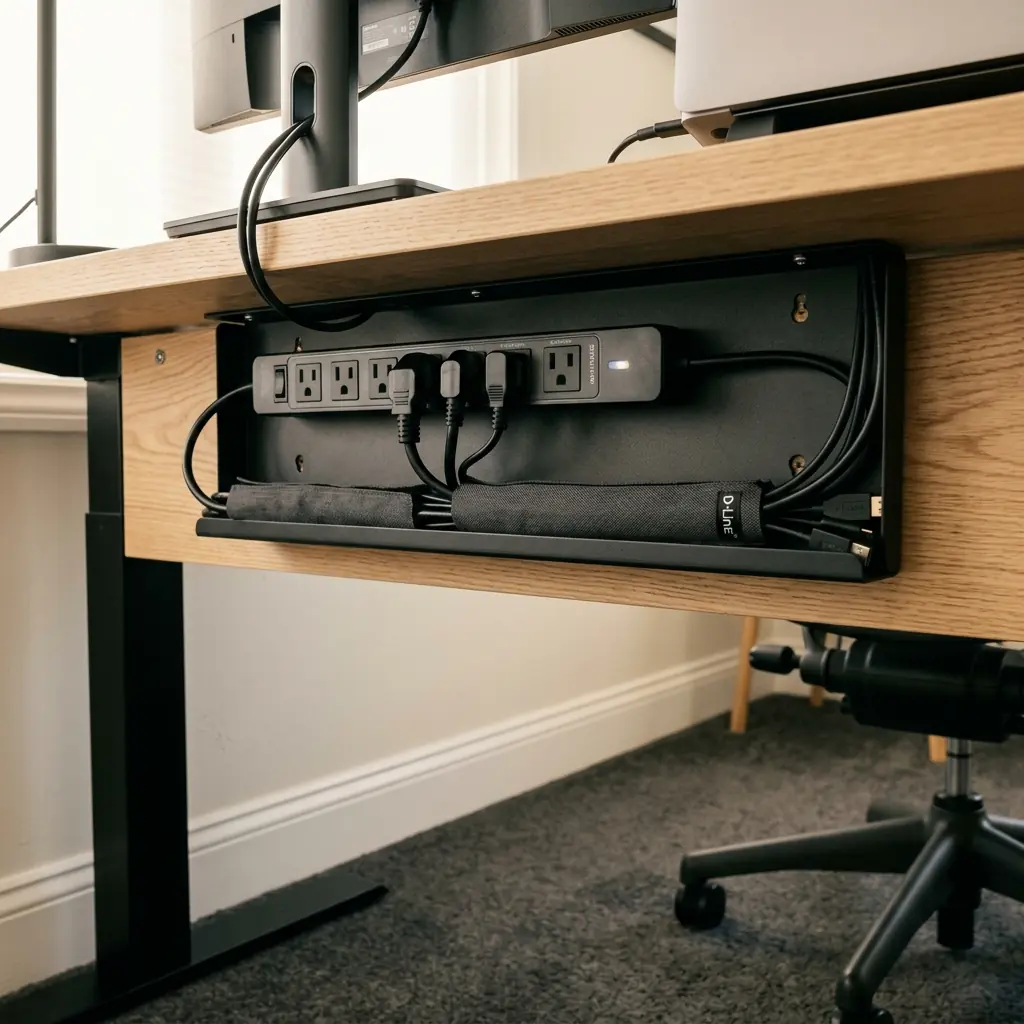
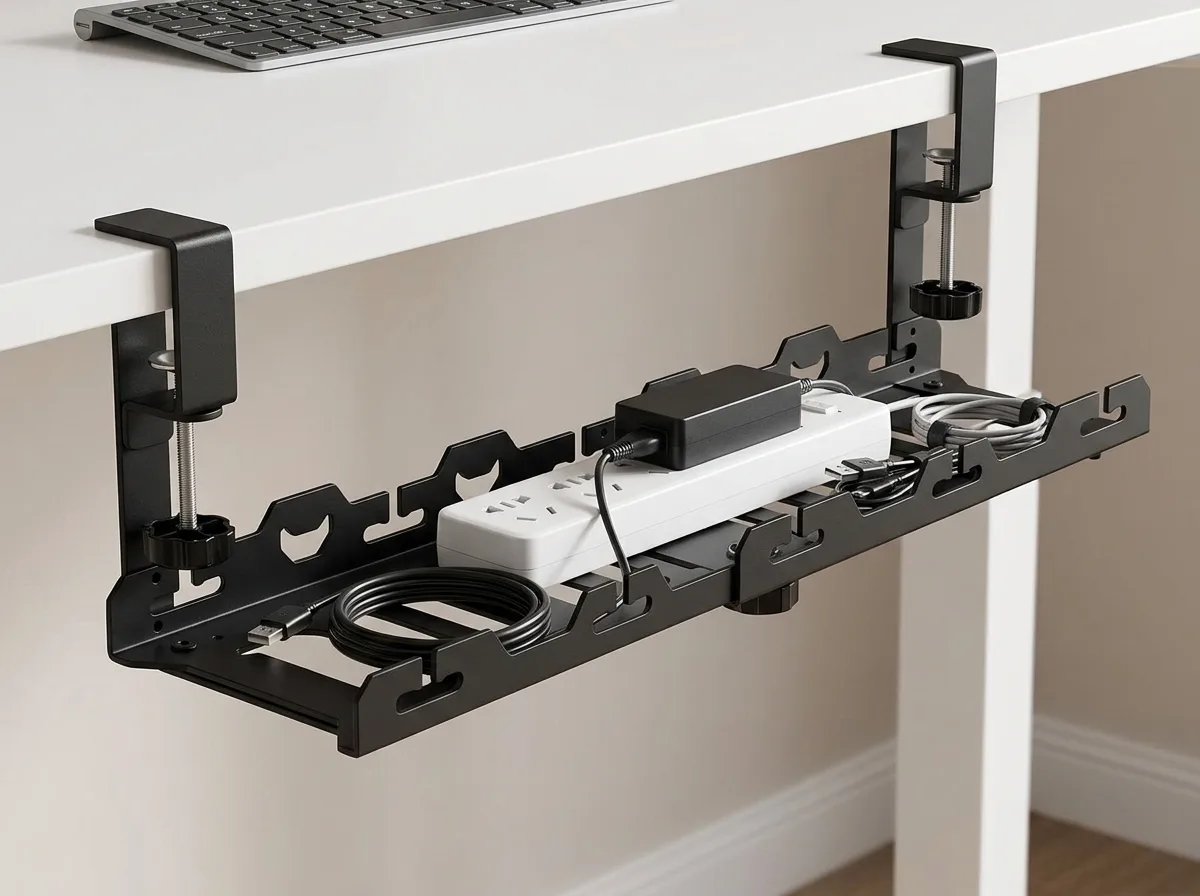
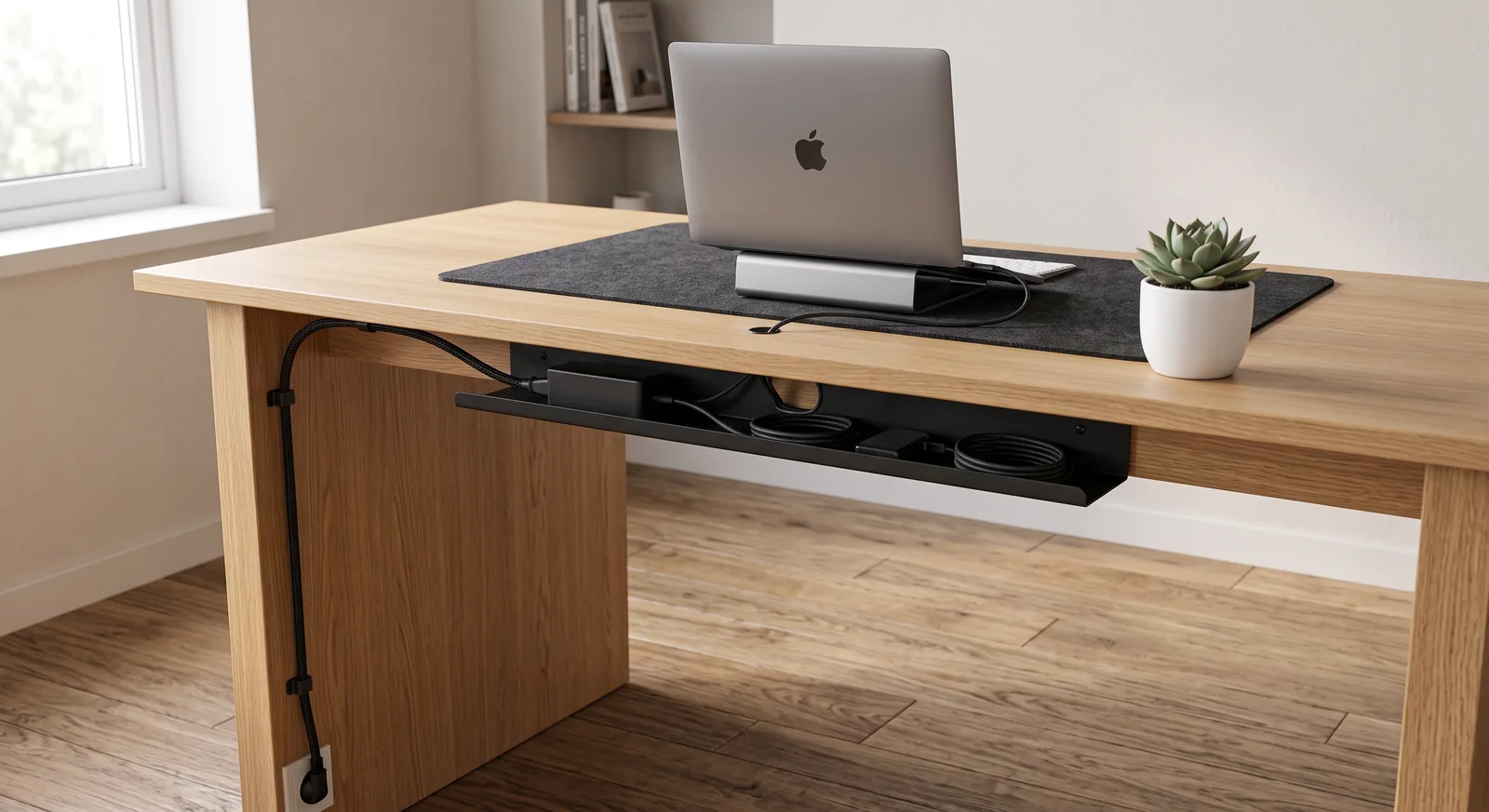
“A cable management system is a combination of tools such as clips, sleeves, and trays used to organize and conceal wires in a workspace — and for developer desks with 6 to 10 active cables, an under-desk cable tray combined with a cable sleeve reduces visible clutter to near zero.”
Developer Cable Management Priority List
- Under-desk cable tray — Mount a cable tray beneath the desk to hold the power strip and all excess cable length out of sight
- Cable sleeve — Bundle monitor, laptop, and peripheral cables into a single sleeve running from the desk edge to the tray
- Adhesive cable clips — Route individual cables along the desk edge and down the legs to the tray
- USB hub / docking station — Consolidate 4–6 peripheral connections into one cable running to the laptop — reducing cable count dramatically
- Velcro cable ties — Use reusable velcro ties (not zip ties) at the tray to keep cable bundles tidy without permanent commitment
For a deep dive on under-desk solutions, see our under-desk cable management guide.
The Complete Developer Ergonomic Desk Setup: Step-by-Step
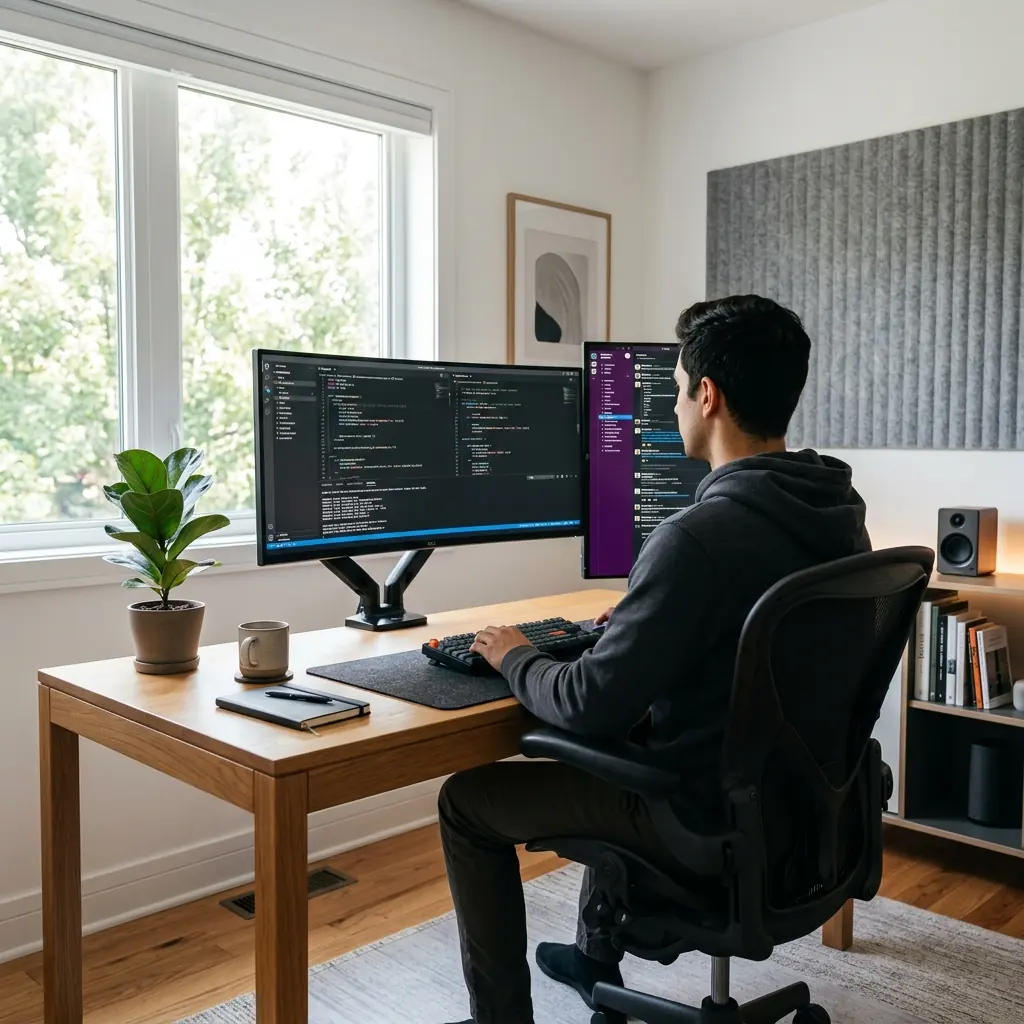
- Set desk height — Standard ergonomic desk height is 28–30 inches for seated work. Adjust so your forearms rest at 90–100° with wrists flat.
- Install monitor arm — Mount your primary monitor so the top edge is 2–3 inches above seated eye level, at 20–30 inches distance.
- Elevate the laptop — Place on an aluminum stand and connect external keyboard and mouse.
- Configure keyboard — Position flat (or negative tilt), close to the body, elbows at 90°.
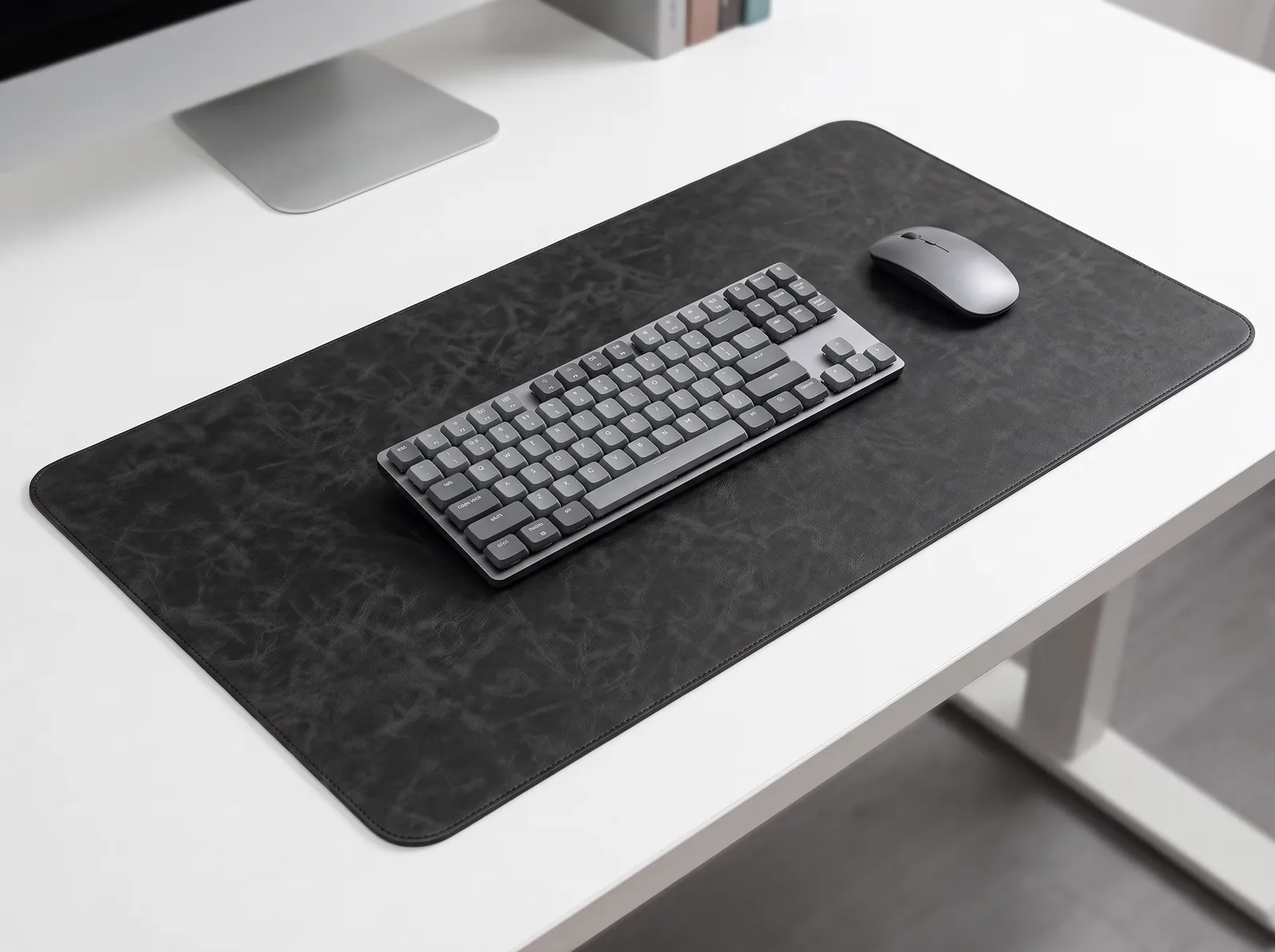
- Add a cork desk mat — Provides wrist cushioning during rest, reduces desk surface fatigue, and anchors keyboard position.
- Install cable management — Under-desk tray, cable sleeve, and adhesive clips to eliminate all visible wires.
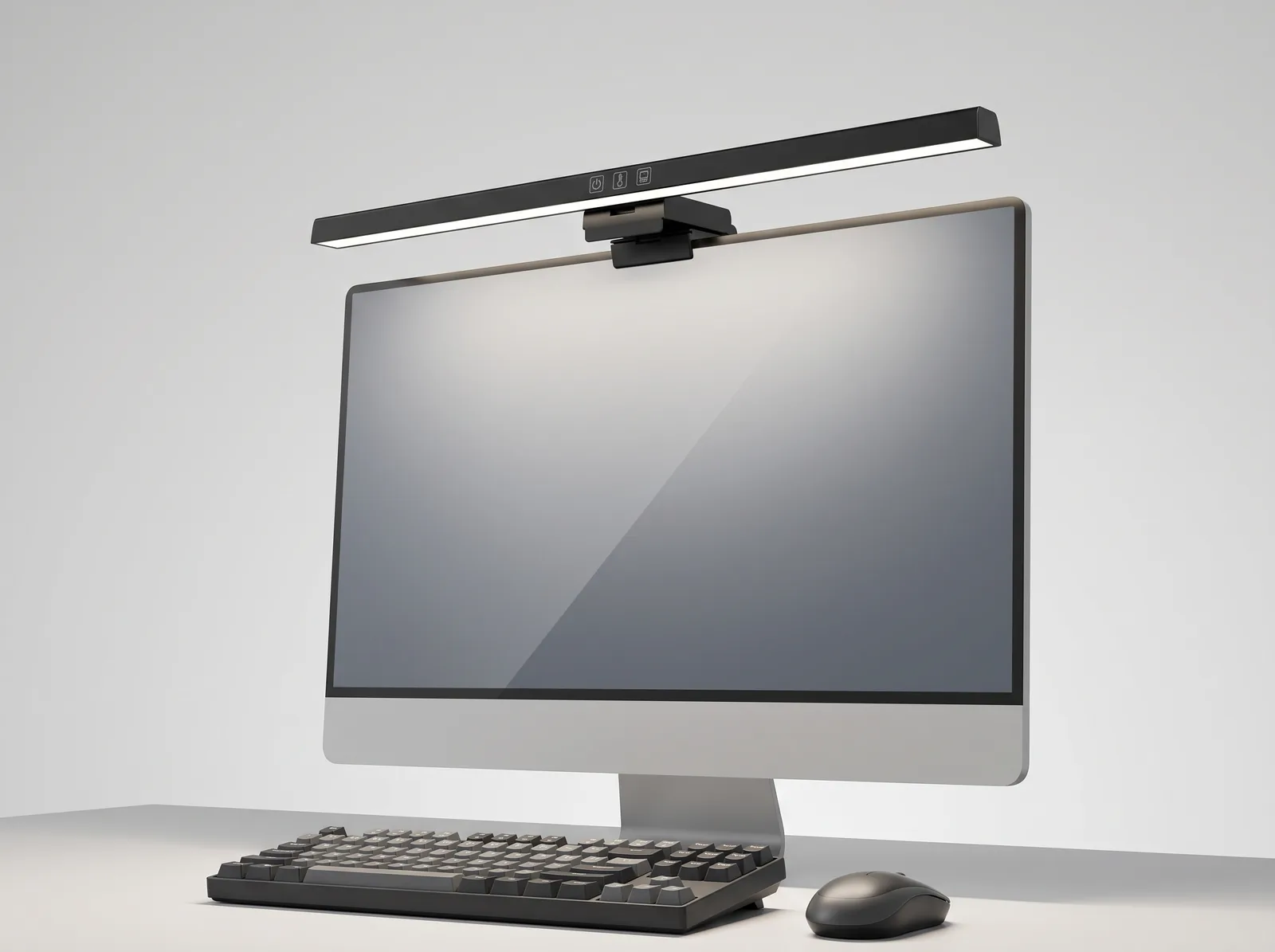
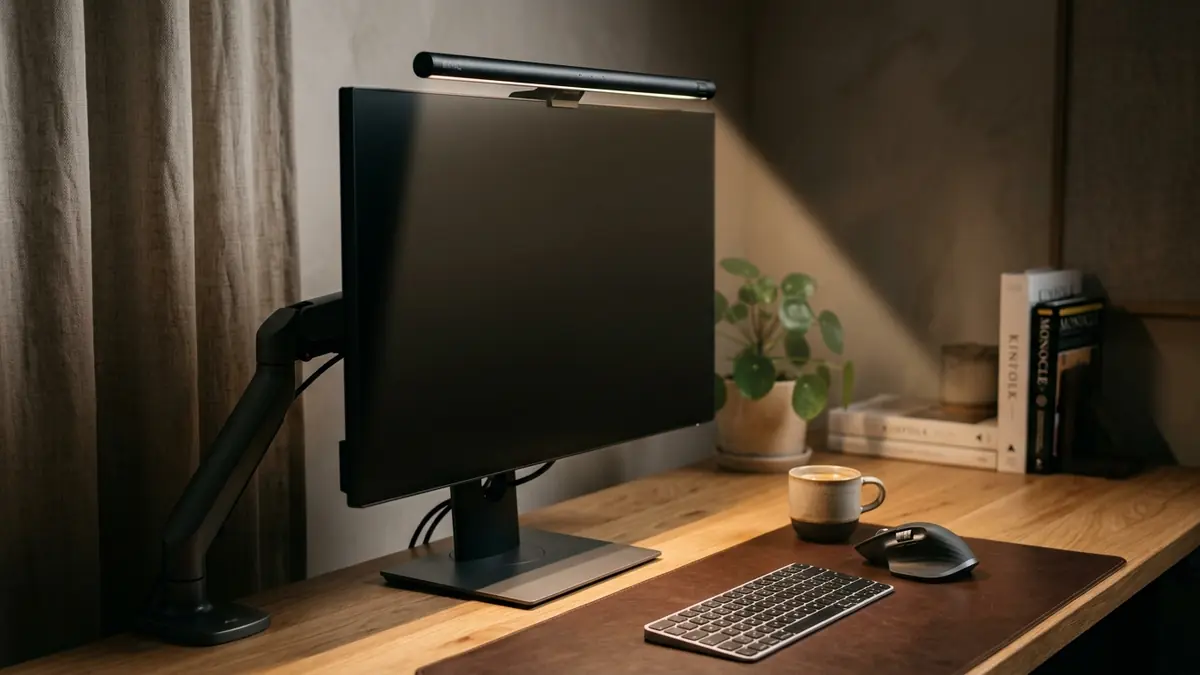
- Add a monitor light bar — Set to 4,000K to illuminate the desk without adding screen glare.
- Set chair lumbar support — Adjust the lumbar cushion to maintain the natural inward curve of the lower spine.
- Apply the 20-20-20 rule — Every 20 minutes, look at something 20 feet away for 20 seconds to reduce digital eye strain.
Developer Ergonomic Desk Setup Checklist
- ☐ Primary monitor top edge at or just above eye level
- ☐ Monitor distance 20–30 inches from eyes
- ☐ Keyboard flat or negative-tilted, elbows at 90–100°
- ☐ Wrists neutral — not bent up, down, or sideways while typing
- ☐ Mouse immediately beside the keyboard (no reaching)
- ☐ Laptop on stand if used as primary machine
- ☐ Lumbar support maintaining natural lower-back curve
- ☐ Feet flat on floor (or footrest)
- ☐ All cables managed: under-desk tray + sleeve + clips
- ☐ Monitor light bar or task light at 4,000K
- ☐ 20-20-20 eye rest rule in practice
Frequently Asked Questions
What is the best monitor setup for software developers?
The best monitor setup for software developers depends on workflow. A single 34″–49″ ultrawide is ideal for developers who want maximum screen real estate without lateral neck rotation. Dual 27″ monitors suit developers who benefit from separating code from browser or documentation windows. In both cases, the primary monitor must be positioned at eye level on a monitor arm, at a viewing distance of 20–30 inches.
Do software developers need a special keyboard for ergonomics?
Developers do not require a specialty ergonomic keyboard, but they do need to follow strict placement rules: keyboard flat or negative-tilted, positioned close to the body, with elbows at 90–100° and wrists neutral. A compact 65% or TKL mechanical keyboard keeps the mouse closer to the body, reducing shoulder strain. Split ergonomic keyboards offer additional wrist angle benefits for developers with existing strain.
Is a monitor arm necessary for developers?
A monitor arm is strongly recommended for software developers. Most monitor stands do not raise the screen high enough to meet the ergonomic eye-level standard, especially for developers using large 27″+ monitors. A monitor arm provides precise height, depth, and tilt adjustment, and frees up desk surface area — a meaningful benefit on a cable-heavy developer desk.
How do I manage cables on a developer desk?
The most effective approach for a developer desk with 6 to 10 cables is to combine three tools: a mounted under-desk cable tray to hold the power strip and excess cable length, a cable sleeve to bundle the main run from desk to tray, and adhesive cable clips to route individual cables cleanly along the desk edges. A USB docking station further reduces cable count by consolidating peripherals into a single connection.
What chair height is correct for developer ergonomics?
Your chair height is correct when your feet rest flat on the floor and your thighs are parallel to the ground, with knees at approximately 90°. This creates the pelvic position that allows the lumbar spine to maintain its natural inward curve. If your chair at the correct height puts the desk too high, a keyboard tray or height-adjustable desk is the solution — not raising the chair and using a footrest.
Should developers use a standing desk?
Standing desks benefit software developers when used in alternating sit-stand cycles rather than standing all day. Research from the Karolinska Institute suggests that alternating between sitting and standing every 30–60 minutes reduces lumbar disc pressure and lower-limb fatigue compared to sustained sitting. The key is that standing desk ergonomics apply equally: monitor at eye level, keyboard at 90° elbow height (which is higher when standing), and anti-fatigue mat underfoot.
How can I reduce eye strain as a developer?
The most effective eye strain interventions for developers are: maintaining 20–30 inches of viewing distance from the monitor, using a monitor light bar at 4,000K to eliminate desk-to-screen brightness contrast, applying the 20-20-20 rule (look 20 feet away for 20 seconds every 20 minutes), and adjusting monitor brightness to match ambient room lighting — not at maximum. Dark-mode IDE themes reduce screen luminance but do not eliminate the need for proper environmental lighting.
Conclusion
An ergonomic desk setup for software developers is one of the most valuable long-term investments a developer can make in their career. The adjustments are one-time: raise the monitor, flatten the keyboard, elevate the laptop, manage the cables, and set the chair correctly. The benefits — reduced wrist strain, better posture, fewer headaches, and sustained energy through long coding sessions — compound over years and decades.
Start with the highest-impact change for your setup: if your monitor is resting on its stock stand, install a monitor arm this week. If your laptop sits flat on the desk, add an aluminum stand and an external keyboard. Each layer you add builds on the last. For a complete foundation, the TidySetup Starter Kit includes the essential ergonomic accessories that work together as a system.
For the broader workspace environment that supports your coding focus — lighting, acoustics, and air quality — see our complete workspace environmental design guide.