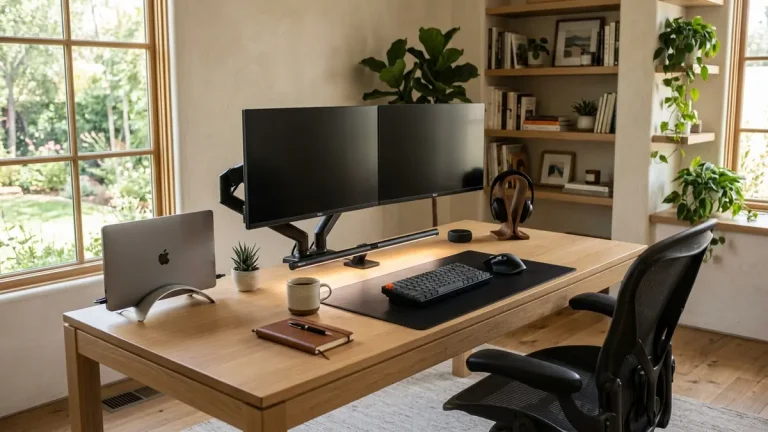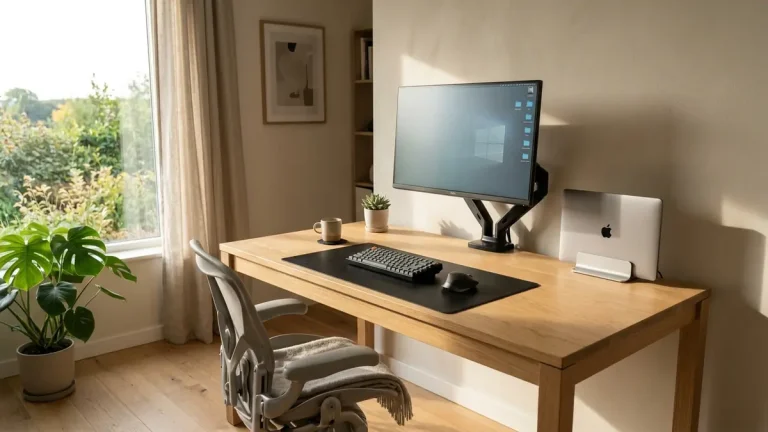
Managing three displays, a mechanical keyboard, a tangled web of 14 cords, and a heavy laptop resting on a makeshift cardboard box is a familiar reality for many software engineers. The solution is conducting a targeted developer desk setup audit that arranges screens into a functional landscape-portrait coding cockpit while routing all power supplies into an under-desk steel tray. In this case study breakdown, I will walk you through the exact transformation of senior engineer Marcus’s workspace, revealing how strategic hardware alignment eliminated his chronic neck spasms and increased daily coding flow.
If you want to implement the identical modular foundation used in this developer transformation, explore the Advanced Desk Setup Kit.
The Initial Audit: Diagnosing Marcus’s Developer Workstation
Marcus, a senior full-stack engineer working remotely for a fast-scaling fintech platform, spent 9 to 11 hours daily at a standard 60×30-inch solid walnut desk. When I arrived for his audit, he was suffering from acute right-side levator scapulae neck spasms and persistent mid-afternoon eye fatigue.
An ergonomic workstation is a workspace configured to support the body’s natural posture, reduce strain, and prevent repetitive stress injuries during prolonged work.
Our initial diagnostic audit uncovered four severe structural failure points:
- Asymmetrical Lateral Neck Panning: Marcus placed two 27-inch monitors flat side-by-side on factory stands. Tracking terminal windows on his right screen required a continuous 35-degree lateral neck turn. In multi-screen productivity research conducted by the University of Utah and Cornell University Ergonomics Web, dual displays must be angled inward along a focal arc to keep cervical rotation under 30 degrees while boosting coding throughput by up to 16%.
- The “Cardboard Riser” Trap: His 16-inch MacBook Pro rested on an unventilated cardboard box, placing the laptop keyboard at an awkward 4-inch elevated angle that bent his wrists into severe dorsiflexion.
- 14 Unmanaged Cables: A chaotic bundle of DisplayPort leads, USB-C fast chargers, power bricks, and audio cables dangled between his knees, restricting foot placement.
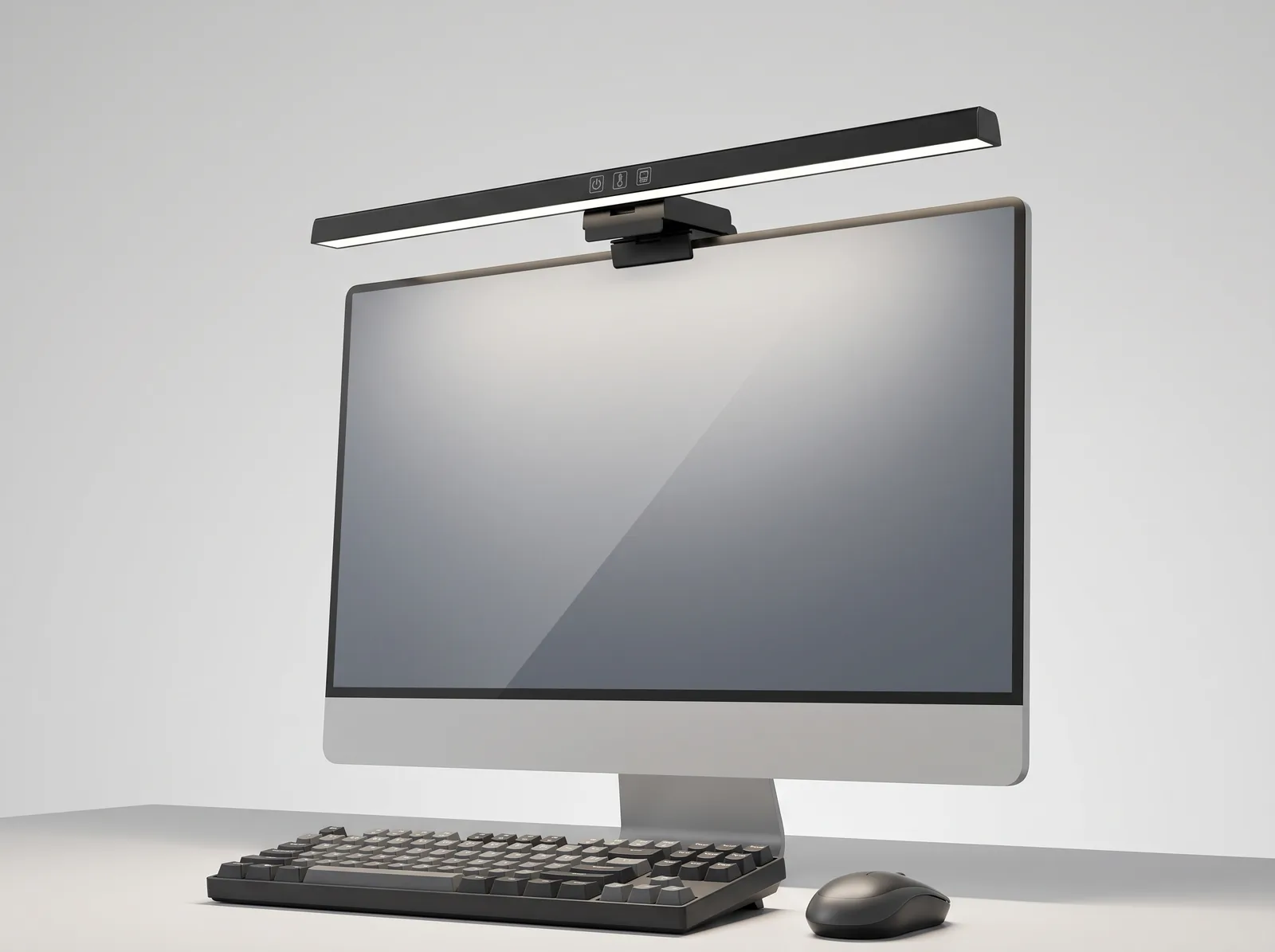
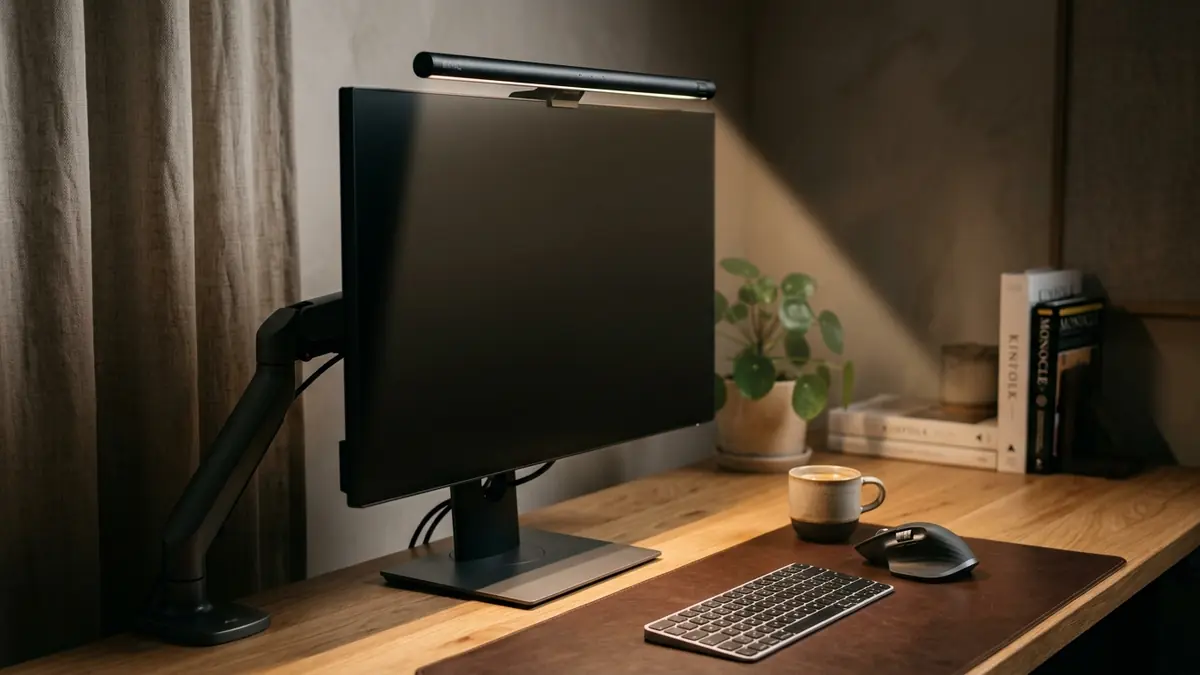
- Specular Screen Glare: An overhead ceiling spotlight bounced directly off his primary monitor glass, washing out dark-mode IDE syntax contrast.

The Ergonomic Intervention: The Landscape-Portrait Coding Cockpit
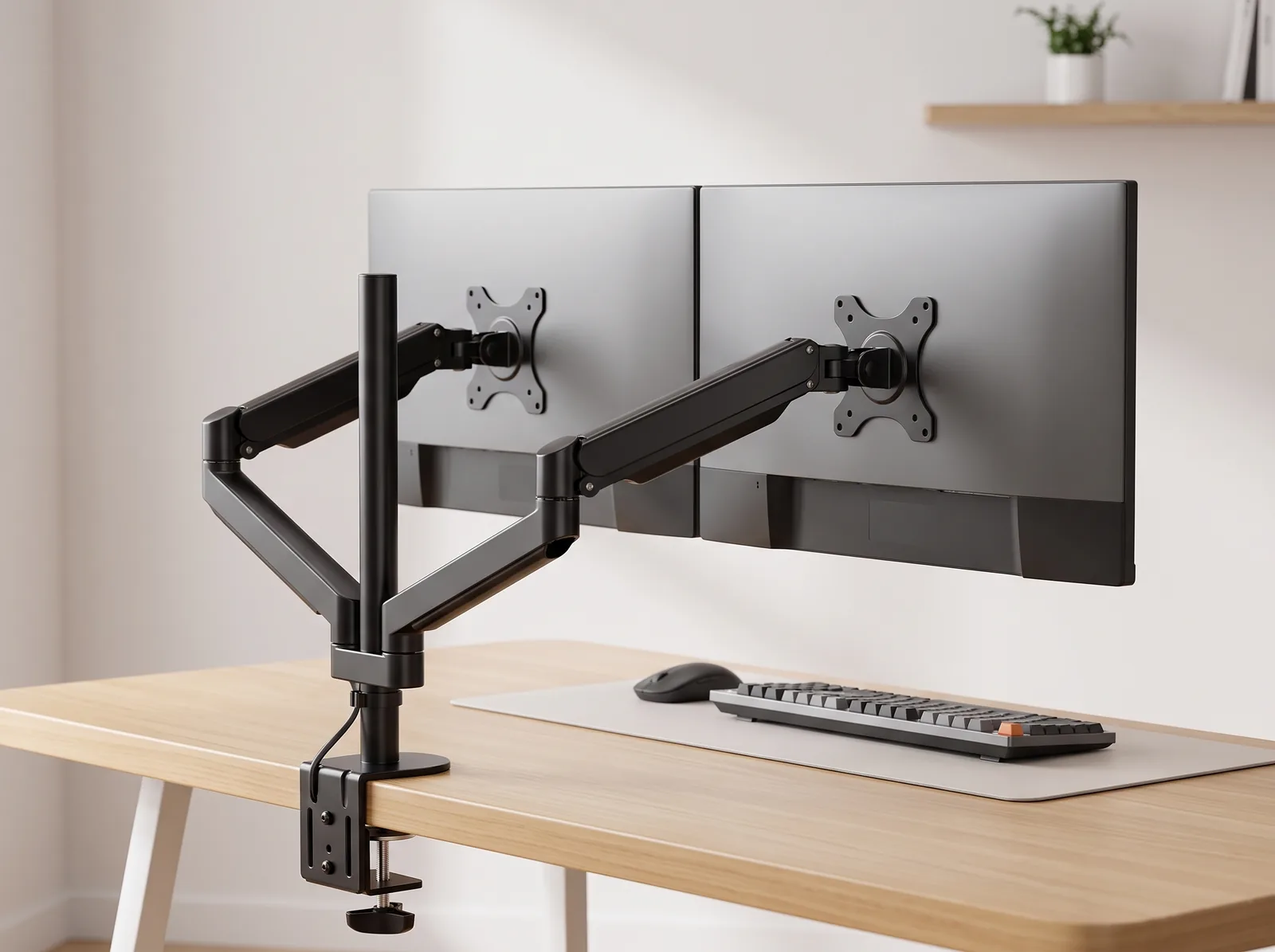
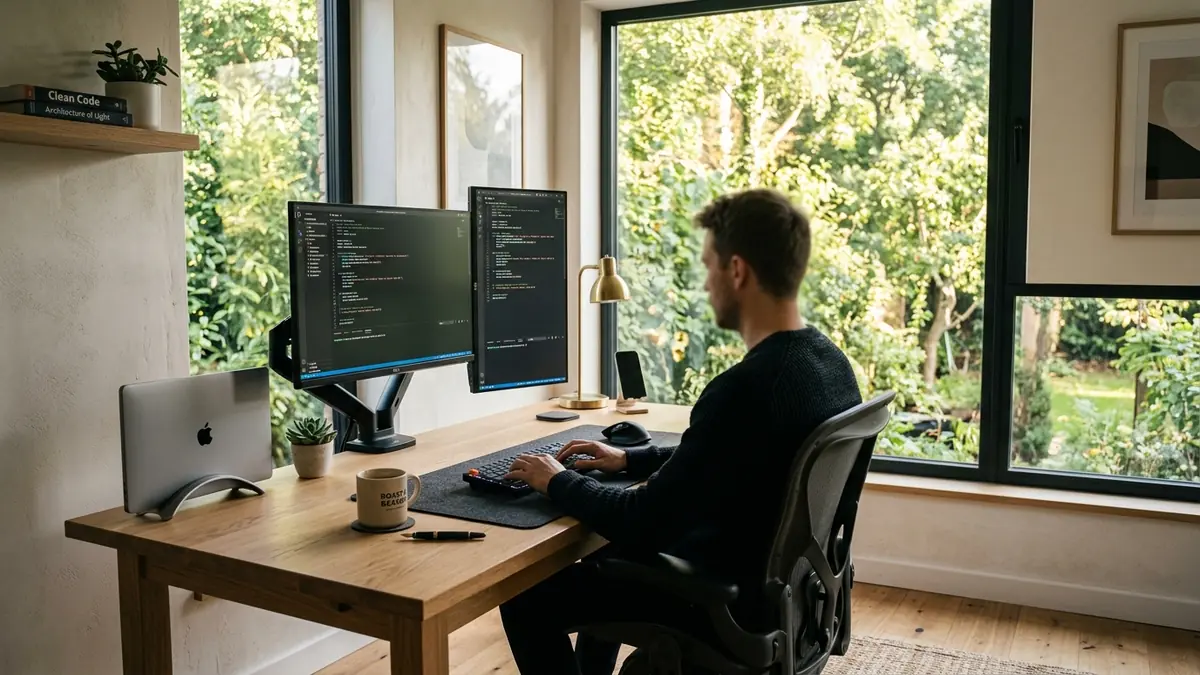
The core intervention for Marcus was converting his flat screen arrangement into a Landscape-Portrait Coding Cockpit mounted on a gas-spring articulating mount. This setup places his primary 27-inch 4K screen directly center at eye level, while his secondary display is rotated 90 degrees into portrait orientation on the left.
An ergonomic monitor arm maintains optimal viewing distance at 20 to 30 inches while elevating the screen to eye level, reducing cervical spine load by up to 27 pounds.
Using the Dual Monitor & Laptop Gas Spring Mount provided three immediate benefits:
- 120-Line Code Visibility: The vertical portrait monitor displays up to 120 lines of continuous code and terminal logs without scrolling.
- 15-Degree Natural Inward Arc: Both screens curve inward toward his pupils, allowing Marcus to glance between documentation and code using eye movement rather than turning his neck.
- Zero Surface Footprint: Removing both factory monitor bases recovered 220 square inches of desktop space directly beneath the screens.
Learn how to calibrate display heights in our guide on monitor eye level vs. viewing angle.
Taming 14 Cables: The Under-Desk Power Infrastructure
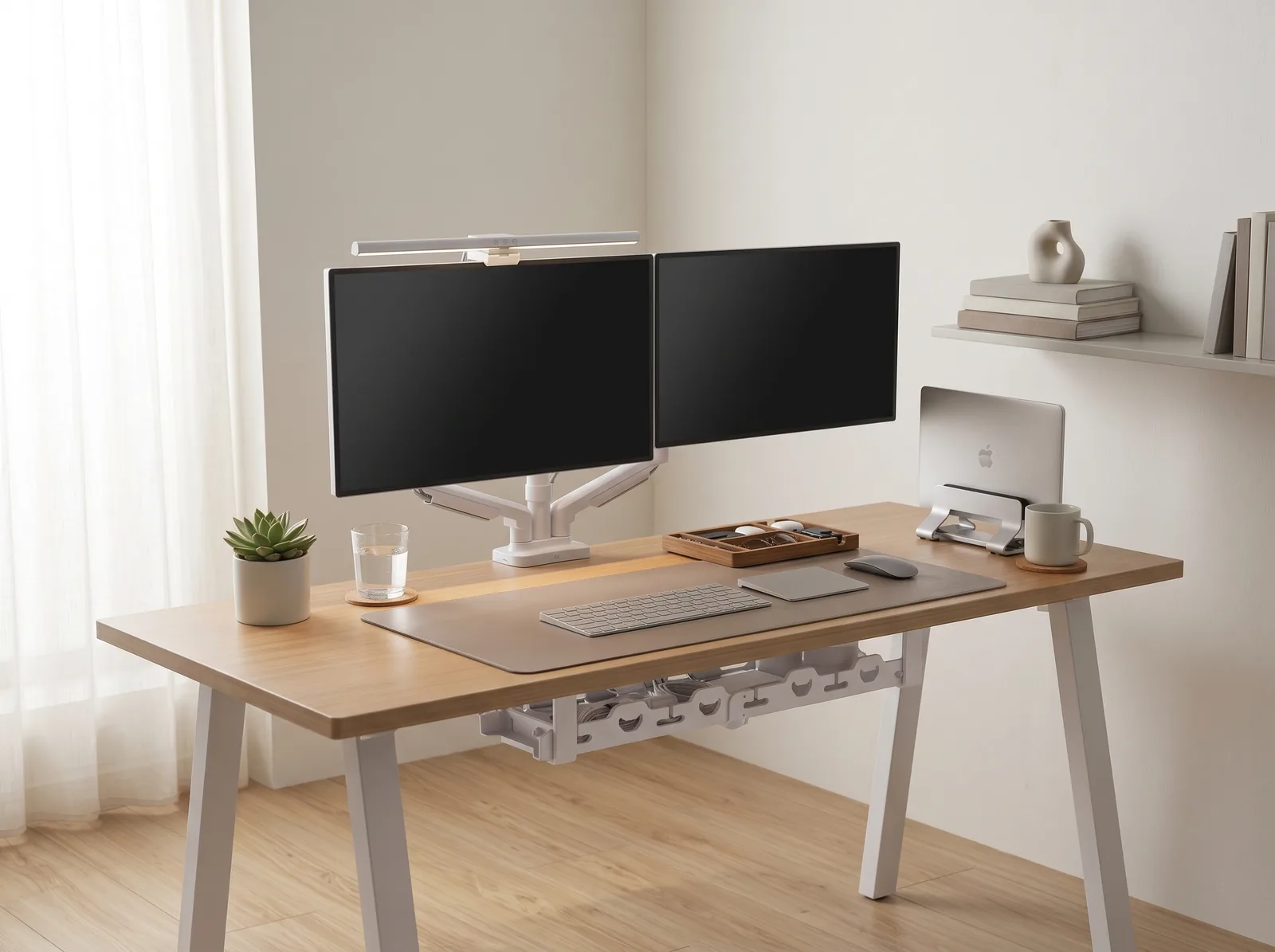
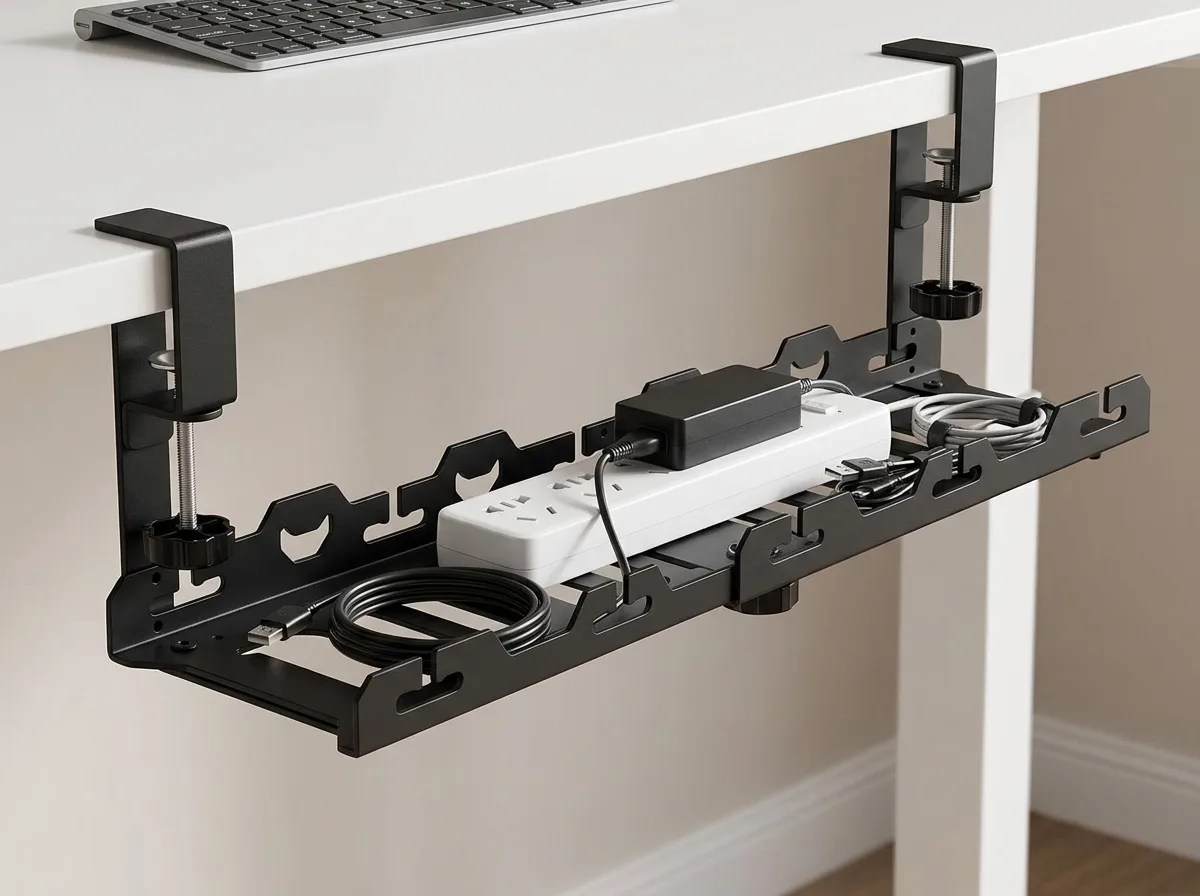
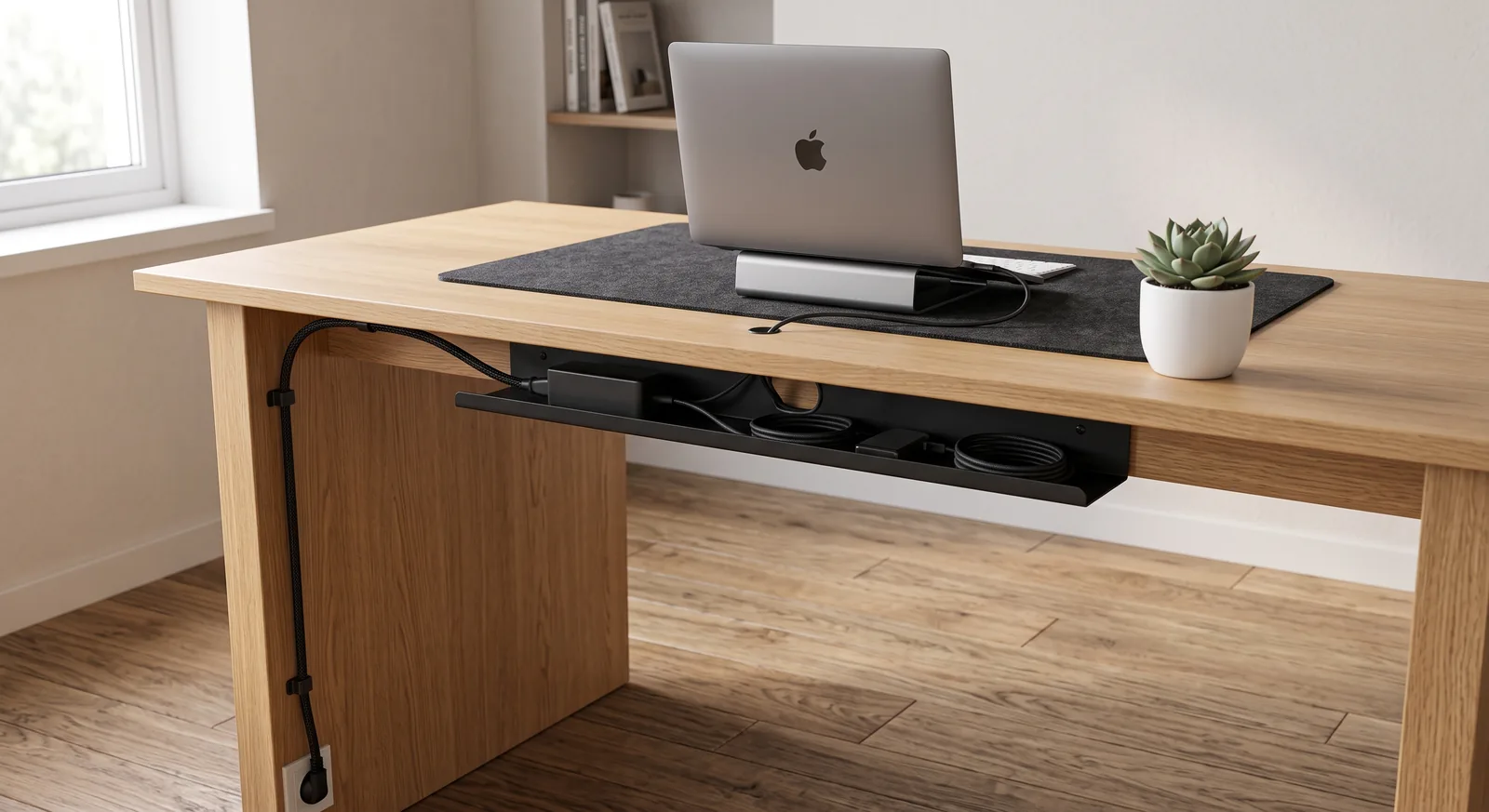
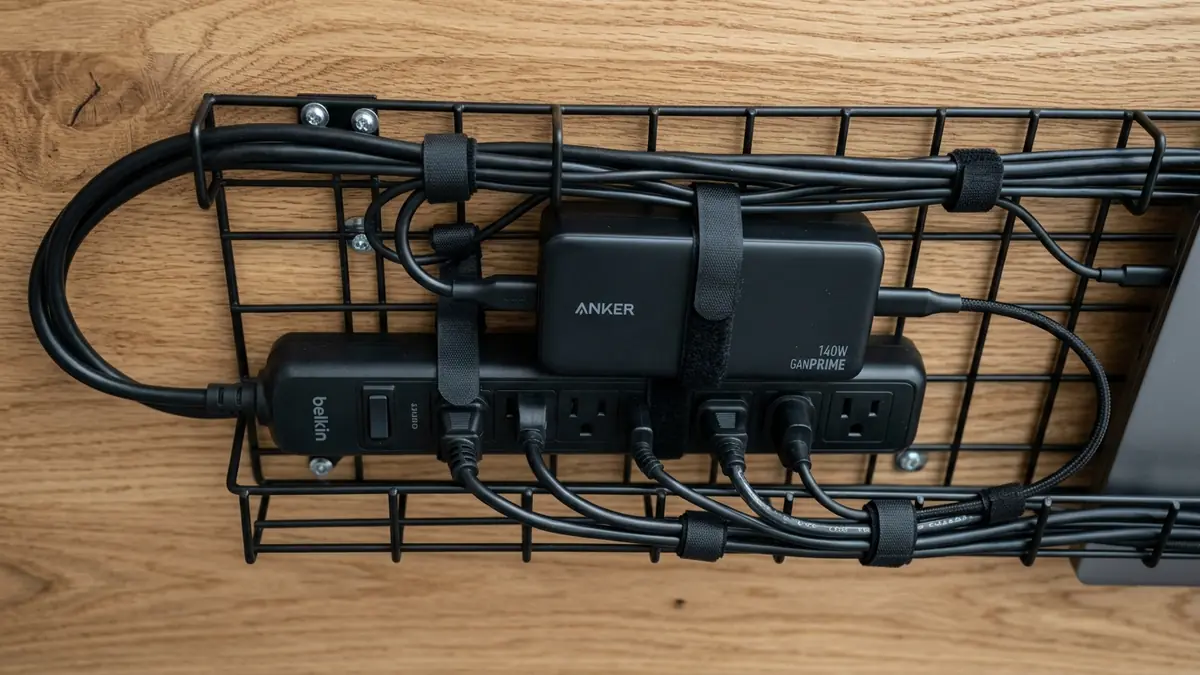
To eliminate Marcus’s floor cable nest, we unhooked all 14 cords and installed a high-capacity steel Under-Desk Cable Management Tray directly beneath the rear center of his desk.
A cable management system is a combination of tools such as clips, sleeves, and trays used to organize and conceal wires in a workspace.
We implemented our 3-tier wire architecture:
- The Under-Desk Hub: Placed an 8-outlet surge protector, his 140W MacBook charging brick, and two monitor power supplies inside the ventilated steel tray, secured with hook-and-loop straps.
- Articulating Arm Concealment: Routed DisplayPort and DC power cords through the internal channels of the Gas Spring Mount, leaving 4-inch pivot loops at each hinge.
- Single Master Drop: Dropped exactly one master power cord down the rear desk leg, freeing up 100% of his under-desk footwell.
Explore complete wiring frameworks in our master blueprint on desk cable architecture.
Audit Results: Before vs. After Transformation Metrics
Tracking objective biomechanical and spatial metrics before and after the 48-hour audit highlights the profound impact of tailored workspace ergonomics:
| Audit Metric | Before Audit (Baseline) | After Audit (TidySetup Transformation) | Health & Workflow Outcome |
|---|---|---|---|
| Lateral Neck Rotation | 35° continuous turn to right | 0° primary (15° inward eye glance) | 100% resolution of levator scapulae neck spasms |
| Continuous Code Lines Visible | 45 lines (horizontal landscape) | 120 lines (vertical portrait) | Eliminates 60% of scrolling interruptions |
| Usable Desk Surface Area | 38% available (crowded) | 85% available (open & clear) | Full-size desk pad + open writing area |
| Floor Cables & Obstructions | 14 loose wires & power bricks | Zero floor wires (1 master leg drop) | Complete legroom freedom & zero tripping hazard |
| End-of-Day Eye Strain | Severe (3 PM headache threshold) | Zero (asymmetric light bar illumination) | Sustained visual stamina through late sprints |
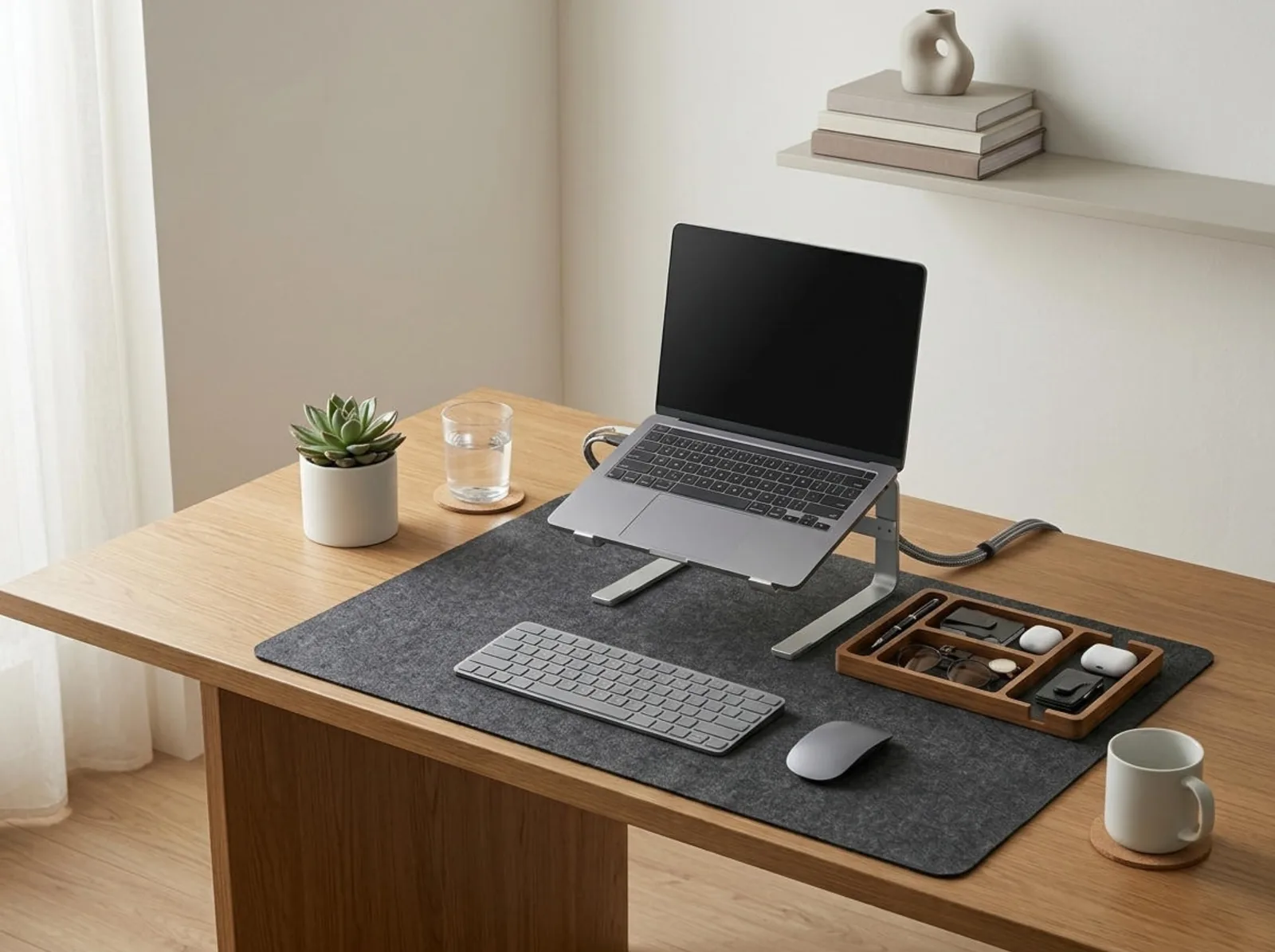
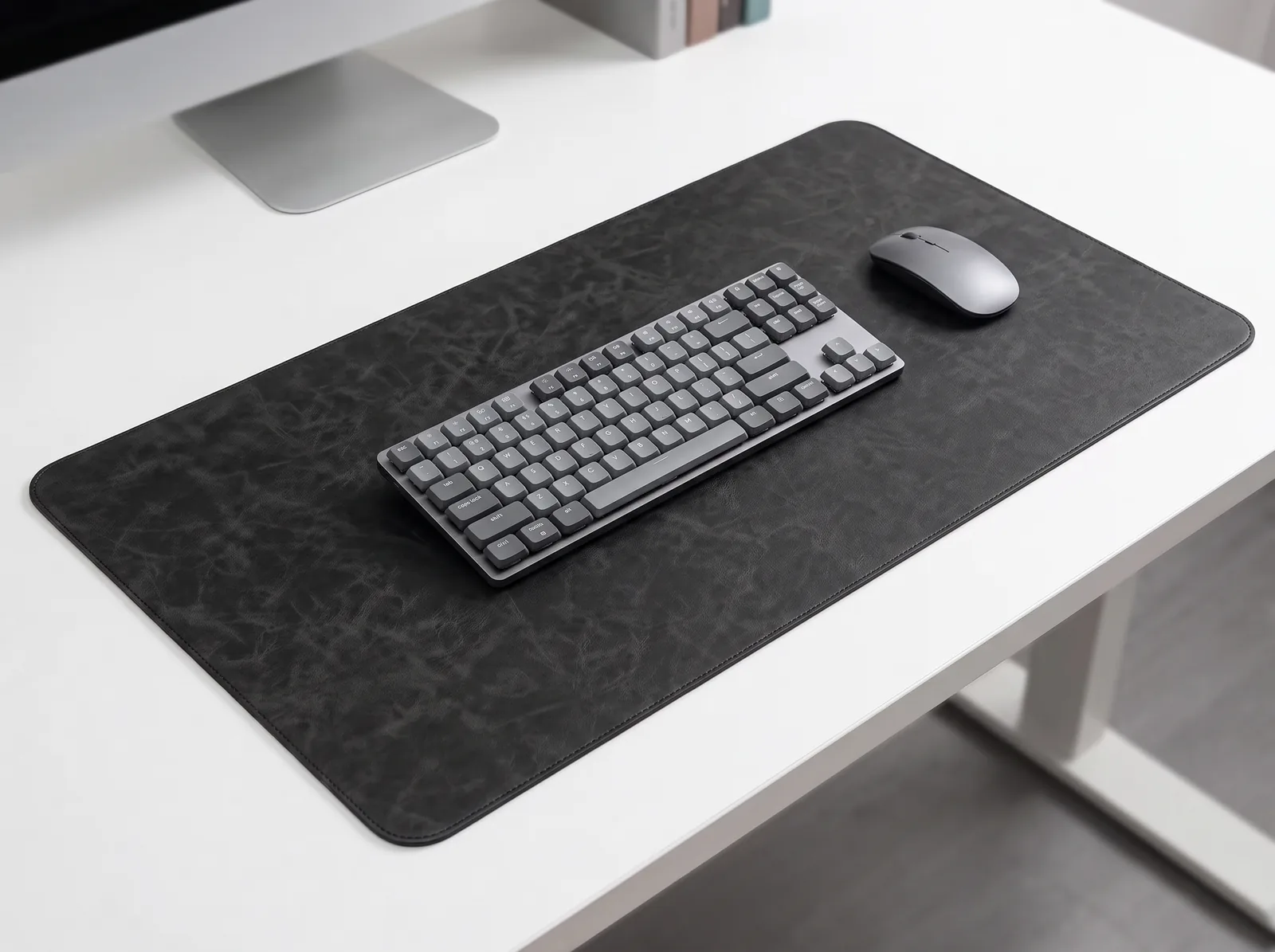
We completed Marcus’s setup by laying down a Premium PU Leather Desk Mat to cushion his wrists and docking his laptop in an Adjustable Aluminum Vertical Laptop Stand.
How to Apply Marcus’s Developer Setup to Your Workspace
Follow this 4-step execution protocol to upgrade your coding workstation:
- Step 1: Rotate Your Secondary Screen: Mount your secondary monitor on an articulating arm and rotate it to vertical portrait mode for IDE logs and terminals.
- Step 2: Lift Power Supplies into a Tray: Mount a steel cable tray beneath your desk and strap in your surge protector and laptop charging bricks.
- Step 3: Dock Hardware Vertically: Place your closed laptop into an aluminum vertical stand to clear 80% of desk space.
- Step 4: Lay a Cushioned Desk Mat: Lay a high-density PU leather mat beneath your keyboard to protect carpal bones during intensive typing bouts.
Frequently Asked Questions
Why is a portrait monitor better for software developers?
A portrait monitor displays over 100 lines of continuous code and stack traces without vertical scrolling, allowing engineers to comprehend complex logic blocks and error logs at a glance.
How do I stop neck pain from dual monitors?
Angle both displays inward at a 15-to-20-degree cockpit arc and align the top third of both screens with your seated eye level. This allows you to view both panels using eye movements rather than repetitive neck turns.
Can a vertical laptop stand handle heavy developer laptops?
Yes. Heavy-duty aluminum vertical laptop stands feature adjustable thumb-screw widths and solid weighted bases that securely support 16-inch MacBooks and thick Linux workstations up to 1.7 inches thick.
How do I manage heat from high-wattage developer laptop chargers?
Place high-wattage power bricks (100W–140W) inside an open steel wire cable tray with at least 1 inch of side clearance. Open wire grid baskets ensure 360-degree air convection to prevent thermal throttling.
Do I need a desk mat if I already use a mechanical keyboard?
Yes. A desk mat dampens the harsh bottom-out acoustic vibrations of mechanical switches and cushions your carpal bones against hard desk edges, preventing repetitive wrist strain.
How much time does it take to do a complete developer desk overhaul?
A complete desk overhaul—including mounting dual arms, installing an under-desk cable tray, and routing all cords—takes approximately 45 to 60 minutes.