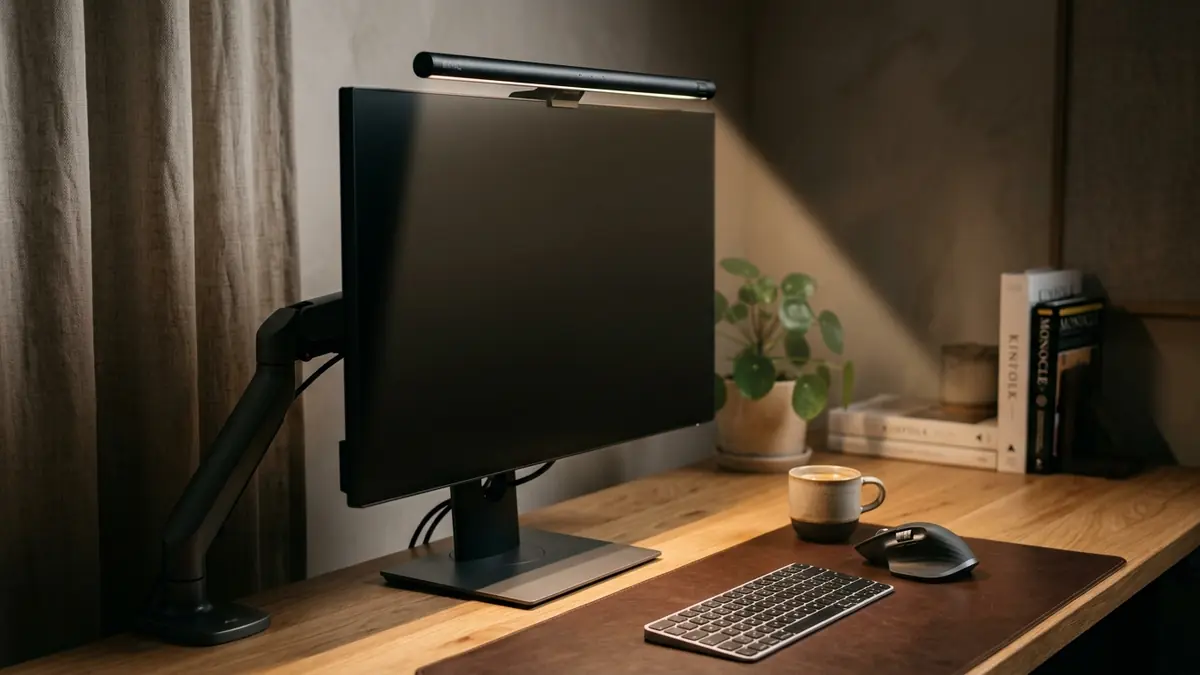
Persistent neck tension, lower back stiffness, and mid-afternoon shoulder fatigue are not inevitable consequences of desk work—they are mechanical symptoms of poor alignment. The solution is a deliberate ergonomic workstation alignment protocol that positions your displays, seating, and peripherals to support your body’s neutral biomechanical resting state. In this comprehensive guide, I will walk you through the exact five-stage spatial alignment system I have implemented across more than 400 workspace audits, enabling you to eliminate postural strain and sustain deep focus throughout your entire workday.
When physical friction in your workspace disappears, cognitive energy returns. If you are seeking a turnkey foundation to modernize your desk geometry, the Advanced Desk Setup Kit combines heavy-duty articulating arms, cable channels, and surface protection in a unified modular system.
What Is Ergonomic Workstation Alignment?
Ergonomic workstation alignment is the systematic spatial arrangement of desk furniture, computing displays, seating, and input devices to preserve the human body’s neutral musculoskeletal posture during prolonged cognitive work. Rather than forcing the spine, neck, and wrists to adapt to arbitrary desk dimensions, alignment customizes the physical workspace to match the user’s precise anthropometric measurements.
An ergonomic workstation is a workspace configured to support the body’s natural posture, reduce strain, and prevent repetitive stress injuries during prolonged work.
A standard desk setup often prioritizes aesthetic symmetry over human physiology. When your hardware is placed flat on a standard 29-inch desktop, your neck bends forward to track the screen, your shoulders round forward to reach the keyboard, and your lumbar spine collapses into posterior pelvic tilt. Over an eight-hour workday, this structural misalignment places upwards of 30 to 45 pounds of cumulative static pressure on your cervical spine.
By implementing deliberate geometric alignment, you achieve three fundamental biomechanical objectives:
- Neutral Joint Resting Angles: Eliminates static muscle contractions across the upper trapezius, levator scapulae, and lumbar erectors.
- Optimized Visual Focal Length: Positions primary monitors within the natural 20-degree downward resting gaze to eliminate ocular vergence strain.
- Kinetic Reach Zones: Keeps primary input devices within the immediate 14-inch horizontal radius of your elbows to prevent shoulder abduction.

Interactive Utility: Ergonomic Desk & Monitor Height Calculator
Use our interactive engineering calculator below to determine your exact seated desk height, standing desk surface height, seat pan height, and screen top-line alignment based on your stature. You can also explore our standalone full-screen calculator page.
📐 Ergonomic Desk & Monitor Height Calculator
Calculated according to ANSI/HFES 100-2007 & OSHA Computer Workstation standards
🎯 Personalized Alignment Targets
The 5 Core Biomechanical Benchmarks of Workspace Health
To eliminate subjective guesswork, professional ergonomists evaluate workspaces against standardized physiological baselines validated by the OSHA Computer Workstation Guidelines and the Human Factors and Ergonomics Society. These five non-negotiable metrics form the foundation of every workstation audit I conduct:
- The Eye-Level Sightline Rule: The top one-third of your primary monitor screen must align horizontally with your natural horizontal eye level when sitting completely upright. Looking down more than 15 to 20 degrees causes severe forward head posture.
- The 90-to-100 Degree Elbow Rule: Forearms should rest completely parallel to the floor or slope gently downward at 90 to 100 degrees, with wrists maintained in a flat, straight line relative to the forearm.
- The Arm’s Length Focal Distance: Your display panel should sit exactly 20 to 30 inches away from your pupils—approximately one full arm’s reach with fingers extended.
- The Lumbar Curve Preservation Rule: Your chair backrest must physically engage and support the inward lordotic curvature of your lower spine (L1–L5 vertebrae) without forcing your pelvis into an anterior or posterior slide.
- Ground Floor Stability: Feet must rest entirely flat on the flooring or an angled footrest, with knees positioned at or slightly below the level of the hip sockets.
The 90-degree elbow rule states that forearms should rest at a 90 to 100 degree angle relative to the upper arm, with wrists kept neutral and flat on the desk surface.
In over 400 workspace evaluations, one of the most common issues I encounter is individuals attempting to fix neck strain by purchasing high-end chairs, while ignoring the fact that their monitor sits four inches below eye level. Ergonomics is an interconnected mechanical ecosystem: changing one variable without aligning the others simply shifts strain to a different joint.
How Do You Position Monitors to Prevent Chronic Neck Strain?
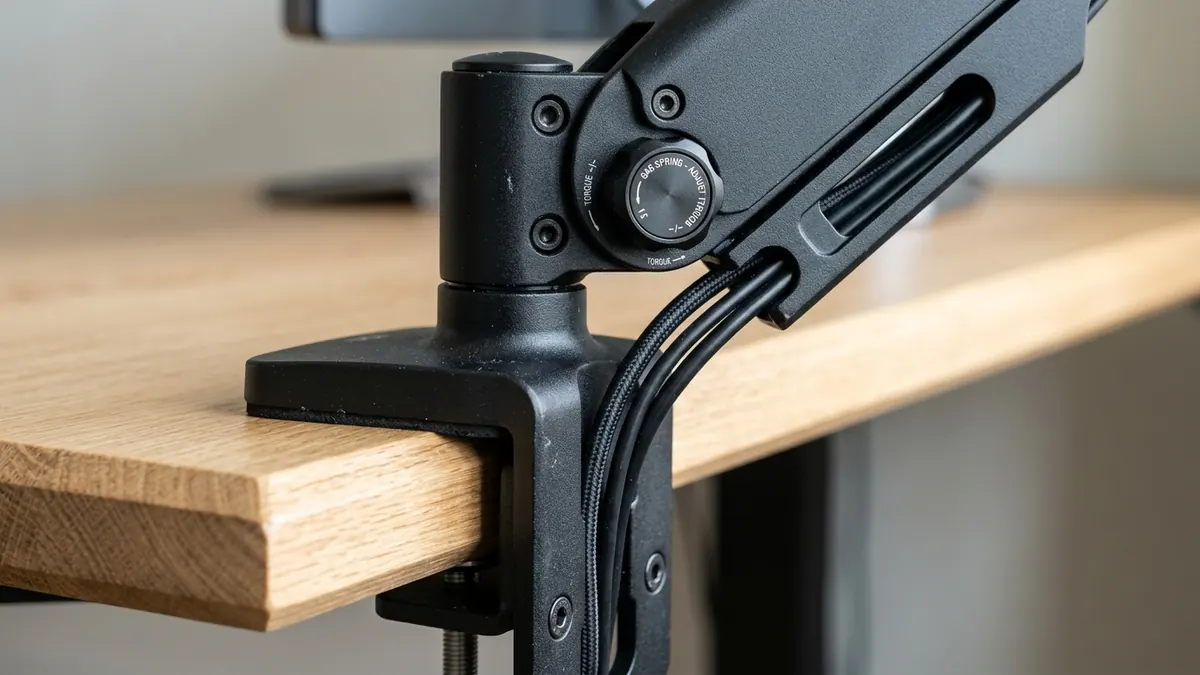
The most effective method to position monitors for chronic neck pain prevention is to mount your display on a fully articulating monitor arm that elevates the screen until seated eye level strikes the top 2 inches of the panel glass. According to the Cornell University Ergonomics Guidelines (CUErgo), aligning eye level with the upper screen border allows the display center to rest roughly 15° to 20° below horizontal, accommodating the natural downward pitch of the human gaze. This mechanical elevation restores the cervical spine to its vertical load-bearing center, relieving up to 27 pounds of gravitational shear stress on your neck muscles.
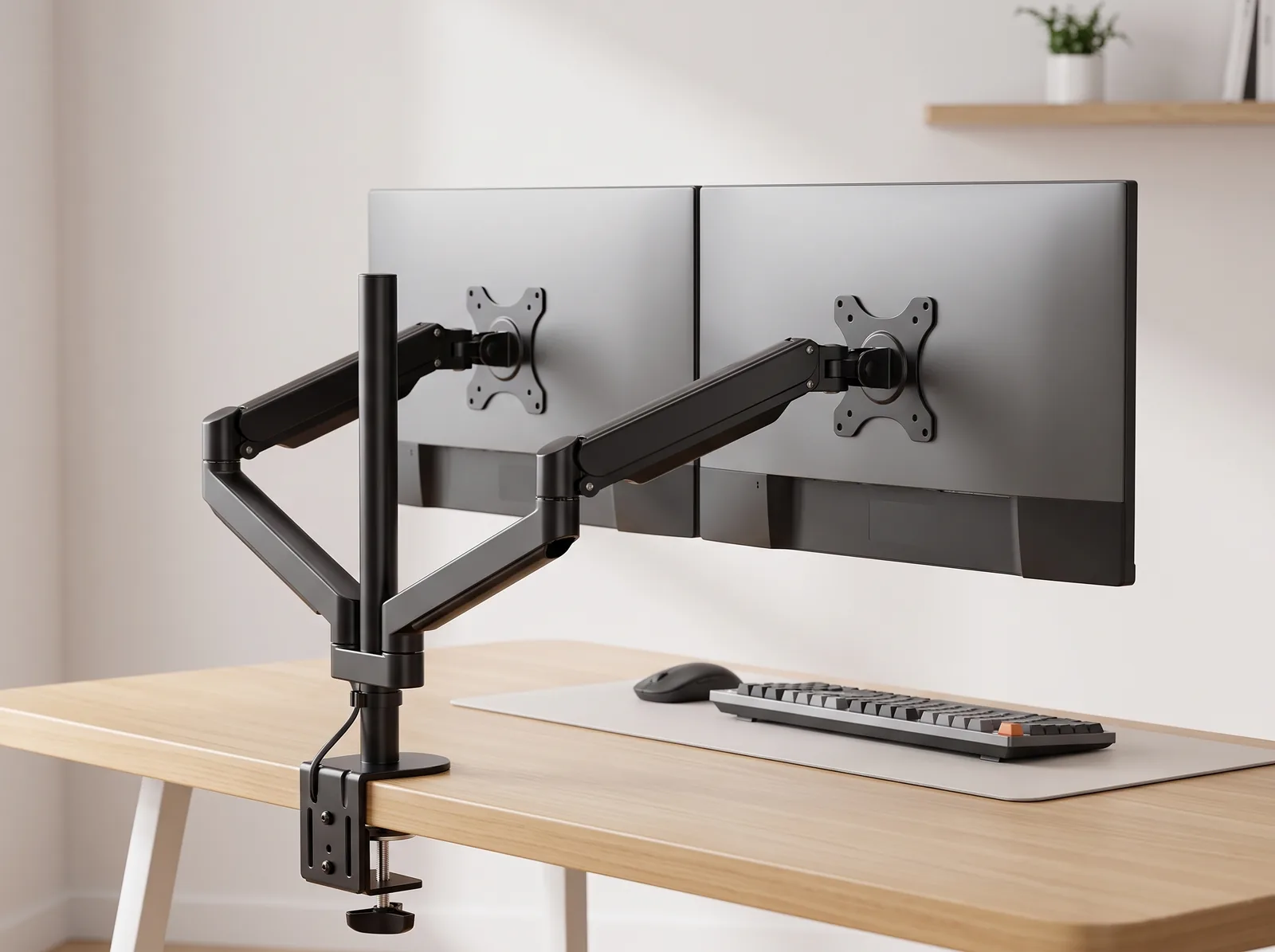
A monitor arm is an adjustable mounting system that attaches a display to a desk or wall, allowing height, depth, and angle adjustments for ergonomic alignment.
When displays sit flat on stock plastic manufacturer stands, users instinctively crane their necks forward—a condition clinically known as forward head syndrome. For every single inch your head drifts forward past spinal verticality, the effective weight of your head on the neck muscles doubles:
| Cervical Angle | Effective Head Weight on Spine | Impact on Neck & Upper Trapezius | Corrective Hardware Adjustment |
|---|---|---|---|
| 0° (Neutral Alignment) | 10–12 lbs (4.5–5.4 kg) | Zero passive muscle strain; relaxed spinal posture | Top 1/3 of monitor aligned with natural eye height |
| 15° Forward Flexion | 27 lbs (12.2 kg) | Mild trapezius tightness after 2 hours of seated work | Elevate display by 2.5 inches via adjustable arm |
| 30° Forward Flexion | 40 lbs (18.1 kg) | Chronic cervicogenic headaches, upper spine muscle spasms | Install gas-spring arm and tilt screen back 5°–10° |
| 45° Forward Flexion | 49 lbs (22.2 kg) | Accelerated disc degeneration, nerve compression, numbness | Immediate vertical rise of 4–6 inches off desk top |
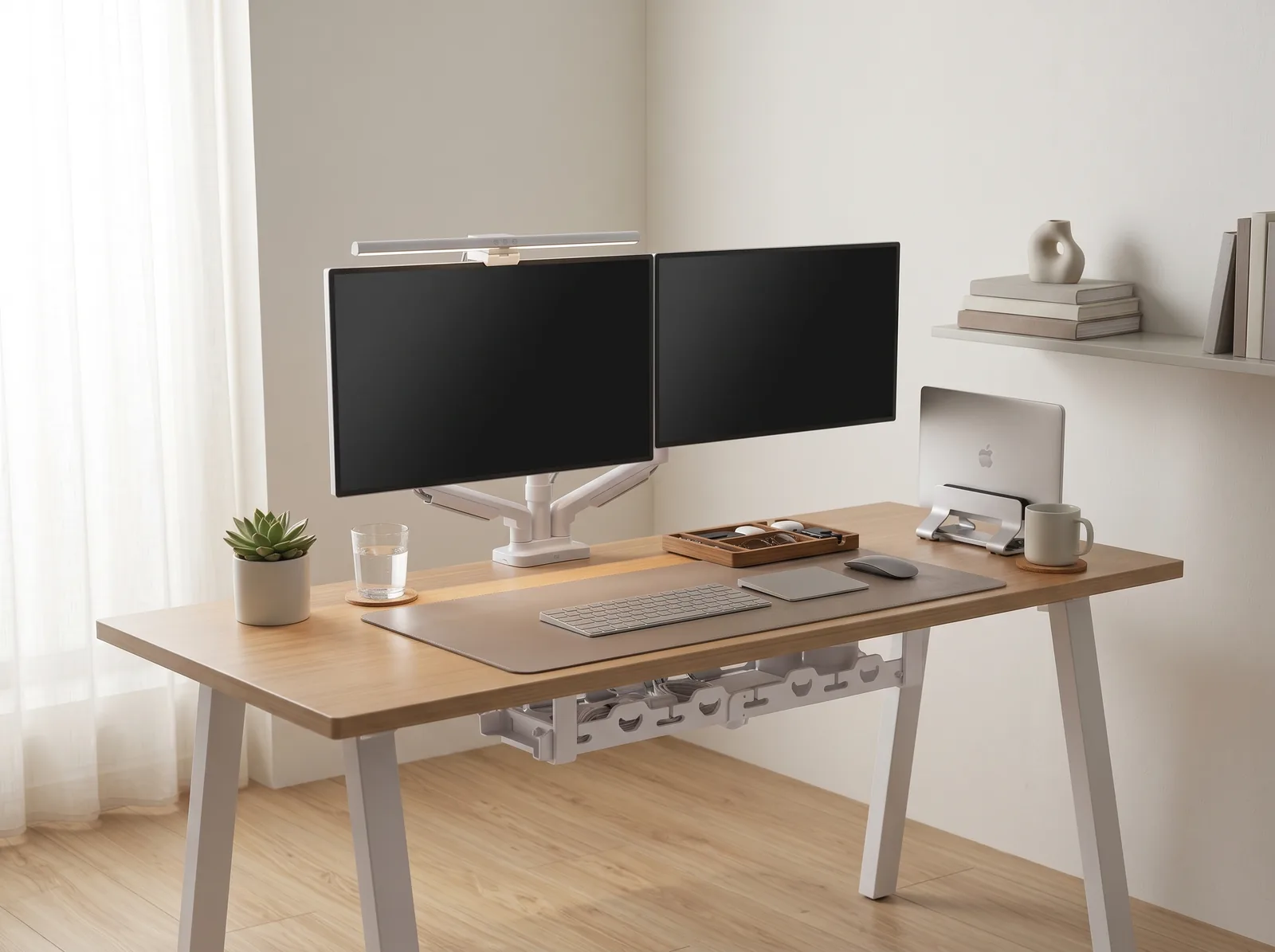
For single display workstations, the Full-Motion Single Monitor Arm provides 360-degree gas-spring articulation, allowing instantaneous focal depth and height calibration without needing tools. If your daily workflow requires dual displays for code review or financial modelling, the Dual Monitor Arm Stand ensures both panels maintain seamless curvature and shared horizontal alignment.
For more detailed positional strategies, read our step-by-step tutorial on how to position your monitor arm for perfect posture.
Why Does Keyboard and Mouse Height Cause Wrist Pain?
Incorrect keyboard and mouse height causes wrist pain by forcing the carpal tunnel into sustained extension or deviation, increasing hydrostatic fluid pressure inside the wrist canal by over 300%. Maintaining neutral wrist alignment requires placing your keyboard at or slightly below seated elbow resting height on a supportive, low-friction surface.
When typing on a hard, bare desk surface with elevated keyboard feet extended, the wrists rest bent backward in extension (dorsiflexion). This posture pinches the median nerve against the transverse carpal ligament, producing tingling, numbness, and repetitive strain injury (RSI). To resolve this:
- Collapse Keyboard Kickstands: Keep your keyboard chassis completely flat or at a negative tilt (sloping downward away from you).
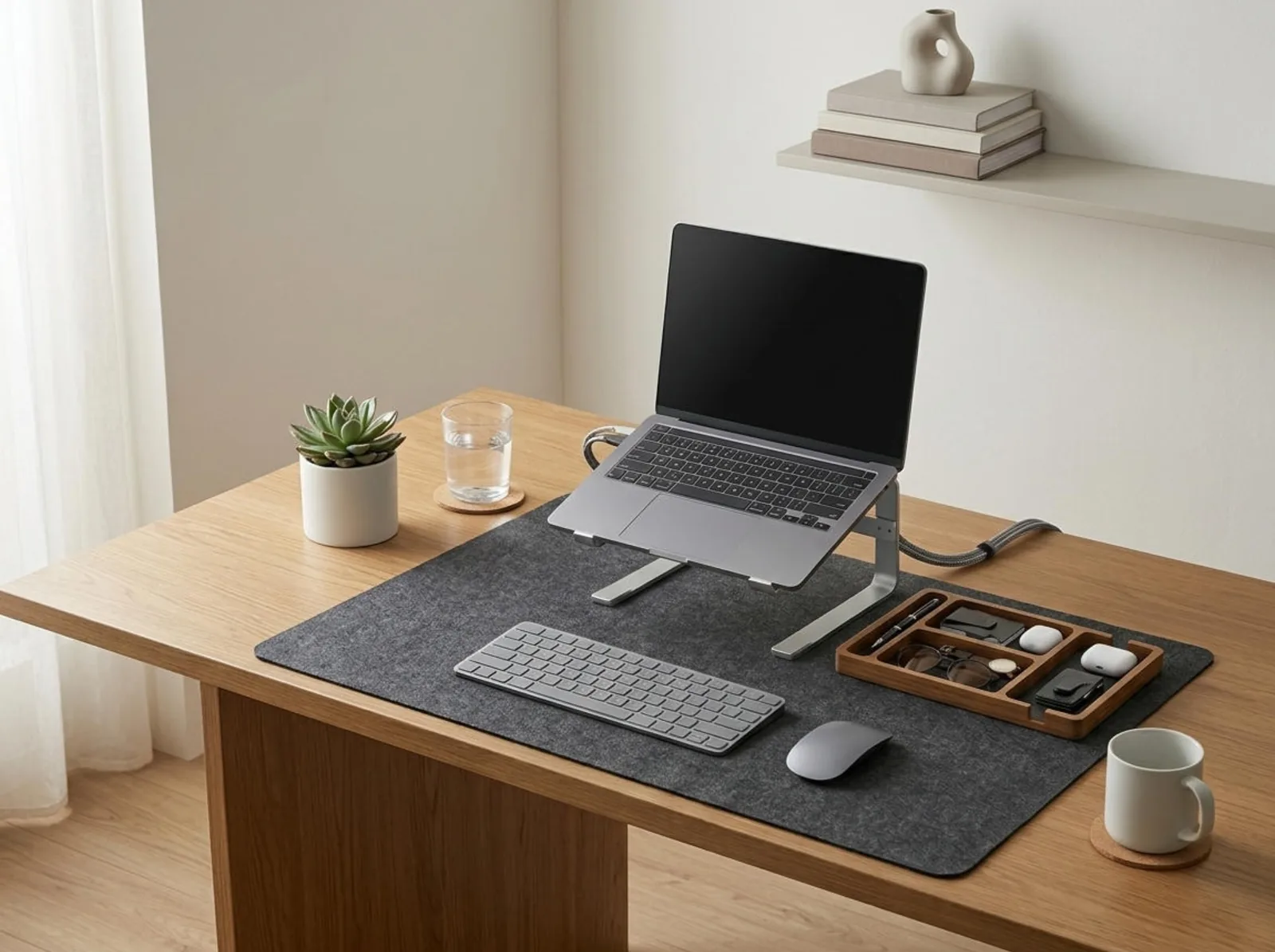
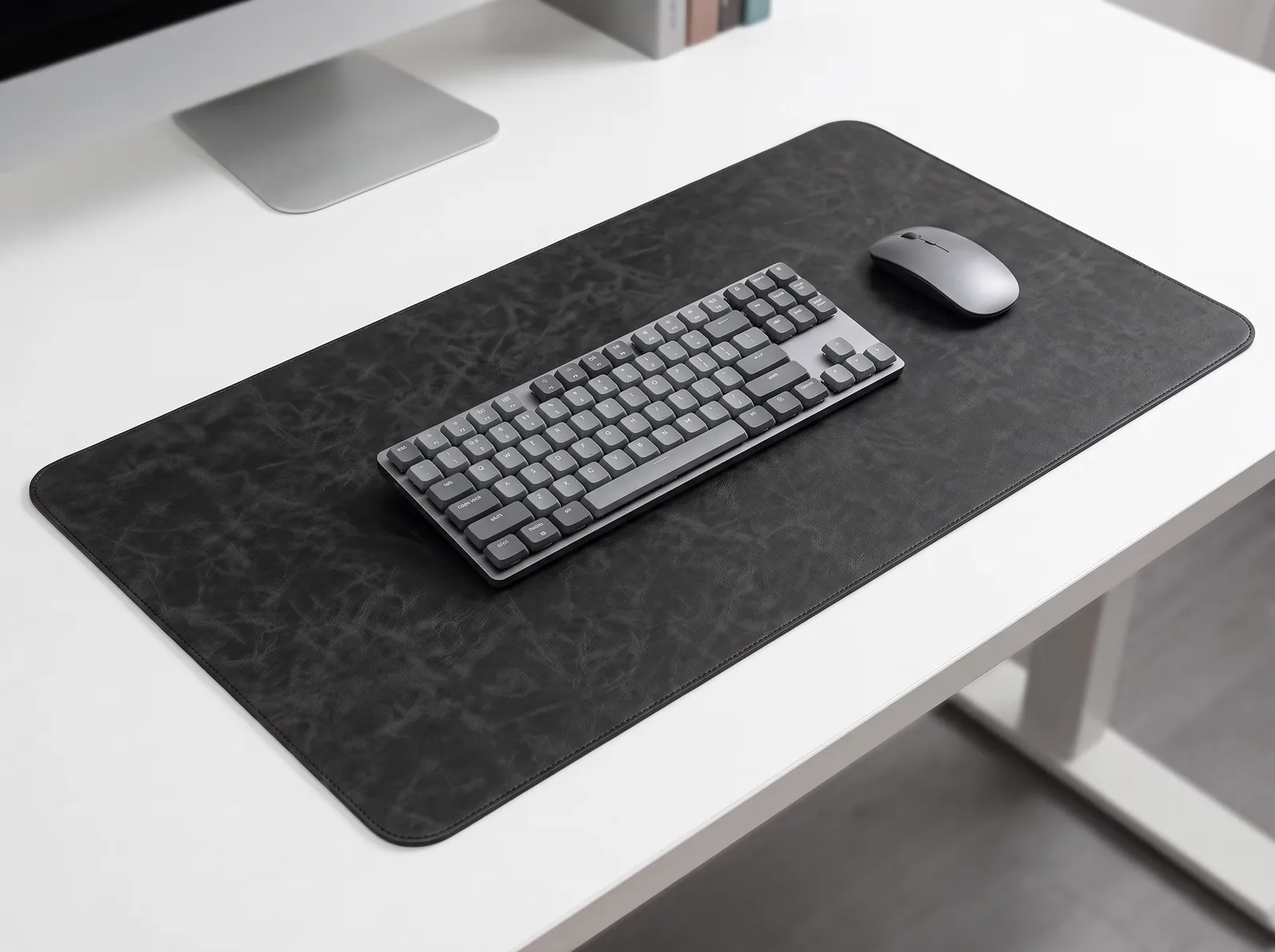
- Protect Pressure Points with Desk Pads: Lay a supple, high-density Premium PU Leather Desk Mat beneath your keyboard and mouse. The cushioned micro-texture cushions the pisiform bone and carpal bones, eliminating contact stress against rigid desktop edges.
- Position Peripherals in the Primary Comfort Zone: Keep your mouse immediately beside your keyboard chassis. Reaching outward for a distant mouse causes static shoulder abduction, translating pain down into the bicep tendon and forearm flexors.
If you pair a secondary laptop with your desktop monitor, never type directly on the elevated laptop keyboard. Position the machine beside your main screen using an Adjustable Aluminum Vertical Laptop Stand or riser, and connect a dedicated external low-profile keyboard and precision mouse.
For comprehensive insights into upper extremity biomechanics, explore our guide on ergonomic keyboard placement and wrist angles.
Task Lighting and Visual Ergonomics: Defeating Digital Eye Strain
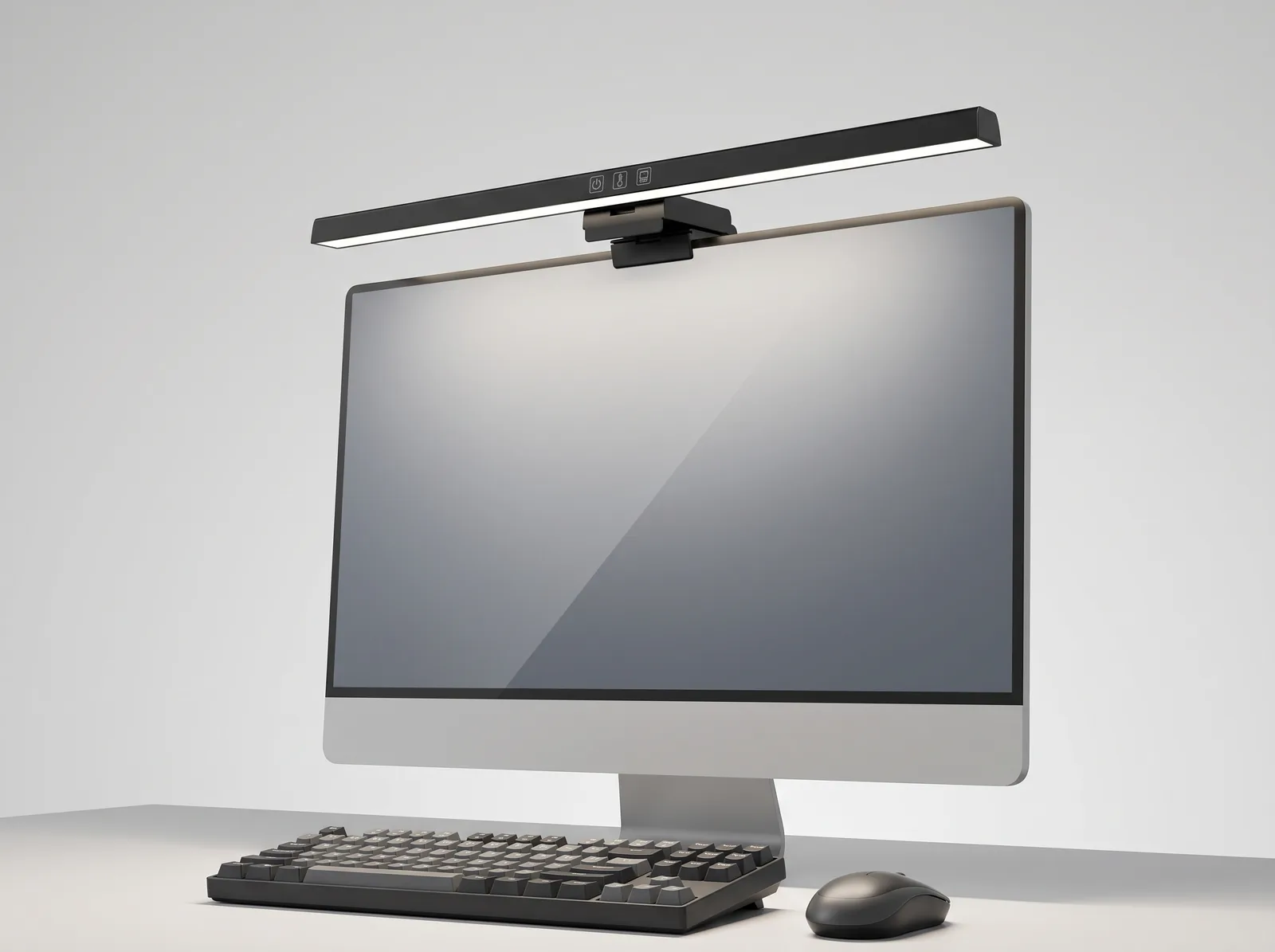
Digital eye strain at the workstation is primarily triggered by luminance disparity—the harsh contrast between a glowing display panel and a dim ambient workspace environment. The most effective ergonomic lighting solution is an asymmetric monitor light bar that illuminates your physical desk space without casting direct glare onto the monitor glass or into your eyes.
Workspace productivity refers to the efficiency and output quality achieved through an intentionally designed and organized work environment.
Standard architectural desk lamps cast symmetric conical light cones that frequently bounce blinding specular reflections off monitor glass, forcing your pupils into constant involuntary micro-dilation. In contrast, the 50cm Computer Monitor Light Bar clips directly atop your screen bezel, utilizing an optical forward-angled reflector to flood your keyboard and document area with 2700K to 6500K balanced light while keeping the screen surface completely shadow-free.
Complement your task illumination with the clinical 20-20-20 Rule supported by the American Academy of Ophthalmology: every 20 minutes of screen engagement, shift your focus to an object located at least 20 feet away for 20 seconds to relax your ciliary optical muscles and restore natural blink rates.

How to Alternate Between Sitting and Standing: The 20-8-2 Protocol
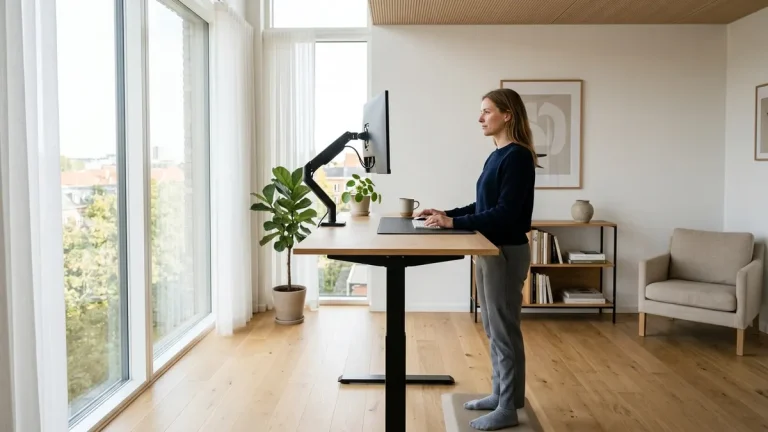
The healthiest way to alternate between sitting and standing at an adjustable desk is the science-backed 20-8-2 Protocol developed by human factors researchers at Cornell University. This rhythm prescribes sitting in neutral posture for 20 minutes, standing upright for 8 minutes, and walking or stretching for 2 minutes every half hour.
The 20-8-2 protocol dictates 20 minutes of seated work, 8 minutes of standing, and 2 minutes of gentle movement per half-hour cycle.
Standing all day is just as detrimental as sitting all day—it leads to venous pooling in the lower extremities, varicose veins, and lumbar facet joint compression. The goal of an active ergonomic desk is dynamic postural variability. When transitioning between heights, maintain these baseline measurements:
- Seated Desk Height: Set between 28 and 30 inches (or adjusted so forearms rest at 90° with feet flat).
- Standing Desk Height: Calibrated between 38 and 46 inches, matching the exact height of your elbows when standing with shoulders dropped and relaxed.
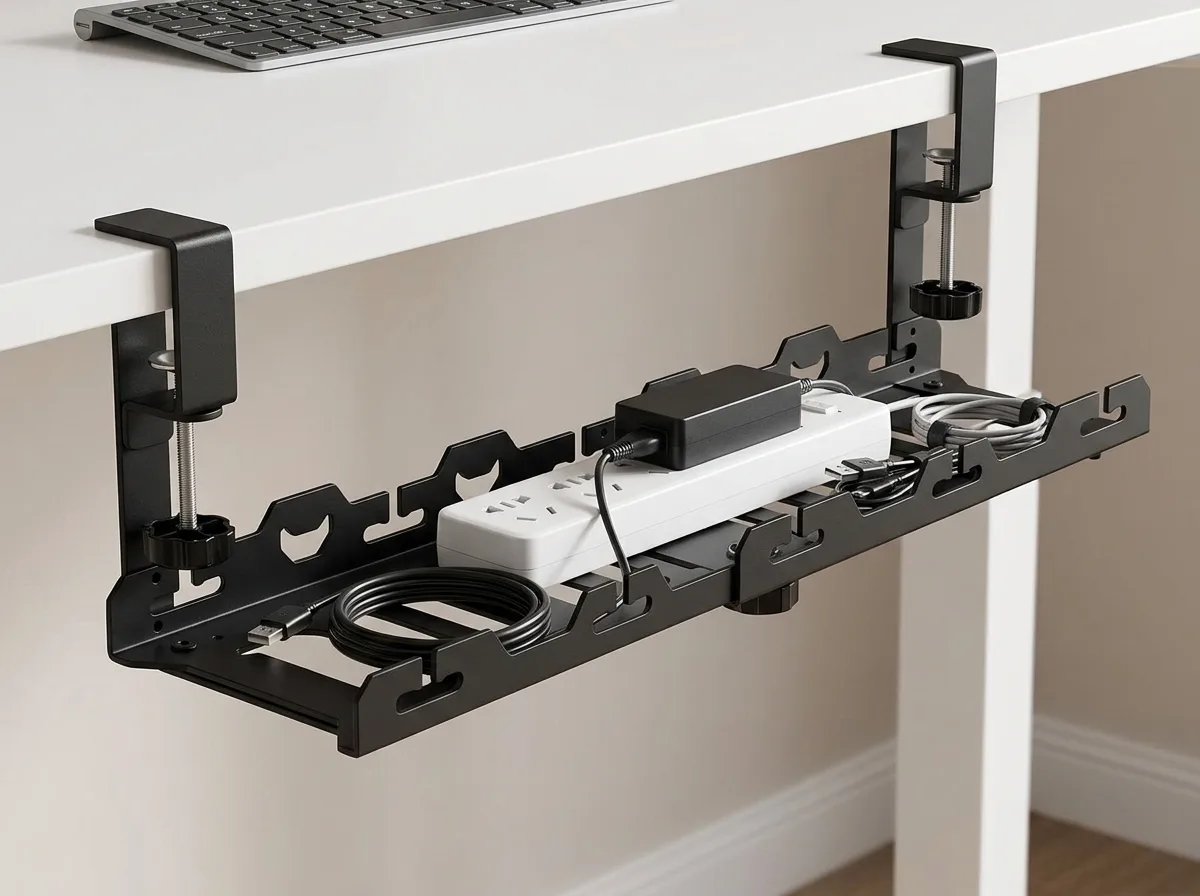
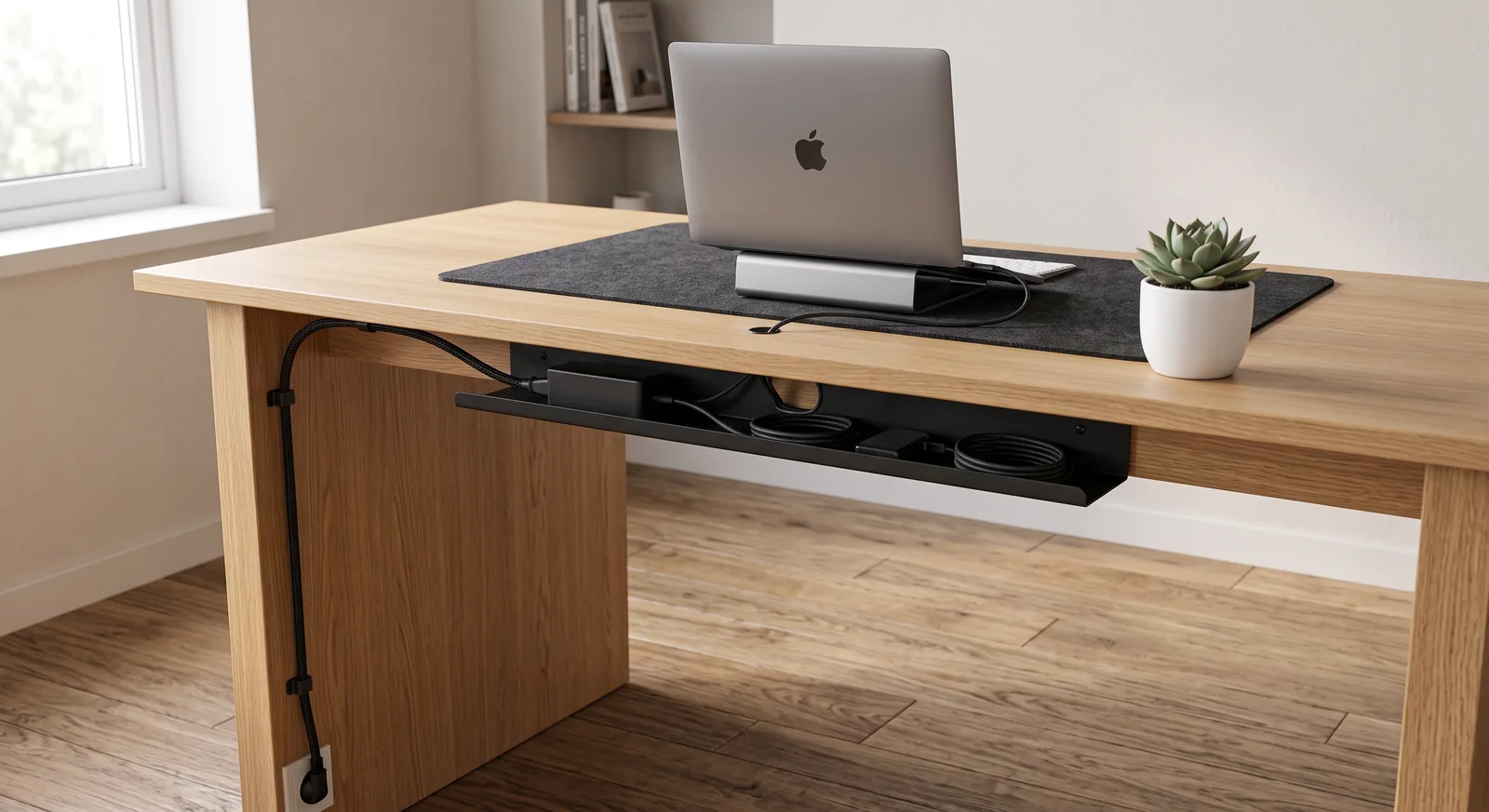
- Cable Travel Slack: Ensure all power and video cables routed through your Under-Desk Cable Management Tray have at least 12 to 16 inches of dynamic slack so standing transitions never snag equipment ports.
Discover exact chair-to-desk calculation formulas in our in-depth standard ergonomic desk height guide.
Step-by-Step Ergonomic Workstation Alignment Protocol
Follow this exact 5-step procedural setup whenever configuring a new workspace or calibrating your existing furniture:
- Step 1: Set Chair Elevation First: Sit fully back in your chair. Adjust seat height until feet rest completely flat on the floor with knees forming a clean 90-degree angle. Ensure 2 to 3 fingers of clearance between the front edge of the seat cushion and the back of your knees.
- Step 2: Adjust Lumbar Support: Position your chair’s lumbar cushion directly into the small of your lower back, reinforcing the natural forward curve of your spine.
- Step 3: Match Desk Height to Relaxed Forearms: Lower or raise your desk surface until forearms rest comfortably parallel with the desktop when your upper arms hang naturally from your shoulders.
- Step 4: Align Monitor Height and Distance: Extend your arm straight out. Adjust your monitor arm until the screen panel touches your fingertips (20–30 inches). Elevate the arm until your seated gaze aligns with the top 2 inches of the display.
- Step 5: Consolidate Reach Zones & Clear Wires: Center your keyboard and mouse within your 14-inch immediate reach radius. Route all peripheral wiring through under-desk trays to prevent physical obstructions and visual cognitive clutter.
Comparison: Basic Desktop vs. Fully Aligned Ergonomic Workstation
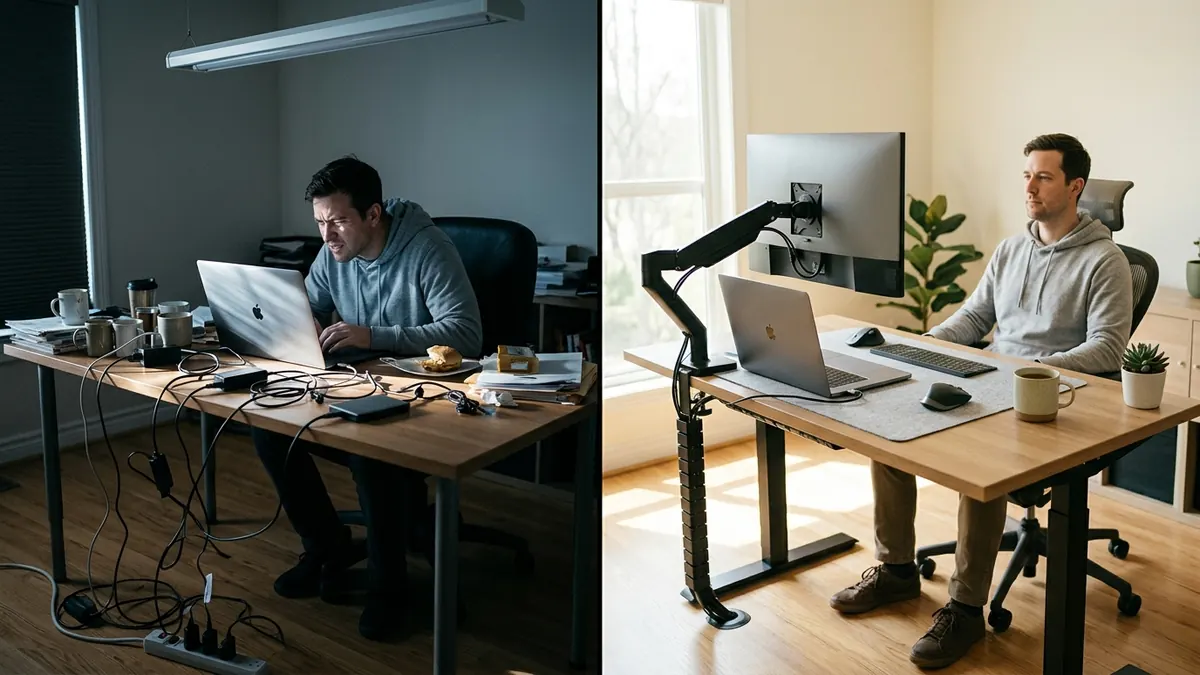
Investing in precision ergonomic alignment produces quantifiable physiological and productivity gains. The table below illustrates the structural differences between an uncalibrated desk and a fully optimized setup:
| Workspace Feature | Standard Uncalibrated Desk | Fully Aligned Ergonomic Workstation | Daily Health Outcome |
|---|---|---|---|
| Display Mounting | Static OEM plastic stand (low height) | Gas-spring articulating monitor arm | Eliminates forward head posture & cervical spine loading |
| Sightline Angle | 30°–45° downward gaze | 0°–15° natural eye-level horizon | Reduces upper trapezius fatigue and neck spasms |
| Surface Interface | Hard desk wood/laminate edge | High-density PU leather desk mat | Eliminates wrist contact stress & carpal tunnel pressure |
| Lighting Quality | Harsh ceiling light or conical desk lamp | Asymmetric 50cm monitor light bar | Cuts glare, balances contrast, prevents evening eye strain |
| Cable Infrastructure | Tangled floor cords & dangling wires | Integrated steel under-desk cable tray | Prevents port damage and reduces visual cognitive distraction |
Frequently Asked Questions
What is the most important piece of equipment for ergonomic workstation alignment?
An adjustable monitor arm is the single most impactful ergonomic tool. It decouples screen height from desk height, allowing you to position the display at your exact eye level regardless of whether you are sitting or standing, instantly eliminating the root cause of forward neck flexion.
How high should my desk be when sitting?
For most individuals between 5’8″ and 6’0″, standard ergonomic desk height is between 28 and 30 inches. However, the exact measurement should align perfectly with your seated elbow height when shoulders are relaxed and feet are resting flat on the floor.
How far should my computer monitor be from my face?
Your screen should sit between 20 and 30 inches away from your eyes—roughly one arm’s length. If you can touch the screen surface with the flat of your palm when extending your arm straight out, your focal distance is properly calibrated.
Can bad desk ergonomics cause chronic headaches?
Yes. Forward head tilt strains the suboccipital muscles at the base of the skull, compressing the greater occipital nerves and triggering cervicogenic tension headaches that radiate across the temples and forehead by late afternoon.
Is a standing desk alone enough to fix poor ergonomics?
No. A standing desk only provides height variability. If your screens, keyboard, and lighting are poorly aligned while standing, you simply replicate sitting posture dysfunctions on your feet. True ergonomic workstation alignment requires calibrating all hardware components in both positions.
How does cable management relate to ergonomic health?
Tangled cables under the desk restrict legroom, preventing users from positioning their feet flat and forcing awkward seated leg angles. Clean under-desk cable routing ensures complete leg mobility and creates a calm, focused mental environment.