
For data analysts, financial modelers, and software engineers, screen real estate directly influences analytical throughput. When managing multiple spreadsheets, SQL queries, and real-time communication feeds, the debate between a dual vs ultrawide monitor setup is one of the most critical hardware investments you will make. While an ultrawide display offers a continuous bezel-free panoramic canvas, a dual monitor workstation delivers physical window compartmentalization and independent tilt customization. In this ergonomic analysis, we evaluate the biomechanics of ocular scanning, focal curvature, and desk footprint to help you select the ideal display architecture.
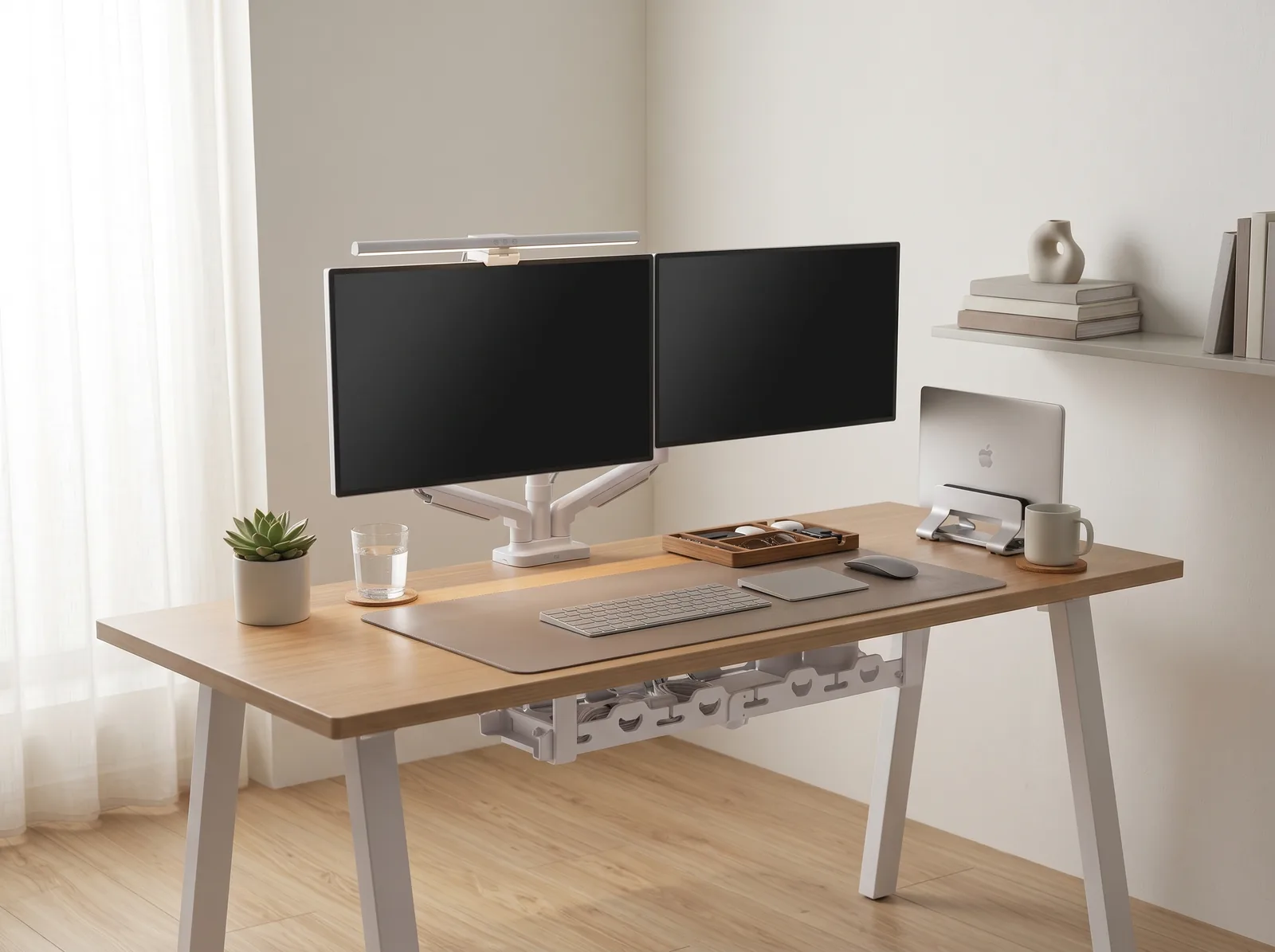
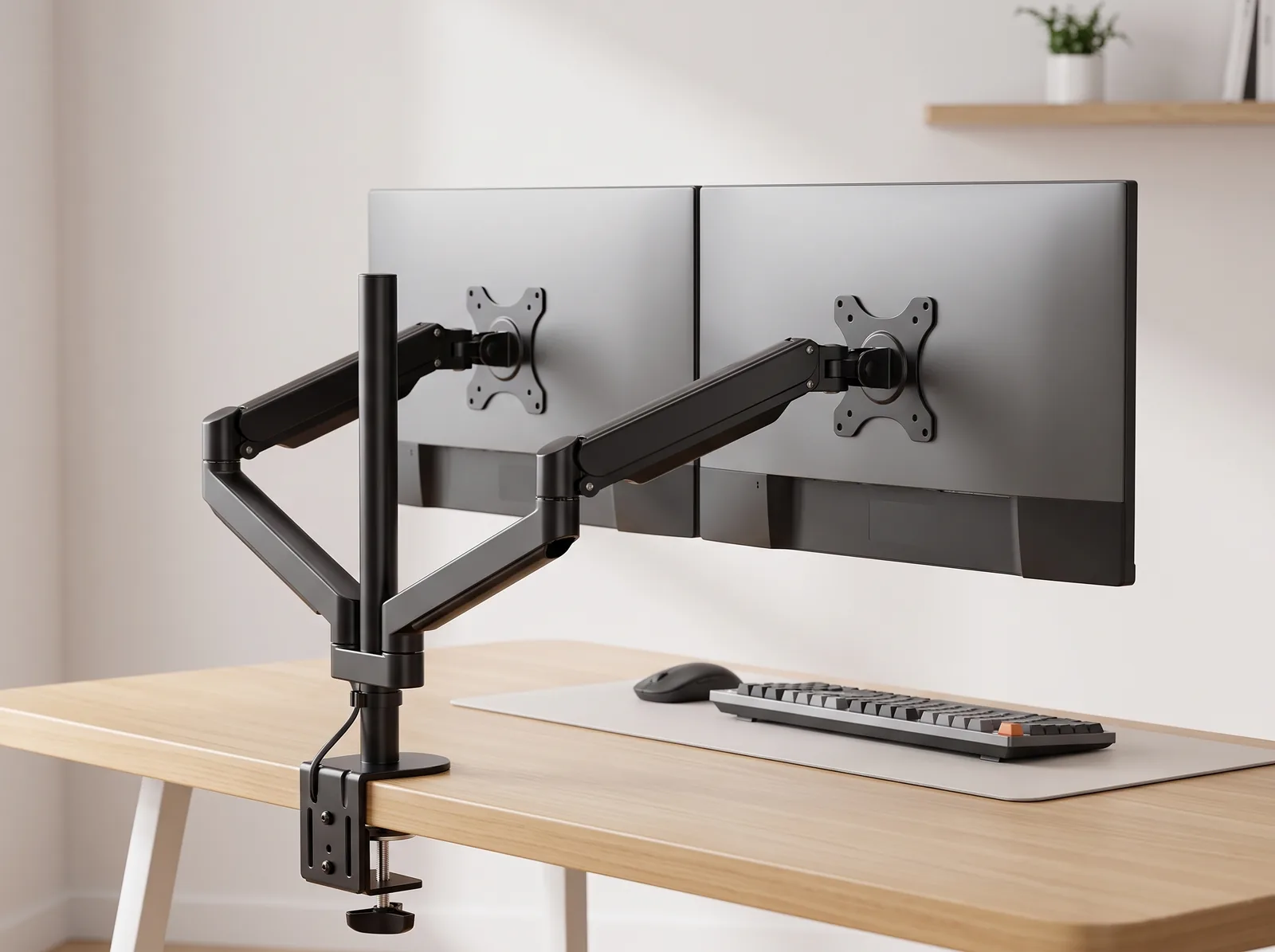
Whether you choose two independent panels or a heavy panoramic curved display, securing your setup on a high-capacity Dual Monitor Arm Stand or a reinforced Full-Motion Single Monitor Arm ensures stable, vibration-free ergonomics.
Biomechanical Comparison: Ocular Saccades vs. Cervical Rotation
When analyzing extensive financial statements or multi-column data frames, human eyes rely on two visual mechanics: rapid involuntary eye movements called saccades, and gross head turns powered by the neck muscles. Ergonomically, eye saccades consume minimal metabolic energy, whereas frequent head rotation exceeding 20° strains the upper spinal column.
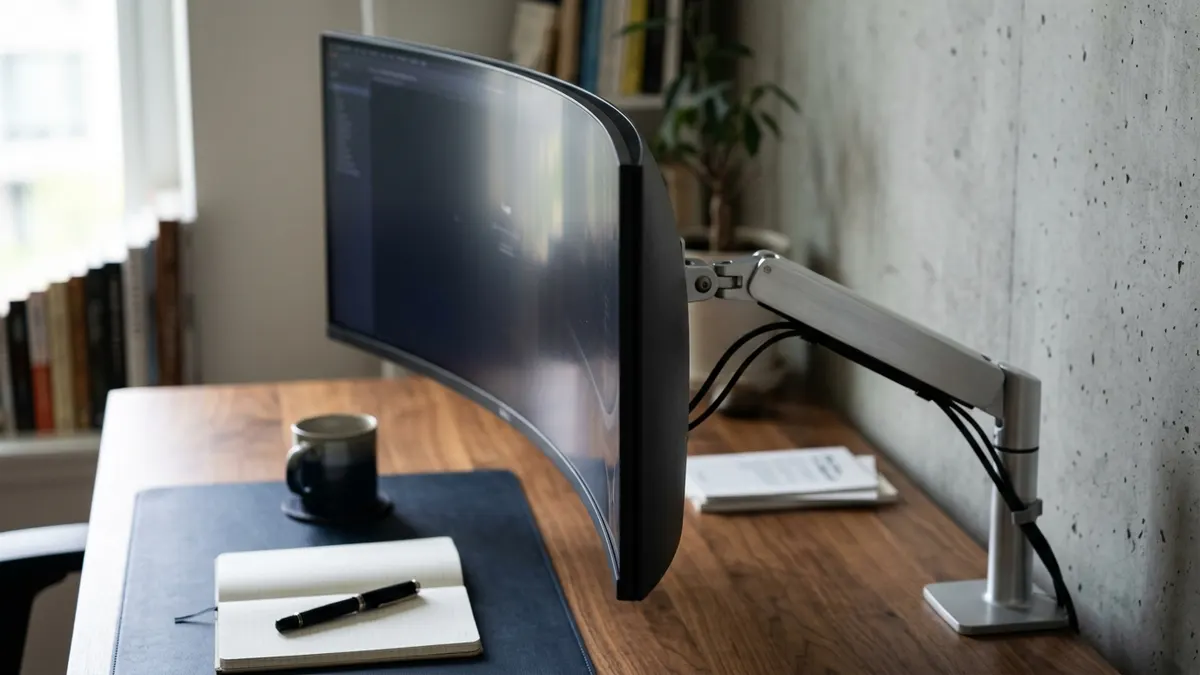
The ergonomic difference between ultrawide and dual monitors lies in curvature continuity: a 1800R or 1500R curved ultrawide allows smooth horizontal ocular tracking across a single visual field, whereas dual monitors provide greater total pixel acreage and independent tilt customization at the cost of a central bezel boundary.
Research published by the Cornell University Ergonomics Research Group demonstrates that wide visual displays require curved geometry to prevent peripheral distortion. A flat 34-inch or 49-inch display forces the user’s peripheral vision to perceive pixels at an acute angle, inducing refractive eye fatigue. Curved ultrawide monitors (specifically with 1800R to 1000R radii) curve inward to match the biological curvature of the human retina, keeping pixels equidistant from the cornea.
For more insights on workstation ergonomics for numbers-driven professionals, explore our guide on the dual monitor workstation for financial analysts.
Detailed Comparison: Ultrawide vs. Dual Monitors for Analysts
To help you decide between a single ultrawide panel and dual independent monitors, consider the primary operational attributes compared in the table below:
| Workspace Metric | 34″–38″ Curved Ultrawide | Dual 27″ QHD Monitors | 49″ Super-Ultrawide (32:9) |
|---|---|---|---|
| Aspect Ratio | 21:9 panoramic | Two 16:9 displays (32:9 total) | 32:9 extreme panoramic |
| Total Pixel Resolution | 3440 x 1440 (~4.95M pixels) | Two x 2560 x 1440 (~7.37M pixels) | 5120 x 1440 (~7.37M pixels) |
| Bezel Disruption | Zero (Continuous glass panel) | Center or off-center seam (~15–20mm) | Zero (Single seamless panel) |
| Window Snapping | Requires software tiling (FancyZones) | Hardware-level native snapping | Requires virtual display partitioning |
| Screen Sharing During Calls | Awkward (tiny text on viewer screens) | Flawless (share Display 2 cleanly) | Difficult without window-region cropping |
| Weight on Monitor Arm | 6.5 – 9.0 kg | 4.5 – 5.5 kg per monitor (10–11 kg total) | 12.0 – 16.0 kg (Requires heavy-duty arm) |
In my professional audits for trading floors and corporate analytics teams, analysts who spend over 50% of their day on video calls sharing slides consistently prefer dual monitors because sharing a single 16:9 monitor delivers an optimal viewing experience for clients, whereas sharing a 21:9 or 32:9 ultrawide panel produces letterboxed, unreadable text on recipients’ laptops.
To explore how display counts affect cognitive focus and multitasking, read our analysis on single monitor vs dual monitor productivity.

Step-by-Step: Setting Up an Ergonomic Analyst Workstation
Whether deploying dual monitors or an ultrawide, follow this ergonomic mounting procedure to preserve spinal alignment:
-
Choose the Correct Mounting Arm Capacity:
Verify that your monitor arm’s maximum payload exceeds your monitor’s net weight (excluding factory stand). Standard gas springs support up to 9kg (ideal for 34″ ultrawides or dual 27″ screens), while 49″ displays require heavy-duty mechanical pivot springs rated up to 16kg. -
Center the Primary Horizon:
For an ultrawide, align the center of the panel directly with your nose. For dual monitors, if you use one screen 70% of the time, place it directly in front of you and position the secondary screen angled 25° inward. -
Calibrate Tilt and Viewing Distance:
Position screens 24 to 30 inches away from your seated eye point. Tilt the top edge back 5° to 10° to align with your natural downward line of sight. -
Standardize Software Partitioning:
If using an ultrawide, install window tiling software (such as Microsoft PowerToys FancyZones) to partition your screen into a 3-column layout: reference data on the left, active calculation spreadsheet in the center, and communication feeds on the right. -
Tuck Cabling Securely:
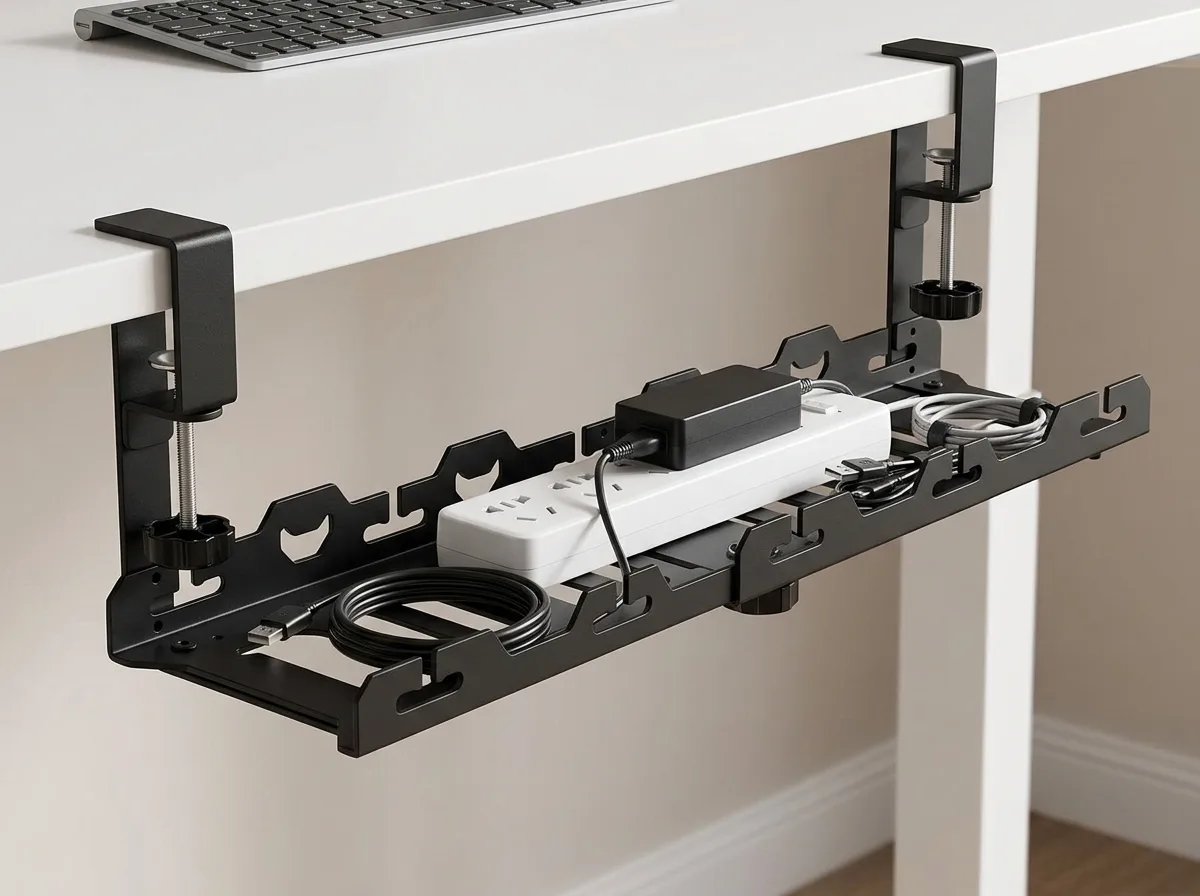
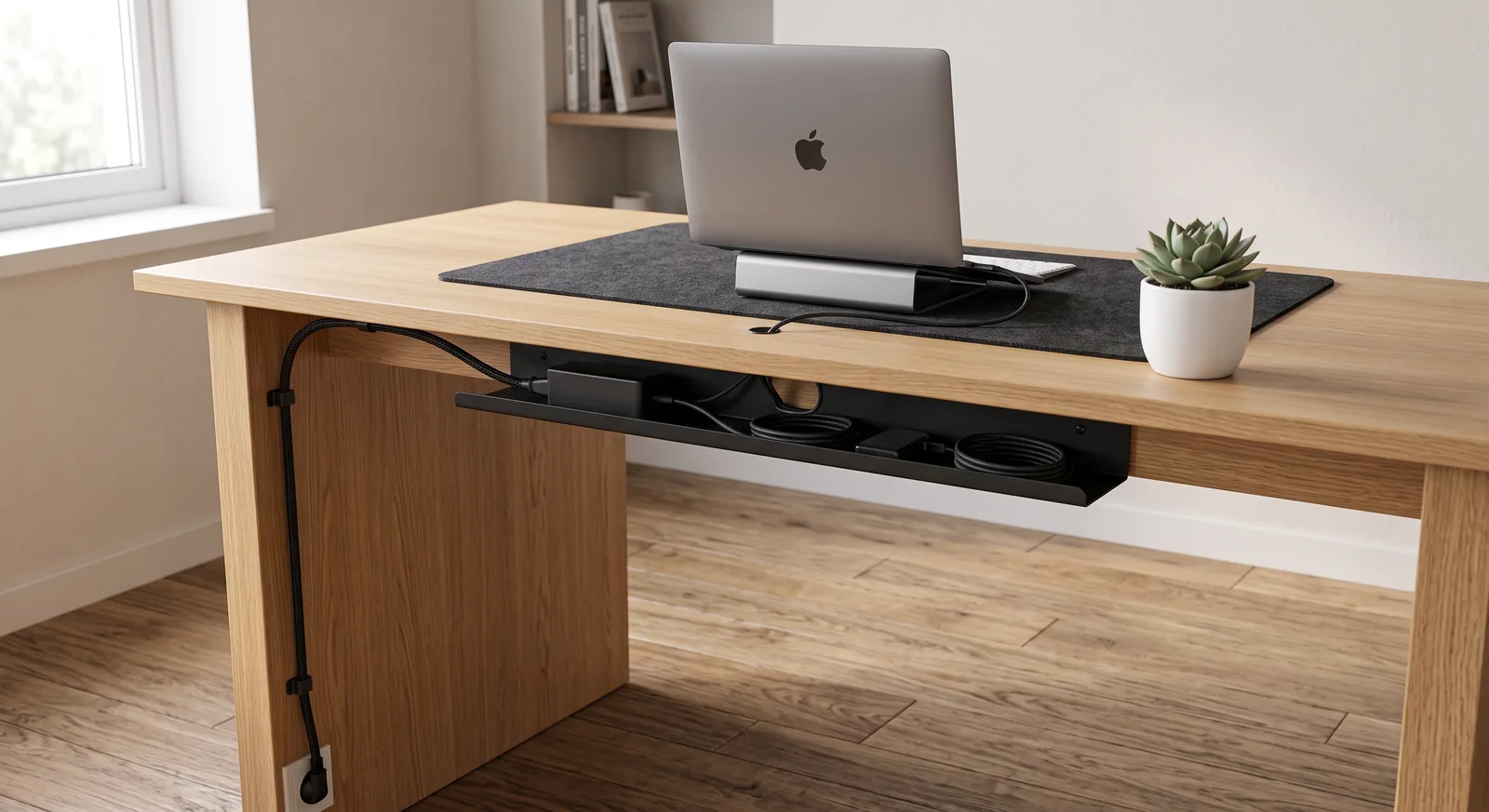
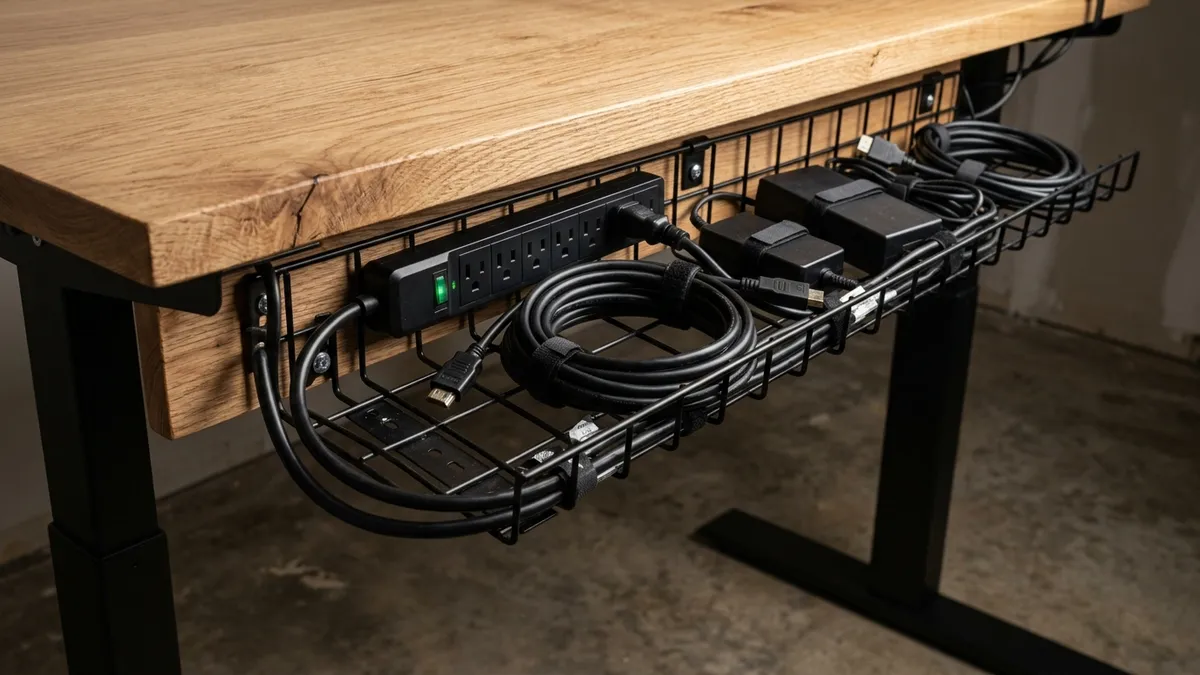
Utilize heavy-duty articulating arm channels and under-desk cable trays to eliminate cord tension during standing transitions.
Frequently Asked Questions About Ultrawide vs. Dual Monitors
Which is better for Excel spreadsheets: ultrawide or dual monitors?
A curved ultrawide monitor (such as a 34-inch or 49-inch panel) is superior for viewing wide, horizontal Excel sheets with 50+ columns because it displays continuous rows without a central bezel cutting through data cells.
Can a standard monitor arm hold a 34-inch ultrawide?
Only if the monitor arm is rated for the screen’s weight (typically 6.5kg to 9kg). Many budget arms suffer from tilt-sag on ultrawides because the curved weight distribution shifts the center of gravity forward. Look for high-torque tilt joints.
Are dual monitors better than ultrawide for video meetings?
Yes. Dual monitors make screen sharing seamless because you can share Display 2 at a standard 16:9 aspect ratio while keeping your confidential notes, emails, and cameras on Display 1. Ultrawide screen sharing often results in tiny, unreadable text on viewers’ screens.
What curvature is best for an ultrawide monitor?
For 34-inch to 38-inch ultrawides, an 1800R or 1500R curvature provides the ideal ergonomic balance, matching the natural focal arc of your eyes without distorting straight architectural or design lines.
Do dual monitors consume more power than a single ultrawide?
Yes, two 27-inch monitors typically consume 50W to 80W combined, whereas a single 34-inch ultrawide draws approximately 35W to 55W, reducing power draw and eliminating an entire power brick from your under-desk tray.
Resolution Density and Font Scaling: 1440p vs. 4K for Analytical Detail
Beyond screen dimensions and curvature radii, pixel density (measured in pixels per inch or PPI) plays a decisive role in analytical stamina. When examining complex financial tables, Bloomberg terminals, or high-density time series charts, standard 1080p resolution forces heavy anti-aliasing blurring on small text characters. A 34-inch ultrawide display running at UWQHD (3440 x 1440) yields approximately 110 PPI—the exact sweet spot for 100% native operating system scaling without requiring font magnification. Conversely, dual 27-inch 4K panels deliver 163 PPI, producing laser-sharp vector graphics and mathematical symbols, but require 150% desktop scaling. For quantitative analysts who prioritize rendering the maximum number of simultaneous data points per square inch without scrolling, dual 1440p or 4K panels hold a distinct structural edge over standard ultrawides.
GPU Rendering Overhead and Cable Bandwidth Constraints
A frequently neglected factor when choosing display hardware is graphics processor (GPU) workload and cable interface bandwidth. Driving a massive 49-inch super-ultrawide at 5120 x 1440 at 120Hz or dual 4K panels at 60Hz pushes the absolute limits of DisplayPort 1.4 and HDMI 2.0 standards. In our hardware audits, corporate laptops connected via under-powered USB-C hubs often suffer from screen flickering or dropped refresh rates down to 30Hz, inducing severe optical micro-stuttering that exhausts the visual cortex. Ensure your docking station supports multi-stream transport (MST) or dedicated Thunderbolt 4 dual-channel output with minimum 40Gbps throughput before investing in multi-panel setups.